6.8 – Moments
Introduction
We care about the shape of data distribution because it can impact statistical inference. If the shape of the observed distribution differs from the standard, eg, normal, then one option is to transform the data (see Chapter 13 – Assumptions of parametric tests).
Moments are used to describe the shape of a distribution. For those of you who remember your calculus, moments were discussed as a method to find the center of mass, or balancing point (Herman and Strang 2018). For distributions, the center and shape moments follow from the expected value of the probability function.
Note 1: Expected value of a statistic is calculated by multiplying the likelihood of each possible outcome in a sample space, then adding up all of those values. From probability theory it is the weighted average of the outcomes of a random variable. A simpler way to think of the expected value is that if one were to guess the height of a person, the expected value is the average height of the population from which the person would be selected.
Four moments apply for describing the shape of a distribution. The 1st moment describes the middle, the 2nd describes the spread from the middle, the 3rd describes symmetry about the middle, and the 4th describes the shape, whether peaked and sharp (leptokurtic), or broad and flattened (platykurtic).
Equations for the moments
Over the years, several equations have been proposed to estimate skewness and kurtosis. The above formulas are just one example from the list (Joanes and Gill 1998).
Pearson’s standardized moments:
![\begin{align*} \frac{\mu_{n}}{\sigma ^{n}}\equiv \frac{E\left [ X-\mu \right ]^{n}}{\sigma ^{n}} \end{align*}](https://biostatistics.letgen.org/wp-content/ql-cache/quicklatex.com-9b3275c780ca09d2cddbb8a57f099063_l3.png "Rendered by QuickLaTeX.com")
where E is expected value of random variable. The expected value concept follows from rules of probability — basically, the average of large number, n, of X.
Four moments can be used to describe the shape of a distribution.
1st moment, μ (mean): population mean, 3.1 – Measures of Central Tendency
2nd moment, σ2 (variance): population variance, 3.2 – Measures of dispersion
3rd moment,  (skew):
![\begin{align*} \frac{\mu_{3}}{\sigma ^{3}}=\frac{\sqrt{n\left ( n-1 \right )}}{n-2}\left [ \frac{\frac{1}{n}\sum \left ( X-\mu \right )^3}{\left ( \frac{1}{n}\sum \left ( X-\mu \right )^2 \right )^3} \right ] \end{align*}](https://biostatistics.letgen.org/wp-content/ql-cache/quicklatex.com-a2b47ea0fc3a005dc31f6edfb318f001_l3.png "Rendered by QuickLaTeX.com")
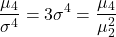
4th moment,  (kurtosis):
Estimating moments in R and R Commander
Consider results for more than a thousand runners who completed a 5K timed run (Fig 1).
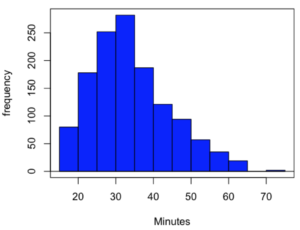
Figure 1. Histogram finishing times in minutes for 1307 runners at 2016 Banana 5K.
The task is to describe the moments for the 5K data set.
Recall: The first moment is the mean. The second moment is the variance. The third moment is skewness. And the fourth moment is kurtosis.
In R Commander, we select Statistics → Summaries → Numerical summaries…, which brings up a popup menu. First, select the variable, in this case Minutes, from the Data tab (not shown). Next, click on Statistics tab to choose options (Fig 2).
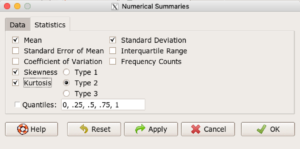
Figure 2. Rcmdr Numerical summaries Statistics tab.
For estimates of the moments, check Mean, Standard Deviation, Skewness, and Kurtosis.
Note 2: R Commander gives you the choice among three different Types of skewness and kurtosis. The default is type 2 and that’s the one you should go with. Type 1, the classical method which include the equations provided on this page, corresponding to definitions dating back to the 1940s. Type 2 is the default in R and corresponds to equations used by other professional statistics package (SAS, SPSS). Type 3 is used by other statistical packages (eg, Minitab). For large sample size, the different types will tend to agree. Caution applies to smaller data sets — the different types may disagree (Joanes and Gill 1998), although only for the third and fourth moments.
Large sample size, n = 1307
Type 1
    mean       sd  skewness    kurtosis    n
34.42999 10.31437 0.6159258 -0.01593882 1307
Type 2
    mean       sd  skewness    kurtosis    n
34.42999 10.31437 0.6166337 -0.01139521 1307
Type 3
    mean       sd skewness    kurtosis    n
34.42999 10.31437 0.615219 -0.02050335 1307
Small sample size
To test the claim about sample size and the moment statistics, draw a random sample of 30 from the larger data set. Sample without replacement
sample.banana <- data.frame(sample(banana5K$Minutes, 30, replace = FALSE))
I forgot to specify a new variable name, so R used the whole command as the variable name. I could go back and fix my function call, or simply rename the variable as follows
names(sample.banana)[c(1)] <- c("Minutes")
The random sample yielded a distribution (Fig 3).
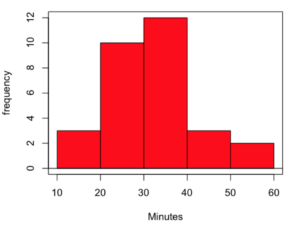
Figure 3. Histogram finishing times in minutes for random sample of 30 drawn from 1307 runners at 2016 Banana 5K.
Repeat Numerical summaries on small data set, n = 30
Type 1
    mean       sd  skewness  kurtosis  n
33.16667 10.00373 0.5538637 0.5024438 30
Type 2
    mean       sd  skewness  kurtosis  n
33.16667 10.00373 0.5834511 0.8276415 30
Type 3
    mean       sd  skewness  kurtosis  n
33.16667 10.00373 0.5264025 0.2728392 30
Conclusion: We can compare consistency of the estimators by calculating coefficient of variation. The three types of skewness estimators differed by only 1% and 5% for large and small sample size, respectively. In contrast, the three types of kurtosis estimators differed by 29% and 52% for large and small sample size, respectively.
Questions
- Explore the consistency of skewness and kurtosis estimates by calculating and comparing coefficient of variation estimates. R Commander provide a nice way to draw randomly from various defined distributions. Draw two data sets of 15 (small) and 1000 (large), from the chi-square distribution (1 degree of freedom) and a minimum of one other continuous distribution.
Example, draw random sample of 1000 from chi-square distribution. Rcmdr: Distributions → Continuous distributions → Chi-squared distribution → Sample from chi-squared distribution... (Fig 4).
Enter name for the variable, enter degrees of freedom (eg, 1), number of samples (eg, 1000), and number of observations (variables, columns). Leave Sample means checked under data sets.
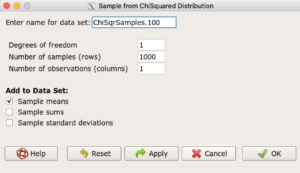
Figure 4. Screenshot Rcmdr menu: Sample from Chisquare distribution.
This results in a new data set. Get “moments” from Numerical summaries and calculate coefficient of variations. Which moments have the most consistency regardless of the kind of distribution.
- Make histograms for each of your created data sets. Describe what you see about the shape of the plotted distributions.
Quiz Chapter 6.8
Moments
Chapter 6 contents
- Introduction
- Some preliminaries
- Ratios and proportions
- Combinations and permutations
- Types of probability
- Discrete probability distributions
- Continuous distributions
- Normal distribution and the normal deviate (Z)
- Moments
- Chi-square (Χ2) distribution
- t distribution
- F distribution
- References and suggested readings
12.4 – ANOVA from “sufficient statistics”
Introduction
By now you should be able to run a one-way ANOVA using R (and R Commander) with ease. As a reminder, You should also be aware that, if you need to, you could use spreadsheet software like Microsoft Excel or LibreOffice Calc to run one way ANOVA on a small data set. Still, there are times when you may need to run a one-way ANOVA on a small data set, and doing so by hand calculator may be just as convenient. What are your available options?
Following the formulas I have given would be one way to calculate ANOVA by hand, but it would be tedious and subject to error. Instead of working with the standard formulas, calculator shortcuts can be derived with a little algebra and this is where I want to draw your attention now. This technique will come in handy in lab classes or other scenarios where you collect some data among a set number of groups and calculate means and standard deviations. The purpose of this posting is to show you how to obtain the necessary statistics to calculate a one-way ANOVA from the available descriptive statistics: means, standard deviations, and sample sizes. In other words, these are the sufficient statistics for one-way ANOVA.
Note 1: In Chapter 11.5, we introduced use of summary statistics, ie, “sufficient statistics,” to calculate the independent sample t-test.
As you recall, a one-way ANOVA yields a single F test of the null hypothesis that all group means are equal. To calculate the F test, you need
- Mean Square Between Groups,

- Mean Squares Within Groups or Error,

F is then calculated as

with degrees of freedom k – 1 for the numerator and N – 1 for the denominator. can also appear as 
We can calculate as
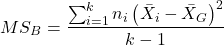
where k is the number of i th groups, ni is the sample size of the ith group,  refers to the overall mean for all of the
  sample means.
Next, for the Error Mean Square, , all we need is the average of the sample variances (the square of the sample standard deviation, s).
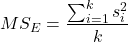
ANOVA from sufficient statistics
Consider an example data set (Table 1) for which only summary statistics are available (mean and standard deviation, sd). The data set is for life span(days) for several inbred strains of laboratory mice from a study (. Sample size for each group was seven mice.
Table 1. Descriptive statistics female life span (days) for ten different inbred strains of mice (Mus domesticus).
| Strains | n | mean | sd |
|---|---|---|---|
| 129S1/SvImJ | 32 | 787.4 | 159.16 |
| A/J | 32 | 630.7 | 130.20 |
| BALB/cByJ | 32 | 734.4 | 154.43 |
| BUB/BnJ | 24 | 611.3 | 218.34 |
| C3H/HeJ | 29 | 724.1 | 131.48 |
| C57BL/6J | 29 | 855.7 | 185.34 |
| CBA/J | 30 | 622.9 | 181.95 |
| FVB/NJ | 26 | 750.3 | 230.11 |
| P/J | 32 | 676.0 | 178.82 |
| SWR/J | 31 | 831.9 | 181.31 |
Data from Yuan et al (2021; https://phenome.jax.org).
Spreadsheet calculations.
You have several options at this point, ranging from using your calculator and the formulas above (don’t forget to square the standard deviation to get the variances!), or you could use Microsoft Excel or LibreOffice Calc and enter the necessary formulas by hand (Table 2). You’ll also find many online calculators for one-way ANOVA by sufficient statistics (eg, https://www.danielsoper.com/statcalc/calculator.aspx?id=43).
Table 2. Spreadsheet with formulas for calculating one-way ANOVA from means and standard deviations from statistics presented in Table 1.
| A | B | C | D | E | F | G | H | I | |
| 1 | Strain | n | Mean | sd | squared | variance | grand mean |
=AVERAGE(C:C) | |
| 2 | 129S1/SvImJ | 32 | 787.4 | 159.16 | =B2*(C2-$I$1)^2 | =D2^2 | dfB | =COUNT(B:B)-1 | |
| 3 | A/J | 32 | 630.7 | 130.2 | =B2*(C3-$I$1)^2 | =D3^2 | dfE | =SUM(B:B)-I2 | |
| 4 | BALB/cByJ | 32 | 734.4 | 154.43 | =B2*(C4-$I$1)^2 | =D4^2 | Msb | =SUM(E:E)/(COUNT(E:E)-1) | |
| 5 | BUB/BnJ | 24 | 611.3 | 218.34 | =B2*(C5-$I$1)^2 | =D5^2 | Mse | =SUM(F:F)/COUNT(F:F) | |
| 6 | C3H/HeJ | 29 | 724.1 | 131.48 | =B2*(C6-$I$1)^2 | =D6^2 | F | =I4/I5 | |
| 7 | C57BL/6J | 29 | 855.7 | 185.34 | =B2*(C7-$I$1)^2 | =D7^2 | P-value | =FDIST(I6,I2,I3) | |
| 8 | CBA/J | 30 | 622.9 | 181.95 | =B2*(C8-$I$1)^2 | =D8^2 | |||
| 9 | FVB/NJ | 26 | 750.3 | 230.11 | =B2*(C9-$I$1)^2 | =D9^2 | |||
| 10 | P/J | 32 | 676.0 | 178.82 | =B2*(C10-$I$1)^2 | =D10^2 | |||
| 11 | SWR/J | 31 | 831.9 | 181.31 | =B2*(C11-$I$1)^2 | =D11^2 |
For this example, you should get the following
MSB = 219899.5
MSE = 31634.1
F = 6.951
P-value = 4.45E-09
Note 2: The number of figures reported for the P-value implies a precision that the data simply do not support. For a report, recommend writing the P-value < 0.001. But note — truncating the p-value diminishes the value to others who may wish to conduct a meta analysis using your work (Chapter 20.15)!
But, R can do it better.
Here’s how. Install the HH package (or RcmdrPlugin.HH for use in Rcmdr) and call the ?aovSufficient function.
Step 1. Install the HH package from a CRAN mirror, eg, cloud.r-project.org, in the usual way.
chooseCRANmirror()
install.packages("HH")
library(HH)
Step 2. Enter the data. Do this in the usual way (eg, from a text file), or enter directly using the read.table command as follows.
MouseData <- read.table(header=TRUE, sep = ",", text= "
Strain, n.size, average, stdev
129S1, 32, 787.4, 159.16
A.J, 32, 630.7, 130.20
BALB.c, 32, 734.4, 154.43
BUB.BnJ, 24, 611.3, 218.34
C3H.HeJ, 29, 724.1, 131.48
C57BL.6J, 29, 855.7, 185.34
CBA.J, 30, 622.9, 181.95
FVB.NJ, 26, 750.3, 230.11
P.J, 32, 676.0, 178.82
SWR.J, 31, 831.9, 181.31")
#Check import
head(MouseData)
End of R input
I know, a little hard to read, but from the MouseData to the end bracket ") before the comment line #Check import, that’s all one command.
Of course, you could copy the data and import the data from your computer’s clipboard in Rcmdr: Data → Import data → from text file, clipboard, or URL…
Note 3: Hint: for field separator, try comma; if that fails, try Tabs
Once the data set is loaded, proceed to Step 3.
Step 3. In our example, sample size was included for each group. Skip to step 4. If, however, the table lacked the sample size information, you can always add a new variable. For example, if we needed to add sample size to the data frame, we would use the repeat element function, rep().
MouseData$n <- rep(7, 10)
If you check the View data set button in Rcmdr, you will see that the command in Step 3 has added a new variable “n” for each of the eleven rows. The function rep() stands for “replicate elements in vectors” and what it did here was enter a value of 7 for each of the ten rows in the data set. Again, this step is not necessary for this example because sample size is already part of the data frame. Proceed to step 4.
Step 4. Run the one way ANOVA using the sufficient statistics and the HH function aovSufficient
MouseData.aov <- aovSufficient(average ~ Strain, data=MouseData)
Step 5. Get the ANOVA table
summary(MouseData.aov)
Here’s the R output
           Df  Sum Sq Mean Sq F value   Pr(>F)
Strain      9 1977732  219748   7.123 2.54e-09 ***
Residuals 287 8853743   30849
---
Signif. codes:  0 '***' 0.001 '**' 0.01 '*' 0.05 '.' 0.1 ' ' 1
End R output
To explore other features of the package, type ?aovSufficient at the R prompt (like all R functions, extensive help is generally available for each function in a package).
Meta-analysis and sufficient statistics.
Meta-analysis (see Chapter 20.15 — Meta-analysis), can be performed using sufficient statistics from different tests. Combining sufficient statistics allows for a more precise overall estimate by effectively merging the information from multiple studies, which can be especially useful when individual studies have small sample sizes or lack a unified outcome measure. Common methods include creating summary effect sizes like the standardized mean difference or using p-value combination methods, while ensuring the underlying statistical assumptions are met through goodness-of-fit tests.
Fisher’s method combines the p-values from multiple independent studies into a single overall p-value to test a joint null hypothesis. The method’s test statistic is calculated as the sum of the negative log-transformed p-values. P-values from  number of tests are combined; each p-value,
  , contributes to a variable,
  , with
  degrees of freedom. The chi-square distribution is used to evaluate the significance of the Fisher’s method test statistic.
Fisher’s method is available in several R packages (eg,poolr package); here, we’ll just create a simple R code.
Note 4: Not to be confused with Fisher’s exact test, Chapter 9.5.
Limitations: Methods that only use p-values or test statistics may not adequately address the effects of heterogeneity and potential publication bias among studies. Because many older studies do not report effect sizes and confidence intervals, using test statistics or p-values is often the only available method to combine their results.
Example.
One hypothesis about longevity is that the greater the genetic diversity can lead to longer life. The mice in Table 1 were all from inbred mouse strains. By definition, genetic diversity is restricted in inbred mice, compared to outbred strains. Jackson Labs produced a “Diverse Outbred” line of mice, and a few individuals have lived nearly five years, well past the typical 1 – 2 year lifespan of mice (Cohen 2017, Mullis et al 2025). Thus, a natural comparison is to ask: is there a difference in average lifespan between the DO and inbred mouse strains? We’ll run a series of one-sample t-tests against the mean lifespan for the diverse outbred stock of mice, save the p-values, and apply Fisher’s method. While not strictly a meta-analysis, which would draw from multiple studies, this example outlines the basic steps to take given a series of hypothesis of the same kind.
Note 4: Used another R package, BSDA, for a series of one-sample t-tests. DO mean of 794.5 + 262.85 days (n = 192 females), calculated from supplement data in Mullis et al 2025). R code example:
do_avg= 794.5
# dataset MouseData
tsum.test(average[1], stdev[1], n.size[1], mu=do_avg)
Abbreviated R results
t = -0.25235, df = 31, p-value = 0.8024
Repeat for all ten strains from Table 1; p-values were saved to Table 2.
Obviously, a for loop would be appropriate here! The R code extracts p-values from each of the ten tests and saves to p_values object.
p_values <- numeric(length(average))

for (i in 1:length(average)) {
     suppressWarnings({
      test_result <- tsum.test(
      mean.x = average[i],
      s.x = stdev[i],
      n.x = n.size[i],
      mu = do_avg
      )
      p_values[i] <- test_result$p.value
      })
     }

print(p_values)
I’ve wrapped the tsum.test in a suppressWarnings({}) line to prevent multiple, but harmless warnings the code causes. Use of tidyverse would help clean this code up.
The p-values from all ten tests are sorted by strain in Table 2.
Table 2. Results of one sample t-tests inbred strains (Table 1) compared to average lifespan of the J:DO diversity outbred mouse strain from Jackson labs
| Strains | p-value | Strains | p-value | |
| 129S1/SvImJ | 0.8204 | C57BL/6J | 0.08623 | |
| A/J | 5.367e-08 | CBA/J | 1.601e-05 | |
| BALB/cByJ | 0.03527 | FVB/NJ | 0.3368 | |
| BUB/BnJ | 0.0004274 | P/J | 0.0007307 | |
| C3H/HeJ | 0.007479 | SWR/J | 0.2598 |
R-code for Fisher’s method
my_pValues <- c(0.08623, 1.601e-05, 0.3368, 0.0007307, 0.2598)
X_squared <- -2 * sum(log(my_pValues),base = exp(1))
myDf <- 2 * length(my_pValues)
combinedP <- pchisq(X_squared, myDf, lower.tail = FALSE)
result_table <- as.data.frame(rbind(X_squared, myDf, combinedP))
rownames(result_table) <- c("chi_sqr", "df", "P-value")
colnames(result_table) <- c("Value")
print(result_table)
and the R output
                Value
chi_sqr 44.7017431931
     df 16.0000000000
P-value 0.0001541831
With the small p-value, we would reject the null hypothesis of no difference in lifespan among the inbred strains compared to the genetically diverse DO strain of mice.
Limitations of ANOVA from sufficient statistics.
This was pretty easy, so it is worth asking — Why go through the bother of analyzing the raw data, why not just go to the summary statistics and run the calculator formula? First, the chief reason against the calculator formula and use of only sufficient statistics loses information about the individual values and therefore you have no access to the residuals. The residual of an observation is the difference between the original observation and the model prediction. The residuals are important for determining whether the model fits the data well and are, therefore, part of the toolkit that statisticians need to do proper data analysis. We will spend considerable time looking at residual patterns and it is an important aspect of doing statistics correctly.
Secondly, while it is possible to extend this approach to more complicated ANOVA problems like the two-way ANOVA (Cohen 2002), the statistical significance of the interaction term(s) calculated in this way are only approximate (the main effects are OK to interpret). Thus, ANOVA from sufficient statistics has its place when all you have is access to descriptive statistics, but its use is limited and not at all the preferred option for data analysis when the original, raw observations are in hand.
Questions
1. Calculate the one-way ANOVA for body weight of 47 female (F) and 97 male (M) cats (kilograms, dataset cats in MASS R package) from the following summary statistics.
| n | Mean | sd | |
| F | 47 | 2.36 | 0.274 |
| M | 97 | 2.9 | 0.468 |
2. Bonus: Load the cats data set (package MASS, loaded with Rcmdr) and run a one-way ANOVA using the aov() function via Rcmdr. Are the ANOVA from sufficient statistics the same as results from the direct ANOVA calculation? If not, why not.
Quiz Chapter 12.4
ANOVA from “sufficient statistics”
Chapter 12 contents
3.2 – Measures of Central Tendency
- Introduction to summary statistics.
- Other “means”.
- How to calculate these other means.
- Do try on your own!.
- Other measures of central tendency.
- Why the median may be a better middle than the mean.
- Scaling and transformation of data.
- R operators.
- Creating objects in R.
- R code calculate central tendency.
- There’s an R package for that.
- Use aggregate() to calculate summary statistics by group.
- Questions.
- Quiz.
- Chapter 3 contents .
Introduction to summary statistics.
For a sample of observations we can begin the summary by identifying the “typical” value. Various statistics are used to describe the middle and collectively these are referred to as measures of central tendency. The mean, the median, and the mode are the most common measures of central tendency. In the situation in which we work with data from a population census, we would calculate population descriptive statistics — not inferential statistics; because we more often work with samples from populations, we report sample descriptive statistics.
First we review the familiar arithmetic mean and introduce the weighted mean. Next we introduce “other means,” which you may not be as familiar with.
Means.
There are several means beyond the simple arithmetic average or mean. Here we review a few. We use this topic also to start introducing standard notation we will use throughout the book.
The population mean, μ (pronounced “mu”) is given by
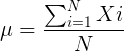
Xi, an observation on the i-th individual
Σ, or “sigma,” which instructs you to add them up (the X’s), from i = 1 (the first observation) to i = N (the last observation).
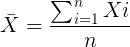
The sample mean,  , pronounced “eks bar,” of a collection of observations is given by
Note 1: Parameters (aka random variables) get Greek letters and sample variables get Roman letters. See Chapter 3.4
Weighted arithmetic mean.
In some cases you may have several samples from the same population. If the sample sizes are the same, you can calculate the average of averages without any fuss — just take all of the sample means and add them up, then divide by the total number of samples. If the sample sizes differ, then you needs to weight (W) each sample mean by its sample size. Simply divide each sample mean by its appropriate sample size, then add all of these up. That is the weighted average.
More generally, we can write

For example, consider a variable containing the following observations, for example, over the course of watching birds gathering at a drinking source (eg, recorded over 20 days, a single 5 minute interval per day), we can count how many times zero, one, two, etc birds are observed.
Table 1. A sample of counts of observations, eg, how many birds
| Observation | Frequency |
|---|---|
| 1 | 0 |
| 2 | 0 |
| 3 | 2 |
| 4 | 4 |
| 5 | 2 |
| 6 | 3 |
| 7 | 2 |
| 8 | 3 |
| 9 | 1 |
The observation “4” was observed four times; the observation “5” was observed twice, and so on for a total of 15 observations.
What is the arithmetic mean of these 15 observations? To solve this, well, you have a couple of choices. You could copy the numbers down as often as they appear and then calculate the mean in the usual way.
Other “means”.
The arithmetic average (illustrated above) is not the only way to estimate the mean.
The trimmed mean, also called the truncated mean, is a useful approach when data is widely dispersed — data spread away from the middle (see Chapter 3.3). Thus, the trimmed mean will be less influenced compared to the arithmetic mean by outlier data points, ie, data far from other data points in the set.
You would use the trimmed mean to describe the middle of a data set in which a plot shows most of the values are clumped together around a middle – and yet you see a few values that are much smaller or much greater. A specified percentage of the smallest and largest values are removed from the data set and then the simple arithmetic mean is calculated for the trimmed data set. For example, given a data set of daily rainfall for different cities, you might wish to remove the driest 5% and wettest 5% of the days in order to better compare the rainfall trends for the cities.
Calculating the trimmed mean is straight-forward in R: use the same built-in function, mean(), but add some options.
Note 2: This is a good time to remind you how to get help with R commands. Do you recall how to get help in R?
At the R prompt type
help(mean) or
?mean
The R Documentation page for mean() will pop up (assuming you allowed R to install help pages as html). Figure 1 shows a screenshot of a portion of the help page for mean()
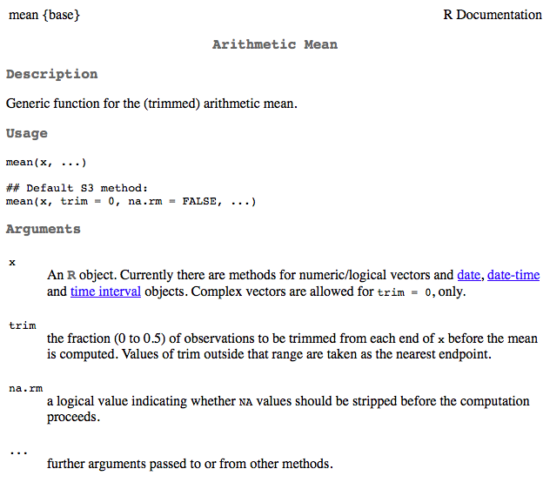
Figure 1. A portion of the R help page about the function mean.
From the help page (Fig 1) we can see that we can specify a trimmed mean by adding options to the mean(x, ...) command. For our x variable defined above, get the trimmed mean after 25% of the data are removed.
mean(x, trim=0.25)[1] 6From the help page we see that the only required option you need to feed the mean command is the name of the variable, in this case, “x” (it can be, of course, any name provided the data are attached). In this case we removed 25% of the values – 12.5% of the smallest values and 12.5% of the largest values – that’s also called the interquartile mean. We use a dot plot to show these trends (Fig 2).
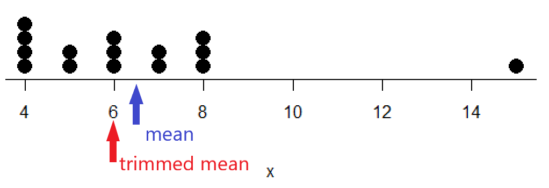
Figure 2. Dot plot of our x variable with locations of the mean (blue) and the trimmed mean (red). The Dotplot(x) function in package RcmdrMisc was used in Rcmdr to make this graphic. Arrows were added by hand. Dotplot() example code presented in Chapter 3.4.
If we recalculate a trimmed mean after dropping 10% of the points, or even 40% of the points, we get the same mean value of 6. The trimmed mean is an example of a robust estimator; it’s resistant to the influence of outliers.
Another useful descriptor of the middle is the geometric mean. The geometric mean is useful for calculating the average of ratios. Geometric mean would be used when you want to compare central tendency for different variables, each differing in scale. For example, gene expression results, reported as fold-changes, for different genes often shows tremendous differences among genes and would be best described by logarithmic scale, not arithmetic scale. Geometric mean expression values would be better choice for central tendency. Other examples are found in economics: for example, calculating compound interest or interest. The geometric mean applies whenever the scale is multiplicative and not additive
The geometric mean is given by the equation

The geometric mean (gm) is equivalent to log-transforming your data, then calculating the arithmetic mean, and transforming the result back (with the antilog exponent.) As you recall, for our simple data set the arithmetic mean was 6.2. The geometric mean for this data was 5.977. Taking the natural log for each of the values from our simple data set, then calculating the arithmetic mean we have 1.788.
The antilog of this value is
exp(1.788)[1] 5.977Another frequently encountered mean is the harmonic mean, which is defined by the equation

Harmonic mean is appropriate for averaging rates. For example, what is the average speed traveled if you travel 30 miles per hour (mph) between point A and B, then on the return trip, your speed was 40 mph? If you think (30 + 40)/2 = 35 mph, then this would be incorrect — after all, the distance covered has not changed, just the time. The harmonic mean returns 34.2 mph. Let
y = c(30,40)The harmonic mean returns 34.2 mph ( see below “How to calculate these other means”)
Both harmonic and geometric means apply for values greater than zero.
How to calculate these “other” means.
In Microsoft Excel, calculate geometric mean via the function GEOMEAN(); calculate harmonic mean via the function HARMEAN().
The base R (and Rcmdr) doesn’t have built in functions for these, although you could download and install some R packages which do (eg, package psych, geometric.mean(variable), harmonic.mean(variable)). It is quicker to just to calculate these by submitting a snippet of code into the script window
For geometric mean of variable “x” at the R prompt type
exp(mean(log(x)))For harmonic mean of variable “x” at the R prompt type
1/mean(1/x)where is the base of the natural logarithm, Euler’s number, and log is the natural logarithm (in R, to get log to other bases you can use log10 for base 10 logarithm or log2 for base 2 logarithm, or log(x, base = n) for any base n of the variable x, and variable is the name of the variable you wish to do the calculations on.
R code: Do try on your own!
Here’s some numbers to try your hand. For example, create a variable containing a few numbers, any numbers. and write it to the variable named z
myZ = c(3,4,6,7,9,11,4)Now, calculate the arithmetic mean, the geometric mean, and the harmonic mean for the variable myZ. You should get Table 4.2)}
Table 2. Comparison of different means for myZ.
| mean | value |
|---|---|
| Arithmetic | 6.285714 |
| Geometric | 5.716403 |
| Harmonic | 5.204936 |
Try three more. In R (or R Commander script window), create three new variables.
varA = c(3,3,3,3)varB = c(1,2,3,12)varC = c(-3,0,1,3)Now, calculate the arithmetic mean, geometric mean, and harmonic mean for each variable.
For the simple arithmetic mean
mean(varA)For the geometric mean, use the formula above
exp(mean(log(varA)))For the harmonic mean, use the formula above
1/mean(1/varA)What did you get?
Other measures of central tendency
Median
The median, which lacks an accepted notation — we’ll go with  , divides a set of observed numbers into two equal halves. Half the observations are above the median, half of the observations are below the median. Arrange data from lowest to highest, take the middle measurement:

odd number of measurements minus the middle value minus even number of measurements minus average of the 2 middle values

Or, more succinctly, we have
![\begin{align*}Med(X) = \left\{\begin{matrix} X\left [ \frac{n+1}{n} \right ] & if \ n \ is \ odd\\ \frac{X\frac{n}{2}+X\frac{n}{2}+1}{2} & if \ n \ is \ even \end{matrix}\right. \end{align*}](https://biostatistics.letgen.org/wp-content/ql-cache/quicklatex.com-9a1a58dc16fffb57b1de96b28c65f0dc_l3.png "Rendered by QuickLaTeX.com")
To get the median in R type at the R prompt
median(variable)and of course, replace variable with the name of the variable containing the numbers. For our x variable created earlier, the function median returns in R
[1] 6[Note that the median for x was the same as the trimmed mean for x, which is consistent with with our view that the trimmed mean is a robust estimator of the middle of a data set.
Mode
Mode is another way to express the middle and it refers to the most frequent occurring measurement. Use of mode makes most sense for discrete or countable numbers. For a normal distribution, the mean, median and mode will be the same value. Note that a data set may have more than one mode. For example, what is the mode for the variable we created earlier?
myX = c(4,4,4,4,5,5,6,6,6,7,7,8,8,8,15)For this small data set we see that “4” is the most frequent with a count of four occurrences in the set.
Mode would seem like a straightforward function in R. However, it turns out there is not a mode function in the base package.
A little explanation is in order. In R, typing mode at the R prompt like so
mode(myX)returns
[1] "numeric" Not the answer we were expecting. In R, mode command is used to tell you what the mode (ie, way or manner in which some task is accomplished) of storage is for the variables.
In order to get the statistical mode we want, we either hunt down a package that contains mode estimation (eg, install the package DescTools use the Mode function — see below), or we can write a little code.
Note 3: A reminder — what we are attempting is to estimate a statistic. DescTools includes about 80 different statistics functions, including functions to calculate every statistic described in this chapter, chapter 3.3, and most other chapters in this book.
A quick Google search found a number of answers at stackoverflow.com (eg, question 2547402). The simplest response was to use names and max commands like so
temp = table(as.vector(myX))names (temp)[temp==max(temp)]Why the median may be a better middle than the mean
Comparing the two measures of central tendency can tell you without plotting how your data are distributed about the middle. Sample distributions are discussed in Chapter 6.
- When the distribution of the data is symmetric or normally distributed (discussed in Chapter 6.7) then the mean and the median will be about the same value
- When data are right-skewed (a few large values), then the mean will be greater than the median.
- When the data are left-skewed (a few small values), then the mean will be less than the median.
Here’s an illustration (Fig 3). I sampled 100 points from a random normal distribution with mean zero and standard deviation 0ne and another 100 points from a log-normal distribution also with mean zero and standard deviation one. In Figure 3, the histograms (see Chapter 4.2 – Histograms), along with summary statistics (see Note 4). Means are indicated with red arrows and medians are indicated with blue arrows.
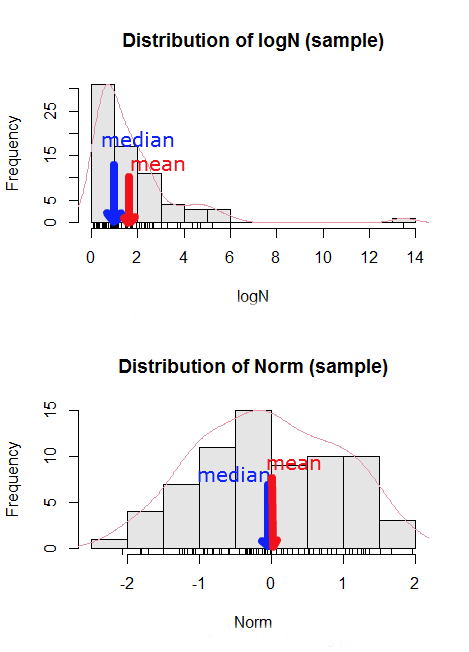
Figure 3. Normal and lognormal distributions with mean (red) and median (blue) noted for comparison.
So the median is a better descriptor or the central tendency of a sample distribution when the distribution is NOT normally distributed.
Note 4: “Summary statistics” refers to reporting of one or more descriptive statistics on a data set. The mean, median, standard deviation, range are common reported statistics. R Commander provides a menu to select from descriptive statistics, returning a table of the estimates. Rcmdr: Statistics → Summaries → Numerical summaries…
Scaling and transformation of data
Sometimes it is useful to standardize your data so that the variables all have the same scale. One algorithm for standardization is called normalization. Normalization implies that you correct the data so that data has a mean, μ, of zero, and a standard deviation, σ, of 1 (unit variance). There are several ways to standardize, each with strengths and limitations. To normalize we use the Z-score equation (see Chapter 6.7 for other uses of Z score).

where Xi is each observation in your data set.
Normalization will make outliers, the few points in a data set that are noticeably different from the central tendency of the rest of the data, smaller and less influential. When you normalize multiple sets of data, then each will have the same mean (0) and variance (unit variance), but the ranges will differ. An example of this is the simple product moment correlation — by standardizing you change the variances for the different variables to have the same unit variance.
As we will see later in class it is also useful to expand or contract the variability of the data or to change the shape of the distribution (if the data is not normally distributed). For example, if you compare individuals of a population for many morphological traits (eg body size, growth rate), the spread of points (called a distribution) will look more like a Poisson distribution (not symmetrical about the mean, a few individuals may be much larger…). This is partly due to the way in which morphological traits are measured. We normally measure body size on a linear scale (inches or centimeters). However, body size is affected by physiological processes that are more related to volume. Therefore, the more appropriate scale of measurement is on a log scale. We can transform the data measured on a linear scale to a log scale. For morphological traits this can produce a distribution that is normally distributed (bell shape). There are many more statistical procedures for data that is normally distributed than there are statistical procedures for Poisson distributions or any other type of distribution. Additional discussion about data transformation is introduced in Chapter 13.3.
You can always uncode or unstandardize your data after performing the statistical procedures and return to the original scale. In fact, when reporting descriptive statistics you should report the untransformed, uncoded data. Moreover, you will find it useful to report means adjusted for other variables (eg, from ANOVA or regression); if the ANOVA or regression equations are performed on transformed or coded data you would want to back calculate to the original scale after applying the ANOVA or regression adjustments. This advise will make more sense after we’ve discussed ANOVA (Chapter 12) and linear regression (Chapter 17).
R operators
The names command can be used to retrieve the names contained in the variable (if text types) or to set the names of the observations, which is what we are using it for here. We set the numbers to text names “4”, “5”, etc. then find the maximum count of named items in the temp table. The double equals operator (==) is used to tell R to find the object that is “equal to” something we specify, in this case, the max value (R Language Definition 2014). Table 3 shows common operators in R.
Table 3. Common arithmetic* and comparison** operators
| Operator | Description |
|---|---|
| ? | help |
| + | plus |
| - | minus |
| * | multiply |
| / | divide |
| : | series |
| > | greater than |
| < | less than |
| >= | greater than or equal to |
| <= | less than or equal to |
| = | left assignment |
| <- | left assignment |
== | equal to |
** To list and get help with use of comparison operators enter at the R prompt
help(Arithmetic)
help(Comparison)
The R package modeest has a number of algorithms for calculating the mode, depending on the kind of data you are working with. After installing the package and its dependencies, type at the R prompt
require(modeest)
mfv(myX)
[1] 4
Creating objects in R
Everything in R is an object (Chambers 2008). We provide many worked examples in Part 07. Working with your own data – Mike’s Workbook for Biostatistics. In brief, create a variable in R by assigning the vector x, either directly at the R prompt or in a script window (Rcmdr, RStudio), like so
myX = c(4,4,4,4,5,5,6,6,6,7,7,8,8,8,15)
The function c(), which stands for combine is used to combine the set of numbers into the object, myX. For small sets like this you may find it convenient to enter the values one by one and let R store it into the vector for you. For R installed on your computer, use the scan() function and your keyboard — scan() doesn’t work consistently in serverless R instances (eg., Google CoLab). Careful! Make sure that you remember to assign the results from scan to a vector.
I’ll create the object tryScan just to distinguish it from x, although I will enter the same values. Until R receives an interrupt signal from you, it will prompt you to enter numbers one row at a time. When you’ve reached the end, use the keyboard shortcut Ctrl + q (Windows) or Cmd + q (macOS) to interrupt keyboard input.
tryScan = scan()
1: 4
2: 4
3: 4
4: 4
5: 5
6: 5
7: 6
8: 6
9: 6
10: 7
11: 7
12: 8
13: 8
14: 8
15: 15
Read 15 items
tryScan
 [1] 4 4 4 4 5 5 6 6 6 7 7 8 8 8 15
The function tryScan is a very useful command, with many options, and can be used for more than keyboard entry. For example, you can paste from your computer’s clipboard a column of numbers from your spreadsheet.
R code calculate central tendency
Once we have the vectormyX, calculate the mean by entering at the R prompt
mean(myX)
and you should get the answer of 6.466667
And of course, you don’t type in the R prompt >, right?
Or, for the better option, create two variables, one containing the list of observed numbers and the second that contains the frequency for each observed number in the series. You would then use the command for weighted mean.
myY = c(4,5,6,7,8,15)
myW = c(4/15, 1/15, 3/15, 2/15, 4/15, 1/15)
Note — you can check that the frequencies sum to 1 by using the sum command like so
sum(myW)
For the weighted mean, the command is
weighted.mean(myY,myW)
and, the answer returned is 6.466667, the same as before.
There’s an R package for that.
We list code examples for all of the statistics described on this page, but as you can imagine, there are packages that include these and other useful functions, or “wrapper functions” that make writing code easier in R. A good example is the DescTools package. One advantage of using a package like DescTools is that it cuts through the need to remember specific commands for basic data exploration. For example, just call the Desc() function to yield several measures of central tendency and dispersion (see Chapter 3.3).
The R code and output follows, along with a plot (Fig 4). The mean and median are highlighted in orange.
Desc(myX)
────────────────────────────────────────────────────────────────────────────────
myX (numeric)

length      n   NAs unique   0s  mean meanCI'
    15     15     0      6    0  6.47    4.92
       100.0%  0.0%        0.0%          8.02

   .05    .10   .25 median  .75   .90     .95
  4.00   4.00  4.50   6.00 7.50  8.00   10.10

range      sd vcoef    mad  IQR  skew    kurt
11.00    2.80  0.43   2.97 3.00  1.72    2.94

  value freq   perc cumfreq cumperc
1     4    4  26.7%       4   26.7%
2     5    2  13.3%       6   40.0%
3     6    3  20.0%       9   60.0%
4     7    2  13.3%      11   73.3%
5     8    3  20.0%      14   93.3%
6    15    1   6.7%      15  100.0%

' 95%-CI (classic)

Figure 4. Histogram, box plot, and cumulative distribution function plot generated by default by Desc() call.
Lots of output! This is a good example of how to explore data — describe the middle (eg, mean and median), but also the variability about the middle (eg, range, standard deviation — sd, mean absolute deviation — mad, coefficient of variation — vcoef), and distribution shape (quantiles — 0.05, 0.25 etc, kurt, skew). The plots — histogram, box plot, and cumulative distribution plots — are explained in Chapter 4.
Use aggregate() to calculate summary statistics by group.
So far, all code presumes need to calculate descriptive statistics one vector at a time. In general, we need summary statistics for more than one group or strata. For example, we may ask, what are the average body temperature readings measured by IR device on different body areas from several subjects (question 8a, Homework 2A: Descriptive statistics in Mike’s Workbook for Biostatistics).
The aggregate() function in R simplifies calculating means by groups by providing a concise and efficient way to apply a summary function (like mean()) to a variable, grouped by one or more other variables. The format for aggregate is
aggregate(x = variable_to_aggregate ~ grouping_variable, FUN = mean, data = your_dataframe)
Questio8a had two levels of body regions, “Forehead” and “Throat.” Assuming the variable is named bodyTemp and the grouping variable is called bodyGroup and stored in the attached data.frame question08a, then the following R code provides the requested summary statistics by groups.
aggregate(bodyTemp ~ bodyGroup, data = question08a,
function(x) c(mean = mean(x)))
Additional statistics can be requested by adding one after the other following mean(x), eg, median = median(x).
Note 5: aggregate() is part of the base R installation. Additional functions are available, including dplyr and data.table packages, which the user is encouraged to explore!
The advantage of use of R Commander, it’s easy to get multiple statistics by groups by following the drop down menus, beginning with Statistics > Summaries > Table of statistics… (Fig 5).

Figure 5. Screenshot R Commander, summary statistics by group.
Questions
- Find the help page in R for the median function. How does the function handle missing values?
- For a simple data set like the following
myY <- c(1,1,3,6)you should now be able to calculate, by hand, the
• mean • median • mode - If the observations for a ratio scale variable are normally (symmetrically) distributed, which statistic of central tendency is best (eg, less sensitive to outlier values)?
- In the
names()command, what do you think the result will be if you replacemaxin the command withmin? - If data are right skewed, what will be the order of the mean, median, and mode?
- Body mass of Rhinella marina (formerly Bufo marinus, Fig 6),
bufo <- c(71.3, 71.4, 74.1, 85.4, 85.4, 86.6, 97.4, 99.6, 107, 115.7, 135.7, 156.2)

Figure 6. Female Rhinella marina (formerly Bufo marinus), Chaminade University campus. Body length 23.5 cm. Click image to view full sized image.
- Under what circumstances is it appropriate to transform raw data?
- What does “standardize” or “normalize” imply as actions to take with data?
Quiz Chapter 3.2
Measures of Central Tendency
Chapter 3 contents
- Exploring data
- Data types
- Measures of Central Tendency
- Measures of dispersion
- Estimating parameters
- Statistics of error
- References and suggested readings
3 – Exploring data
Describing data: An introduction to summary statistics and basic visualization.
.
Scientists answer questions about natural phenomena using the scientific method. The questions in the form of hypotheses are tested by data, the raw information collected either by observing natural outcomes among groups (observational studies) or by manipulating variables (experimental studies) and recording the outcomes.
Note 1: We discussed the scientific method in Chapter 2.5. The distinction between experimental and observational studies was discussed in Chapter 2.4.
Regardless, after a study has been completed, the collection of observations needs to be summarized or described, a process now referred to as data exploration. Interpretation of the data constitutes the evidence used to evaluate the hypothesis. How many mice grew tumors in the treated versus control group? Did all mice respond to treatment? What is the typical cost of a new home in Hilo, HI? How large of a difference is there between the most expensive home and the middle? These questions require simple, summary statistics also called descriptive statistics and informative data visualizations. Both are required of any data analysis report (students: see Making a report in Mike’s Workbook for Biostatistics) — to communicate the findings of the experiment or observational study.
Note 2: Throughout Chapter 3, we present use of R Commander and R functions to accomplish our data exploration objectives. It should come as not surprise that folks have provided many solutions to improve the workflow of data exploration. rattle (R Analytic Tool To Learn Easily) is a great “data-mining” package. Rattle (version 6.5.8 as of August 2025) provides a graphical user interface, which makes it straightforward to work with. It doesn’t work well with Rcmdr, but can be used along with RStudio. rattle is an appropriate option for accomplishing tasks needed for Chapter 3, Chapter 13, and Chapter 16.
BI-311: Installing rattle is optional. Because rattle’s programming history, installation of rattle is a little different from other R packages we have described thus far. Follow instructions for your operating system at https://rattle.togaware.com/. On WinPC, download and install rattle-dev-windows-inno.exe. If you followed my R installation instructions you may need to edit the PATH environment variable on your WinPC so that R will be found by rattle. On macOS, download and extract the archived (zip) file, rattle-dev-macos.zip, and run the app (rattle.app). You will need to inform gatekeeper to allow rattle.app to run — go to Settings > Security & Privacy, and find the request to permit running the app.
In Chapter 3 we introduce two aspects of summary statistics expected in any report about a data set (see Chapter 4 — How to report statistics). Summary statistics provide a brief overview of relevant characteristics of observations in the data set to provide the reader to get a quick but meaningful look at the data set. Data set refers to a collection of data, usually a collection of related, ordered observations, measurements, and related information.
Summary statistics vary according to the needs of the reporting vehicle, but may generally address two characteristics of the data set
- Central tendency or the description of the middle of the data. See Chapter 3.2 – Measures of Central Tendency.
- Data dispersion, the variability around the middle of the data set. See Chapter 3.3 – Measures of dispersion.
- The other two sections in Chapter 3 introduce estimation, the role random sampling plays, and the kinds of error in statistics (Chapter 3.4 — Estimating parameters).
- The final section, 3.5 – Statistics of error, introduces incorporating estimates of error in measurement calculations are used to report confidence — confidence intervals — in the estimates we make.
Before we can talk about descriptive statistics we need to introduce the concept of data types, which we do in Chapter 3.1 — Data types. Understanding data types is crucial for accurately calculating and interpreting measures of central tendency and dispersion, which are essential for effective data visualization.
We introduce statistical graphics, a specialized kind of data visualization, in Chapter 4 – How to report statistics . Statistical graphs are utilized to describe data sets, but also to communicate statistical inference, which we address formally beginning in Chapter 7 – Probability, Risk Analysis.
Formulas — a reminder.
Most of you have been asked at some point to calculate the average or the sample standard deviation. We will provide these again, but with additional statistics. Textbooks may present calculator formulas — nothing wrong with them, although we have to watch significant figures. But computer statistical packages generally do not use these formulations as the approach to calculate — the algorithms are typically much more involved. So why present formulas throughout the book as I do? Formulas often are the best definition of the statistical concept. I haven’t investigated this last point in any systematic way, but, because of access by scientists to increasingly powerful computers since the 1980s, I doubt anyone in the business of data analysis in the biological sciences has much use of the hand calculator or the formulas except as definitions.
Note 3. Chaminade University students: On homework, quizzes and exams, you may be asked to calculate these descriptive statistics. The data sets will always be simple ones, simple enough that calculators should not be needed.
Homework to go with this topic.
Mike’s Workbook for Biostatistics:
Homework 2A: Descriptive statistics
Quizzes in this chapter
A total of 56 questions among the several subchapters, a mix of true or false and multiple choice question format.
Chapter 3 contents
.