Install R Commander
Download pdf file of this page
Introduction
For beginning (bio)statistics students who need R, I recommend use of the graphic user interface, GUI, R Commander. R Commander is an R package. It’s a large package, and requires installation of many additional packages. Generally, these additional required packages are also installed with the installation of R Commander.
This page provides a guide about how to install R Commander onto your computer (LDE). To use R Commander, please see Chapter 1.1 – A quick look at R and R Commander. You must have R installed and working correctly on your computer before proceeding to install the R Commander package. Click here to get the Install R guide.
Note 1: If you plan to run R in the Cloud, you cannot install the R Commander package, which must be part of a local development environment.
Installation guides quickly become outdated. This page last updated 12 August 2025 and describes working installation protocols at that time. Like all secondary guides to software installation, I recommend reading installation notes by the coders who provide the software. For R Commander, see R Commander Installation Notes, by Dr John Fox.
For your convenience, the example R code I run is listed below
myX <- c(1,2,3,4)
myY <- c(5,10,15,20)
plot(myY, myX)
For BI311, we also use R Commander
R Commander is a package that adds function to R; it provides a familiar point-and-click interface to R, which allows the user to access functions via a drop-down menu system (Fox 2017). Thus, instead of writing code to run a statistical test, Rcmdr provides a simple menu driven approach to help students select and apply the correct statistical test. R Commander also provides access to Rmarkdown and a menu approach to rendering reports.
RStudio is another way to interact with R, and compared to R Commander, is designed to help R programmers with a useful environment to manage files, generate reports, and work on R code. I continue to use R Commander in teaching because it emphasizes statistics and note coding. One advantage of R Commander for learning how to code with R is that code is reproduced from student’s selections in the drop-down menu options.
Note 2: A couple of years ago the folks at Posit, who publish RStudio, introduced the IDE Positron. I won’t comment about this IDE, but point interested readers to a page at R-Bloggers: Positron vs RStudio – is it time to switch?
Install R Commander
To install R Commander, enter the following code at the R prompt. See Figure 1 below for a screenshot of the R Commander interface.
install.packages("Rcmdr")
In addition, download and install the plugin
install.packages("RcmdrMisc")
Note: You can combine requests as follows
install.packages("Rcmdr", "RcmdrMisc", dependencies=TRUE)
Adding “dependencies=TRUE” will also install other packages that Rcmdr needs (which would get downloaded once you start Rcmdr for the first time).
If you have not set a mirror site, you’ll be prompted to do so before you can download and install packages. I recommend 0-Cloud as default mirror site. Be advised: because our university shares a single public IP address, you may experience download delays if we all try to use the same mirror site at the same time.
To start R Commander, load the packages via the library() command.
library(Rcmdr)
Follow installation prompts. You can skip adding the “otools,” for now. However, Rcmdr will prompt you to install otools every time you start, so go ahead and install them at your convenience.
MacOS users: To improve Rcmdr performance you must turn off “app nap.” From Rcmdr, go to Tools, then select “Manage Mac OS X app nap for R.app …” Once you select “off” (click OK to apply), restart Rcmdr, the delay will be removed. Windows 11 folks don’t have to contend with nap.
Test Rcmdr
Figure 1 shows a basic R Commander session. Enter code in the script window (1), click on the Submit button to run the code, and results show up in the output window (2). Figure 1 shows R Commander opened in a MDI.
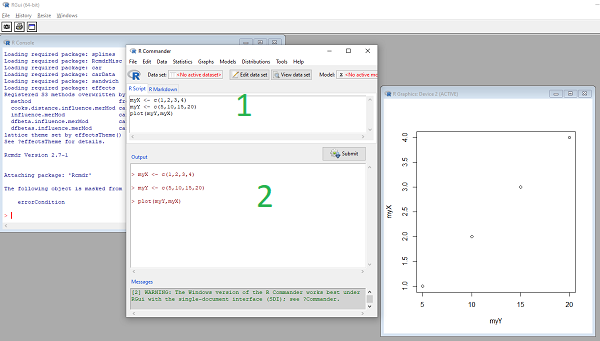
Figure 1. Screenshot of basic R Commander session on WinPC.
Click on R Markdown tab, edit (e.g., replace with your own title and name), then click on the Generate Report button to create a pdf of your work, default file name is RcmdrMarkdown.pdf (Fig 2). If you do not have pandoc and LaTeX properly installed, then only an HTML document will be available as an option.
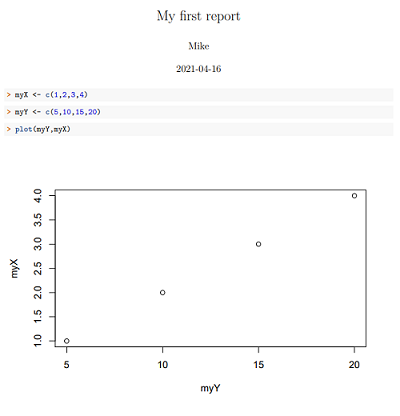
Figure 2. Screenshot of portion of RcmdrMarkdown.pdf.
Although I don’t recommend this practice, you can run R Commander from within RStudio. The downside is that multiple windows may be generated (Fig 3), which can be challenging for new users to navigate. On Windows pc some of this behavior can be controlled by selecting the SDI windowing option as opposed to the default MDI windowing option.

Figure 3. Screenshot of basic R Commander session in RStudio on macOS.
Note 5: Recent versions of macOS offer “Stage Manager” and “Split View” options which can help manage a project that requires two or more apps open and available for use. On Windows PCs, Snap Layouts allow up to four apps to be quickly arranged for easy access.
Add pandoc and LaTex support
To complete your R Commander installation you may want to add additional document handling software, LaTex and pandoc. R Commander already contains R Markdown, but these additional software allow you to take advantage of “high-quality typesetting.”
Note 6: BI-311 students: It’s not necessary to install pandoc and LaTeX. With the included RMarkdown options in R Commander, the default page generated is an html (web) document, which will be displayed in the default browser. BI-311 reports are submitted as pdf files — therefore, it’s a straightforward to save the html page as a pdf within the browser. For example, Google Chrome select Print, then select save as pdf for the destination.
In Rcmdr, select Tools from the menu, then Install Auxillary Software. Click OK, which will open links in your default browser to download pages for LaTex and pandoc. Download the files, follow the installation instructions for pandoc and LaTeX, then restart R and Rcmdr.
Here are direct links to the files, plus installation notes
LaTeX — links verified 27 August 2025
MikTeX from https://miktex.org/download:
- for Windows systems, select
basic-miktex-24.1-x64.exe - for MacOS, select
miktex-22.1-darwin-x86_64.dmg
pandoc — links verified 12 August 2025
Windows 11
https://github.com/jgm/pandoc/releases/download/3.7.0.2/pandoc-3.7.0.2-windows-x86_64.msi
MacOS
ARM CPU (M1 – M4): https://github.com/jgm/pandoc/releases/download/3.7.0.2/pandoc-3.7.0.2-1-arm64.deb
INTEL CPU: https://github.com/jgm/pandoc/releases/download/3.7.0.2/pandoc-3.7.0.2-x86_64-macOS.pkg
/MD
18.1 – Multiple Linear Regression
Introduction
Last time we introduced simple linear regression:
- one independent X variable
- one dependent Y variable.
The linear relationship between Y and X was estimated by the method of Ordinary Least Squares (OLS). OLS minimizes the sum of squared distances between the observed responses,  and responses predicted
  by the line. Simple linear regression is analogous to our one-way ANOVA — one outcome or response variable and one factor or predictor variable (Chapter 12.2).
But the world is complicated and so, our one-way ANOVA was extended to the more general case of two or more predictor (factor) variables (Chapter 14). As you might have guessed by now, we can extend simple regression to include more than one predictor variable. In fact, combining ANOVA and regression gives you the general linear model! And, you should not be surprised that statistics has extended this logic to include not only multiple predictor variables, but also multiple response variables. Multiple response variables falls into a category of statistics called multivariate statistics.
Like multi-way ANOVA, multiple regression is the extension of simple linear regression from one independent predictor variable to include two or more predictors. The benefit of this extension is obvious — our models gain realism. All else being equal, the more predictors, the better the model will be at describing and/or predicting the response. Things are not all equal, of course, and we’ll consider two complications of this basic premise, that more predictors are best; in some cases they are not.
However, before discussing the exceptions or even the complications of a multiple linear regression model, we begin by obtaining estimates of the full model, then introduce aspects of how to evaluate the model. We also introduce and whether a reduced model may be the preferred model.
R code
Multiple regression is easy to do in Rcmdr — recall that we used the general linear model function, lm(), to analyze one-way ANOVA and simple linear regression. In R Commander, we access lm() by
Rcmdr: Statistics → Fit model → Linear model
You may, however, access linear regression through R Commander
We use the same general linear model function for cases of multi-way ANOVA and for multiple regression problems. Simply enter more than one ratio-scale predictor variable and boom!
You now have yourself a multiple regression. You would then proceed to generate the ANOVA table for hypothesis testing
Rcmdr: Models → Hypothesis testing → ANOVA tables
From the output of the regression command, estimates of the coefficients along with standard errors for the estimate and results of t-tests for each coefficient against the respective null hypotheses for each coefficient are also provided. In our discussion of simple linear regression we introduced the components: the intercept, the slope, as well as the concept of model fit, as evidenced by R2, the coefficient of determination. These components exist for the multiple regression problem, too, but now we call the slopes partial regression slopes because there are more than one.
Our full multiple regression model becomes

where the coefficients β1, β2, … βn are the partial regression slopes and β0 is the Y-intercept for a model with 1 – n predictor variables. Each coefficient has a null hypothesis, each has a standard error, and therefore, each coefficient can be tested by t-test.
Now, regression, like ANOVA, is an enormous subject and we cannot do it justice in the few days we will devote to it. We can, however, walk you through a fairly typical example. I’ve posted a small data set diabetesCholStatin at the end of this page. Scroll down or click here. View the data set and complete your basic data exploration routine: make scatterplots and box plots. We think (predict) that body size and drug dose cause variation in serum cholesterol levels in adult men. But do both predict cholesterol levels?
Selecting the best model
We have two predictor variables, and we can start to see whether none, one, or both of the predictors contribute to differences in cholesterol levels. In this case, both contribute significantly. The power of multiple regression approaches is that it provides a simultaneous test of a model which may have many explanatory variables deemed appropriate to describe a particular response. More generally, it is sometimes advisable to think more philosophically about how to select a best model.
In model selection, some would invoke Occam’s razor — given a set of explanations, the simplest should be selected — to justify seeking simpler models. There are a number of approaches (forward selection, backward selection, or stepwise selection), and the whole effort of deciding among competing models is complicated with a number of different assumptions, strengths and weaknesses. I refer you to the discussion below, which of course is just a very brief introduction to a very large subject in (bio)statistics!
Let’s get the full regression model
The statistical model is

As written in R format, our model is ChLDL ~ BMI + Dose + Statin.
Note 1. BMI is ratio scale and Statin is categorical (two levels: Statin1, Statin2). Dose can be viewed as categorical, with five levels (5, 10, 20, 40, 80 mg), interval scale, or ratio scale. If we are make the assumption that the difference between 5, 10, up to 80 is meaningful, and that the effect of dose is at least proportional if not linear with respect to ChLDL, then we would treat Dose as ratio scale, not interval scale. That’s what we did here.
We can now proceed in R Commander to fit the model.
Rmdr: Statistics → Fit models → Linear model
How the model is inputted into linear model menu is shown in Figure 1.
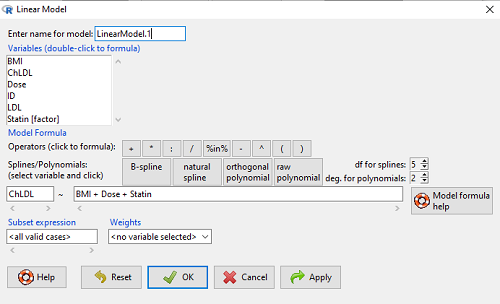
Figure 1. Screenshot of Rcmdr linear model menu with our model elements in place.
The output
summary(LinearModel.1)
Call:
lm(formula = ChLDL ~ BMI + Dose + Statin, data = cholStatins)

Residuals:
    Min      1Q  Median     3Q    Max
-3.7756 -0.5147 -0.0449 0.5038 4.3821

Coefficients:
                      Estimate Std. Error t value Pr(>|t|)
(Intercept)           1.016715   1.178430   0.863 0.39041
BMI                   0.058078   0.047012   1.235 0.21970
Dose                 -0.014197   0.004829  -2.940 0.00411 **
Statin[Statin2]       0.514526   0.262127   1.963 0.05255 .
---
Signif. codes: 0 '***' 0.001 '**' 0.01 '*' 0.05 '.' 0.1 ' ' 1

Residual standard error: 1.31 on 96 degrees of freedom
Multiple R-squared: 0.1231, Adjusted R-squared: 0.09565
F-statistic: 4.49 on 3 and 96 DF, p-value: 0.005407
Question. What are the estimates of the model coefficients (rounded)?
 = intercept = 1.017
 = slope for variable BMI = 0.058
 = slope for variable Dose = -0.014
 = slope for variable Statin = -0.515
Question. Which of the three coefficients were statistically different from their null hypothesis (p-value < 5%)?
Answer: Only coefficient was judged statistically significant at the Type I error level of 5% (p = 0.0041). Of the four null hypotheses we have for the coefficients:
 = 0
= 0 = 0
= 0 = 0; we only reject the null hypothesis for
 Dosecoefficient. = 0)
= 0)
The important take-home concept is about the lack of a direct relationship between the magnitude of the estimate of the coefficient and the likelihood that it will be statistically significant! In absolute value terms  , but was not close to statistical significance (p = 0.220).
We generate a 2D scatterplot and include the regression lines (by group=Statin) to convey the relationship between at least one of the predictors (Fig 2).
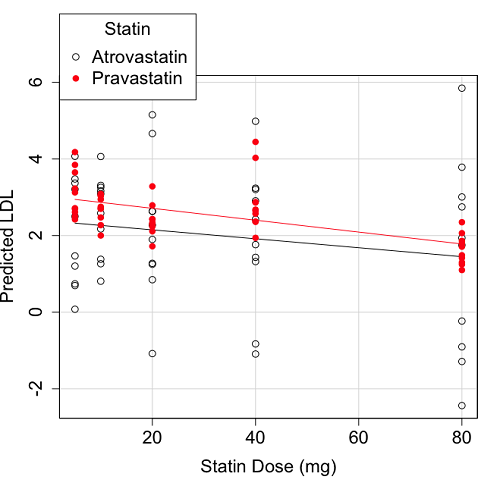
Figure 2. Scatter plot of predicted LDL against dose of a statin drug. Regression lines represent the different statin drugs (Statin1, Statin2).
Question. Based on the graph, can you explain why there will be no statistical differences between levels of the statin drug type, Statin1 (shown open circles) vs. Statin2 (shown closed red circles).
Because we have two predictors (BMI and Statin Dose), you may also elect to use a 3D-scatterplot. Here’s one possible result (Fig 3).
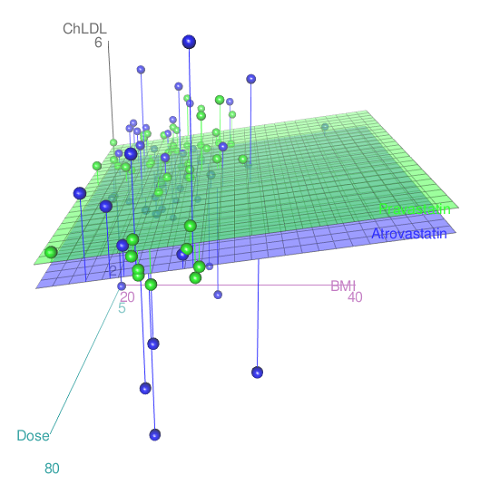
Figure 3. 3D plot of BMI and dose of Statin drugs on change in LDL levels (green Statin2, blue Statin1).
R code for Figure 3.
Graph made in Rcmdr: Graphs → 3D Graph → 3D scatterplot …
scatter3d(ChLDL~BMI+Dose|Statin, data=diabetesCholStatin, fit="linear",
residuals=TRUE, parallel=FALSE, bg="white", axis.scales=TRUE, grid=TRUE,
ellipsoid=FALSE)
Note 2: Figure 3 is a challenging graphic to interpret. I wouldn’t use it because it doesn’t convey a strong message. With some effort we can see the two planes representing mean differences between the two statin drugs across all predictors, but it’s a stretch. No doubt the graph can be improved by changing colors, for example, but I think the 2d plot Figure 2 works better). Alternatively, if the platform allows, you can use animation options to help your reader see the graph elements. Interactive graphics are very promising and, again, unsurprisingly, there are several R packages available. For this example, plot3d() of the package rgl can be used. Figure 4 is one possible version; I saved images and made animated gif.
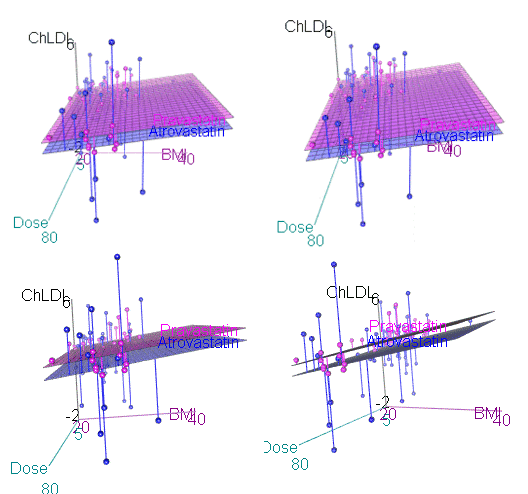
Figure 4. An example of a possible interactive 3D plot; the file embedded in this page is not interactive, just an animation.
Diagnostic plots
While visualization concerns are important, let’s return to the statistics. All evaluations of regression equations should involve an inspection of the residuals. Inspection of the residuals allows you to decide if the regression fits the data; if the fit is adequate, you then proceed to evaluate the statistical significance of the coefficients.
The default diagnostic plots (Fig 5) R provides are available from
Rcmdr: Models → Graphs → Basic diagnostics plots
Four plots are returned
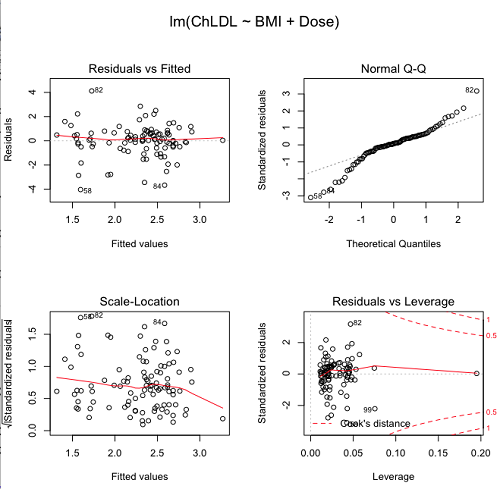
Figure 5. R’s default regression diagnostic plots.
Each of these diagnostic plots in Figure 4 gives you clues about the model fit.
- Plot of residuals vs. fitted helps you identify patterns in the residuals
- Normal Q-Q plot helps you to see if the residuals are approximately normally distributed
- Scale-location plot provides a view of the spread of the residuals
- The residuals vs. leverage plot allows you to identify influential data points.
We introduced these plots in Chapter 17.8 when we discussed fit of simple linear model to data. My conclusion? No obvious trend in residuals, so linear regression is a fit to the data; data not normally distributed Q-Q plot shows S-shape.
Interpreting the diagnostic plots for this problem
The “Normal Q-Q” plot allows us to view our residuals against a normal distribution (the dotted line). Our residuals do no show an ideal distribution: low for the first quartile, about on the line for intermediate values, then high for the 3rd and 4th quartile residuals. If the data were bivariate normal we would see the data fall along a straight line. The “S-shape” suggests log-transformation of the response and or one or more of the predictor variables.
There also seems to be a pattern in residuals vs the predicted (fitted) values. There is a trend of increasing residuals as cholesterol levels increase, which is particularly evident in the “scale-location” plot. Residuals tended to be positive at low and high doses, but negative at intermediate doses. This suggests that the relationship between predictors and cholesterol levels may not be linear, and it demonstrates what statisticians refer to as a monotonic spread of residuals.
The last diagnostic plot looks for individual points that influence, change, or “leverage” the regression — in other words, if a point is removed, does the general pattern change? If so, then the point had “leverage” and thus we need to decide whether or not to include the datum. diagnostic plots Cook’s distance is a measure of the influence of a point in regression. Points with large Cook’s distance values warrant additional checking.
The multicollinearity problem
Statistical model building is a balancing act by the statistician. While simpler models may be easier to interpret and, perhaps, to use, it is a basic truism that the more predictor variables the model includes, the more realistic the statistical model. However, each additional parameter that is added to the statistical model must be independent of all other parameters already in the model. To the extent that this assumption is violated, the problem is termed multicollinearity. If predictor variables are highly correlated, then they are essentially just linear combinations and do not provide independent evidence. For example, one would naturally not include two core body temperature variables in a statistical model on basal metabolic rate, one in degrees Fahrenheit and the other in degrees Celsius, because it is a simple linear conversion between the two units. This would be an example of structural collinearity: the collinearity is because of misspecification of the model variables. In contrast, collinearity among predictor variables may because the data are themselves correlated. For example, if multiple measures of body size are included: weight, height, length of arm, etc., then we would expect these to be correlated, ie, data multicollinearity.
Collinearity in statistical models may have a number of undesirable effects on a multiple regression model. These include
- estimates of coefficients not stable: with collinearity, values of coefficients depend on other variables in the model; if collinear predictors, then the assumption of independent predictor variables is violated.
- precision of the estimates decreases (standard error of estimates increase).
- statistical power decreases.
- p-values for individual coefficients not trust worthy.
Tolerance and Variance Inflation Factor
Absence of multicollinearity is important assumption of multiple regression. A partial test is to calculate product moment correlations among predictor variables. For example, when we calculate the correlation between BMI and Dose for our model, we get r = 0.101 (P = 0.3186), and therefore would tentatively conclude that there was little correlation between our predictor variables.
A number of diagnostic statistics have been developed to test for multicollinearity. Tolerance for a particular independent variable (Xi) is defined as 1 minus the proportion of variance it shares with the other independent variables in the regression analysis (1 − R2i) (O’Brien 2007). Tolerance reports the proportion of total variance explained by adding the Xi–th predictor variable that is unrelated to the other variables in the model. A small value for tolerance indicates multicollinearity — and that the predictor variable is nearly a perfect combination (linear) of the variables already in the model and therefore should be omitted from the model. Because tolerance is defined in relation to the coefficient of determination you can interpret a tolerance score as the unique variance accounted for by a predictor variable.
A second, related diagnostic of multicollinearity is called the Variance Inflation Factor, VIF. VIF is the inverse of tolerance.

VIF shows how much of the variance of a regression coefficient is increased because of collinearity with the other predictor variables in the model. VIF is easy to interpret: a tolerance of 0.01 has a VIF of 100; a tolerance of 0.1 has a VIF of 10; a tolerance of 0.5 has a VIF of 2, and so on. Thus, small values of tolerance and large values of VIF are taken as evidence of multicollinearity.
Rcmdr: Models → Numerical diagnostics → Variation-inflation factors
vif(RegModel.2)
      BMI     Dose
1.010256 1.010256
A rule of thumb is that if VIF is greater than 5 then there is multicollinearity; with VIF values close to one we would conclude, like our results from the partial correlation estimate above, that there is little evidence for a problem of collinearity between the two predictor variables. They can therefore remain in the model.
Solutions for multicollinearity
If there is substantial multicollinearity then you cannot simply trust the estimates of the coefficients. Assuming that there hasn’t been some kind of coding error on your part, then you may need to find a solution. One solution is to drop one of the predictor variables and redo the regression model. Another option is to run what is called a Principal Components Regression (PCR). One takes the predictor variables and runs a Principal Component Analysis to reduce the number of variables, then the regression is run on the PCA components. By definition, the PCA components are independent of each other. Another option is to use ridge regression approach.
Note 3. Principal Component Analysis (PCA) is a dimensionality reduction technique that finds new uncorrelated variables (principal components) by maximizing variance. Principal Component Regression (PCR) uses PCA as a preprocessing step to create a regression model. The key difference is that PCA is an unsupervised method for data transformation, whereas PCR is a supervised regression technique that uses the components from PCA to predict an outcome. It’s probably not a great idea to use the acronym PCR in our biology reports; easily confused with polymerase chain reaction
Like any diagnostic rule, however, one should not blindly apply a rule of thumb. A VIF of 10 or more may indicate multicollinearity, but it does not necessarily lead to the conclusion that the linear regression model requires that the researcher reduce the number of predictor variables or analyze the problem using a different statistical method to address multicollinearity as the sole criteria of a poor statistical model. Rather, the researcher needs to address all of the other issues about model and parameter estimate stability, including sample size. Unless the collinearity is extreme (like a correlation of 1.0 between predictor variables!), larger sample sizes alone will work in favor of better model stability (by lowering the sample error) (O’Brien 2007).
Questions
- Write up three learning outcomes for this page. Hint: Point your favorite generative AI to this page and ask for help.
- Please explain why the magnitude of the slope is not the key to statistical significance of a slope? Hint: look at the equation of the t-test for statistical significance of the slope.
- Consider the following scenario. A researcher measures his subjects multiple times for blood pressure over several weeks, then plots all of the values over time. In all, the data set consists of thousands of readings. He then proceeds to develop a model to explain blood pressure changes over time. What kind of collinearity is present in his data set? Explain your choice.
- We noted that
Dosecould be viewed as categorical variable. ConvertDoseto factor variable (fDose) and redo the linear model. Compare the summary output and discuss the additional coefficients.- Use Rcmdr: Data → Manage variables in active data set → Convert numeric Variables to Factors to create a new factor variable
fDose. It’s ok to use the numbers as factor levels.
- Use Rcmdr: Data → Manage variables in active data set → Convert numeric Variables to Factors to create a new factor variable
- We flagged the change in LDL as likely to be not normally distributed. Create a log10-transformed variable for
ChLDLand perform the multiple regression again.- Write the new statistical model
- Obtain the regression coefficients — are they statistically significant?
- Run basic diagnostic plots and evaluate for
Quiz Chapter 18.1
Multiple Linear Regression
Data set
| ID | Statin | Dose | BMI | LDL | ChLDL |
|---|---|---|---|---|---|
| 1 | Statin2 | 5 | 19.5 | 3.497 | 2.714778 |
| 2 | Statin1 | 20 | 20.2 | 4.268 | 1.276483 |
| 3 | Statin2 | 40 | 20.3 | 3.989 | 2.677377 |
| 4 | Statin2 | 20 | 20.3 | 3.502 | 2.430618 |
| 5 | Statin2 | 80 | 20.4 | 3.766 | 1.79463 |
| 6 | Statin2 | 20 | 20.6 | 3.44 | 2.234295 |
| 7 | Statin1 | 20 | 20.7 | 3.414 | 2.635305 |
| 8 | Statin1 | 10 | 20.8 | 3.222 | 0.809181 |
| 9 | Statin1 | 10 | 21.1 | 4.04 | 3.259599 |
| 10 | Statin1 | 40 | 21.2 | 4.429 | 1.763997 |
| 11 | Statin1 | 5 | 21.2 | 3.528 | 3.369377 |
| 12 | Statin1 | 40 | 21.5 | 3.01 | -0.827154 |
| 13 | Statin2 | 20 | 21.6 | 3.393 | 2.11172 |
| 14 | Statin1 | 10 | 21.7 | 4.512 | 3.166238 |
| 15 | Statin1 | 80 | 22 | 5.449 | 3.00833 |
| 16 | Statin2 | 10 | 22.2 | 4.03 | 3.05013 |
| 17 | Statin2 | 40 | 22.2 | 3.911 | 2.646034 |
| 18 | Statin2 | 10 | 22.2 | 3.724 | 2.945656 |
| 19 | Statin1 | 5 | 22.2 | 3.238 | 3.209584 |
| 20 | Statin2 | 10 | 22.5 | 4.123 | 3.088763 |
| 21 | Statin1 | 20 | 22.6 | 3.859 | 5.152548 |
| 22 | Statin1 | 10 | 23 | 4.926 | 2.58483 |
| 23 | Statin2 | 20 | 23 | 3.512 | 2.291975 |
| 24 | Statin1 | 5 | 23 | 3.838 | 1.469 |
| 25 | Statin2 | 20 | 23.1 | 3.548 | 2.34079 |
| 26 | Statin1 | 5 | 23.1 | 3.424 | 1.204346 |
| 27 | Statin1 | 40 | 23.2 | 3.709 | 3.238179 |
| 28 | Statin1 | 80 | 23.2 | 4.786 | 2.748643 |
| 29 | Statin1 | 20 | 23.3 | 4.103 | 1.250082 |
| 30 | Statin1 | 40 | 23.4 | 3.341 | 1.432292 |
| 31 | Statin1 | 10 | 23.5 | 3.828 | 1.381755 |
| 32 | Statin2 | 10 | 23.8 | 4.02 | 3.039187 |
| 33 | Statin1 | 20 | 23.8 | 3.942 | 0.848328 |
| 34 | Statin2 | 20 | 23.8 | 2.89 | 1.721163 |
| 35 | Statin1 | 80 | 23.9 | 3.326 | 1.939346 |
| 36 | Statin1 | 10 | 24.1 | 4.071 | 3.090741 |
| 37 | Statin1 | 40 | 24.1 | 4.222 | 1.322305 |
| 38 | Statin2 | 10 | 24.1 | 3.44 | 2.472223 |
| 39 | Statin1 | 5 | 24.2 | 3.507 | 0.076817 |
| 40 | Statin2 | 20 | 24.2 | 3.647 | 2.425758 |
| 41 | Statin2 | 80 | 24.3 | 3.812 | 1.710575 |
| 42 | Statin2 | 40 | 24.3 | 3.305 | 1.940572 |
| 43 | Statin2 | 5 | 24.3 | 3.455 | 2.502214 |
| 44 | Statin2 | 5 | 24.4 | 4.258 | 3.228008 |
| 45 | Statin1 | 5 | 24.4 | 4.16 | 3.477747 |
| 46 | Statin2 | 80 | 24.4 | 4.128 | 2.063247 |
| 47 | Statin1 | 80 | 24.5 | 4.507 | 3.784422 |
| 48 | Statin1 | 5 | 24.5 | 3.553 | 0.695709 |
| 49 | Statin2 | 10 | 24.5 | 3.616 | 2.69987 |
| 50 | Statin2 | 80 | 24.6 | 3.372 | 1.300401 |
| 51 | Statin2 | 80 | 24.6 | 3.667 | 1.418109 |
| 52 | Statin2 | 5 | 24.7 | 3.854 | 3.126671 |
| 53 | Statin1 | 80 | 24.7 | 3.32 | -1.286439 |
| 54 | Statin2 | 5 | 24.7 | 3.756 | 2.423664 |
| 55 | Statin1 | 40 | 24.8 | 4.398 | 2.907473 |
| 56 | Statin2 | 40 | 24.9 | 3.621 | 2.362429 |
| 57 | Statin1 | 10 | 25 | 3.17 | 1.264656 |
| 58 | Statin1 | 80 | 25.1 | 3.424 | -2.436908 |
| 59 | Statin2 | 10 | 25.1 | 3.196 | 2.001465 |
| 60 | Statin2 | 80 | 25.2 | 3.367 | 1.100704 |
| 61 | Statin1 | 80 | 25.2 | 3.067 | -0.23154 |
| 62 | Statin1 | 20 | 25.3 | 3.678 | 4.662866 |
| 63 | Statin2 | 5 | 25.5 | 4.077 | 2.611705 |
| 64 | Statin1 | 20 | 25.5 | 3.678 | 2.633053 |
| 65 | Statin2 | 5 | 25.6 | 4.994 | 4.180082 |
| 66 | Statin1 | 20 | 25.8 | 3.699 | 1.899031 |
| 67 | Statin1 | 10 | 25.9 | 3.507 | 4.063757 |
| 68 | Statin2 | 20 | 25.9 | 3.445 | 2.303761 |
| 69 | Statin1 | 5 | 26 | 4.025 | 2.501427 |
| 70 | Statin1 | 5 | 26.3 | 3.616 | 0.740863 |
| 71 | Statin2 | 40 | 26.4 | 3.937 | 2.573321 |
| 72 | Statin2 | 40 | 26.4 | 3.823 | 2.363839 |
| 73 | Statin1 | 10 | 26.7 | 4.46 | 2.174198 |
| 74 | Statin2 | 5 | 26.7 | 5.03 | 3.845271 |
| 75 | Statin2 | 10 | 26.7 | 3.73 | 2.708896 |
| 76 | Statin2 | 10 | 26.7 | 3.232 | 2.272627 |
| 77 | Statin1 | 80 | 26.8 | 3.693 | 1.751169 |
| 78 | Statin2 | 80 | 27 | 4.108 | 1.86131 |
| 79 | Statin2 | 40 | 27.2 | 5.398 | 4.028977 |
| 80 | Statin2 | 80 | 27.2 | 4.517 | 2.348903 |
| 81 | Statin2 | 20 | 27.3 | 3.901 | 2.790047 |
| 82 | Statin1 | 80 | 27.3 | 5.247 | 5.848545 |
| 83 | Statin2 | 80 | 27.4 | 3.507 | 1.247863 |
| 84 | Statin1 | 20 | 27.4 | 3.807 | -1.079928 |
| 85 | Statin2 | 80 | 27.6 | 3.574 | 1.486789 |
| 86 | Statin1 | 40 | 27.8 | 4.16 | 2.427753 |
| 87 | Statin2 | 20 | 28 | 4.501 | 3.284648 |
| 88 | Statin2 | 5 | 28.1 | 3.621 | 2.699007 |
| 89 | Statin1 | 40 | 28.2 | 3.652 | -1.091256 |
| 90 | Statin2 | 40 | 28.2 | 4.191 | 2.874231 |
| 91 | Statin2 | 40 | 28.4 | 5.791 | 4.445454 |
| 92 | Statin1 | 40 | 28.6 | 4.698 | 3.202874 |
| 93 | Statin1 | 5 | 29 | 4.32 | 4.070753 |
| 94 | Statin2 | 10 | 29.1 | 3.776 | 2.751281 |
| 95 | Statin2 | 5 | 29.2 | 4.703 | 3.64949 |
| 96 | Statin2 | 40 | 29.9 | 4.128 | 2.864691 |
| 97 | Statin1 | 40 | 30.4 | 4.693 | 4.983704 |
| 98 | Statin1 | 20 | 30.4 | 4.123 | 2.273898 |
| 99 | Statin1 | 80 | 30.5 | 3.921 | -0.903438 |
| 100 | Statin1 | 10 | 36.5 | 4.175 | 3.311437 |
Chapter 18 contents
4.7 – Q-Q plot
Introduction
Use of graphs by a data analyst may serve different purposes: communication of results or as diagnostics. The Q-Q plot is one example of a graph used as a diagnostic.
The quantile-quantile, or Q–Q plot is a probability plot used to compare graphically two probability distributions. In brief, a set of intervals for the quantiles is chosen for each sample. A point on the plot represents one of the quantiles from the second distribution (y value) against the same quantile from the first distribution (x value).
A common use of Q-Q plot would be to compare data from a sample against a normal distribution. If the sample distribution is similar to a normal distribution, the points in the Q–Q plot will approximately lie on the line y = x.
R code
In R, the Q-Q plot can be obtained directly in Rcmdr.
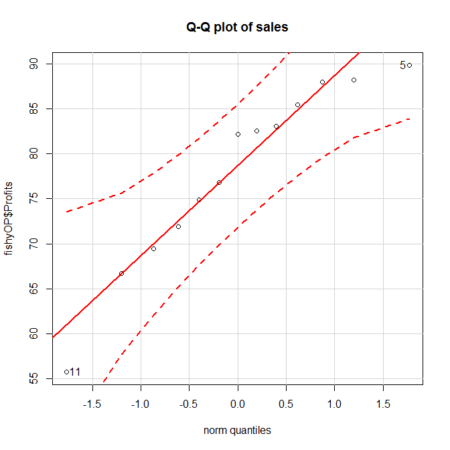
Figure 1. A Q-Q plot, the default command in Rcmdr
Rcmdr: Graphics → Quantile-comparison plot…
After choosing the variable (in this case, Sales), click on Options tab and make additional selections before making the graph. Here, selected normal distribution.
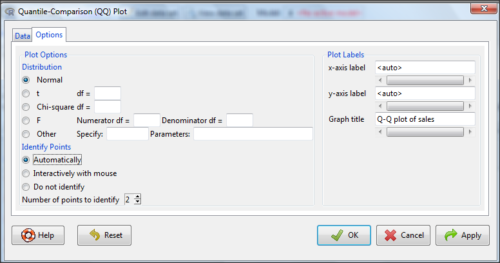
Figure 2. Screenshot of R Commander menu for Q-Q plot
Another version is available in the KMggplot2 package.
Questions
- What is a Q-Q plot used for in statistics?
- Looking at the plot in Figure 1, explain why the confidence lines get further and further away from the straight line.
Quiz Chapter 4.7
Q-Q plots
Chapter 4 contents
2.2 – Why do we use R Software?
- Why R? The case for using R in biostatistics education.
- How to get started with R .
- Why R Commander, why not RStudio? .
- Wait! Why don’t we use Microsoft Excel? .
- Statistics comparisons between R and MS Excel .
- Graphics comparison between R and MS Excel .
- So, you’re telling me I don’t need a spreadsheet application? .
- Still not convinced? .
- Why install R on your computer?.
- Help with R?.
- Questions .
- Quiz .
- Chapter 2 contents.
If this page is TL;DR, and you’re in a rush, then instructions to install R onto your macOS or Windows PC are provided in Install R. To run in the cloud only, see Use R in the cloud.
Why R? The case for using R in biostatistics education.
.
Why do we use R Software? Or put another way: DrD, Why are you making me use R?
Truth? You can use just about any acceptable statistical application to get the work done and achieve the learning objectives we have for beginning biostatistics. However, we will use the R statistical language as our primary statistical software in this course. Part of the justification is that all statistical software applications come with a learning curve, so you’d start at zero regardless of which application I used for the course.
In selecting software for statistics I have several criteria. The software should be:
- if not exactly easy, the software should have a reasonable learning curve
- widely accessible and compatible with
allmost personal computers - well-respected and widely used by professionals
- free software
- open source
- well-supported for the purposes of data analysis and data processing
- really good for making graphics, from the basics to advanced
- capable to handle diverse kinds of statistical tests
R meets all of these criteria. R history began back in 1993 and has always been available as free software under the terms of the Free Software Foundation’s GNU General Public License in source code form. R compiles and runs on a wide variety of UNIX platforms and similar systems, including GNU/LINUX, FreeBSD, and various Linux distros like the popular Ubuntu®, in addition to their more famous Microsoft Windows® and Apple macOS® distributions. To facilitate access to the software, numerous mirror sites are available from sites around the world, with cloud.r-project.org supported by RStudio perhaps the most widely used. From January 2024 to December 2024, more than 8.5 million downloads of base R were made from the RStudio CRAN mirror site (CRAN stands for Comprehensive R Archive Network.
changelog file, which allow one to track numbers of downloads for any package from their mirror site — https://cloud.r-project.org/. Here’s the code and recent counts for downloads of R itself over a four week period .
install.packages("cranlogs")
library(cranlogs)
# How many downloads of base R around start of Fall semester?
 out <- cran_downloads("R", from = "2025-08-01", to = "2025-08-31")
sum(out$count)
R output
[1] 582524
An iterative function returning number of downloads over multiple years is provided at Part05 of Mike’s Workbook for Biostatistics.
R is straightforward to use once you learn how to work with the language, but has a steep learning curve; after all, it’s a programming language. I recommend installing the program onto your computer, but ready to go R is also available at multiple cloud services, including Google CoLab and Posit Cloud. The remainder of this page is directed at users who choose to install R to their computer, although much of the discussion holds regardless of the R environment choice, local or Cloud.
For local installs of R, I also recommend use of the GUI R Commander. Use of R Commander helps with the learning curve, and eventually, your use of code will become second nature. We don’t use RStudio, but as your skills improve, I recommend transitioning to the IDE RStudio; after the initial growing pains are behind you, RStudio likely will be a better solution over R Commander.
This discussion implies learning R programming. However, while we need statistical software to do statistics, students in my BI311 course must keep in mind that learning objectives for a biostatistics course is about the concepts and interpretation of statistics, not just use of the software. In other words, learning how to use R is not the focus of BI311 nor will you likely achieve R programming competency by the end of the semester. I certainly encourage students to strive for competency and I give frequent bonus opportunities to demonstrate coding skills during the semester.
Why R and not some other statistics software?
Thus, you might ask if the purpose of the course isn’t to learn R, why work with R instead of a more familiar app or software, eg, Microsoft Excel® (hereafter simply referred to as Excel), or Google Sheets, or even my favorite open-source office alternative, LibreOffice Calc? Or, perhaps even just one of the many online calculators, if the course learning objective is to “just” learn about statistics?
First, I believe that real data derived from real biology or biomedical problems are essential elements to a first course in biostatistics. That’s not a particularly unique perspective although I don’t have survey results of other statistics instructors to back up the claim. Real problems involve observations on multiple subjects, many variables — large data sets; this alone precludes use of hand calculations and calculators. As a corollary, we will not spend a great deal of time learning the in’s and out’s of the algorithms that form particular statistical tests. Now, do understand that there is a tremendous benefit to understanding statistics by working through the equations, by looking at the algorithms, and there’s no escaping the need for understanding that probability provides the foundation of statistics inference (Chapter 8). Thus, for most of us, the statistical software available to us provides an appropriate framework for applying correct statistical tests to our projects. Therefore, the decision is about which statistical package we should use.
Second, R is perhaps the choice in academia for statistical software. A PUBMED search found more than 1500 citations of R. Visit Robert A. Muenchen’s web page (The popularity of data analysis software, r4stats.com) to see updated statistics on statistical software use. Those of you continuing on to graduate school or to professional schools will find that many of your statistically literate colleagues use R and not one of the commercial programs. While there are many excellent commercial packages (Table 1), and in some cases you can make spreadsheet programs do statistics (typically add-ins are required), all statistical software come with steep learning curves. Thus, part of my selling point to you is that learning to use R is at the cutting-edge in your field and, given that all of the software you could use can have have their challenges, it is best to work with something that will be around and is in wide use, without the burden of a financial investment.
Table 1. A selective list of statistical software.
| Software | Student license? | Limited or full function version | macOS | Windows 11 | Fee* | Academic license type |
|---|---|---|---|---|---|---|
| GraphPad Prism | Subscription, $142 per year | Full | Yes | Yes | $202 | annual subscription |
| JMP | Yes, but with purchase of selected textbook | Limited | Yes | Yes | $100 | monthly subscription |
| Minitab | Subscription, $54.99 per year | Full | Yes | Yes | $1610 | annual subscription |
| IBM SPSS | Rental, $76 per year | Full | Yes | Yes | $260 | annual rental |
| SigmaSTAT | No | NA | No | Yes | $299 | perpetual |
| MySTAT | Yes, free | Limited | No | Yes | NA | |
| SYSTAT | No | NA | No | Yes | $739 | perpetual |
| Stata | Subscription, $94 per year | Full | Yes | Yes | $325 | annual subscription |
see Wikipedia for list of additional software
Third, what about online sites like plot.ly where, for free, you can plot and, in some cases, calculate statistics? What about the web application at Brightstat, which claims to provide an SPSS-like experience online (Stricker 2008)? While it is true that there are many wonderful websites that can perform many of the statistical tests we will use this semester, these sites are not suitable for more than occasional use.
How to get started with R.
.
A few words about my approach to the software in my biostatistics course. I note to students during the semester that our course is not a programming course, but rather, programming skills are acquired along the way. Our focus is how to do statistical analysis, how to design experiments, etc. Coding skills without understanding of the why we’re doing it is not unlike learning to cook by following a great recipe as opposed to learning about the art and science of flavor (NPR Science Friday, March 15, 2024) — the homework is solved but the why we can support our conclusions may be obscure.
We set aside the first couple of class meetings simply to setup student’s Windows PC or Apple macOS computers to do data science; for students with access to Chromebooks or iPad tablets, we need to set them up to run R in the Cloud (eg., Google Colaboratory) — in other words, there’s a lot of pre-work that can present barriers to actual doing statistics in R (or other software). Once we have the environment set up for the students, we utilize a “tell-show-do” approach to learning how to code. The “tell” part includes sharing script; the “do” part is mostly done by students outside of class as part of completing homework.
First work with the language can be frustrating, so I also encourage a “five minute” rule — if it ain’t working, stop. So, by all means when Run through a troubleshooting checklist, but please don’t continue to struggle — the gap is between the instructions and where the student is with the material — it’s a me-as-instructor problem, not a student must work harder problem!
All statistics work follows a similar workflow.
The basic workflow for a data project, using R as the primary statistical programming tool, looks like that illustrated in Figure 1.

Figure 1. A basic workflow with R.
The workflow begins with the assumption that a data set already exists. Getting the data into an R session depends on the source of the data, for example stored in spreadsheet file or from a table on a webpage. Data cleaning and processing of the data may be in order — for small and modest-sized data sets, my own preference is to do most of the data cleaning in my spreadsheet app, but R has full capabilities to handle or “wrangle” data. Next, the raw data should be stored in R session in a data frame object. Once the data frame object is available, exploratory data analysis, including summary statistics and data visualization can proceed. Higher order analytics, including statistical inference and modeling, can then begin.
The R statistical language, accompanied by additional packages to extend its capabilities beyond basic math and statistical functions, provided a complete statistical environment. R is best viewed as a programming language for statistics (data analysis), and data processing. Power users of R learn how to write scripts that do t-tests, ANOVA, regression, etc. The scripts are just lines of code that R understands and it provides the user tremendous control over analysis and inference of data sets. Because of this flexibility and power, however, R can be intimidating at first. So, we’ll start slowly with scripts, introducing just what we need to get started and build from there. We’ll be addressing R issues in more depth over the next several weeks, but for the first week, our goal(s) should be to make sure each of you knows how to start/exit R, how to create and utilize a working directory, and how to use R as a calculator. You obtain your copy of R from the R Project for Statistical Computing, available at https://www.r-project.org. Instructions to install R are provided in Install R. A ten-part tutorial to get started using R is provided in Mike’s Workbook for Biostatistics.
Note 2. A working directory or working folder is something you create on your computer to contain the files and sub-directories of a project. It sets the default location for files you may need to have R read. For example, all of your work for a course (data files, script files, Markdown files), may be stored in a folder called BI311 on your Desktop. For example, on a macOS, the path to the working folder would be
/Users/username/Desktop/BI311
Why R Commander, why not RStudio?
.
We utilize an R package that provides a menu-driven context to much of the typical statistics one needs to do biostatistics. The package is called R Commander (Rcmdr), which provides a graphic user interface or GUI. Rcmdr therefore significantly eases the learning curve for doing statistics with R. We use a package called R Commander, which provides drop down menus for most of the typical kinds of analyses. Rcmdr is in use in many courses across the world (more than 17K downloads in August 2025), and among the other GUI available for R, Rcmdr is among the best supported GUI available for R. R Commander function is extended by plug-ins; as of August 2025, there were 31 plugins that extend Rcmdr’s capabilities. Instructions to install R Commander are provided in Install R Commander.
Note 3. Other options to improve use of R include use of RStudio®, which is an integrated development environment or IDE. RStudio is really nice to use, and, happily, you can run R Commander within RStudio — but with windows popping up outside of the RStudio windowing framework if the default MDI environment to organize is set. (The solution? R Commander runs best when SDI option is selected during RStudio install.) I am also increasingly using shiny apps within the course to help with concept presentation; in the future, I plan to provide a complete shiny app which would allow BI311 students to work interactively with the statistics presented in this text, something like the radiant-rstats project. However, for use in our course, R Commander provides a familiar look as students develop knowledge in the course: simply point and click to access the statistical functions.
Wait! Why don’t we use Excel? My instructor in {insert course here} used Excel…
.
A very reasonable question for you to ask — why don’t we use Microsoft Excel or Google Sheets for statistics? Moreover, it is highly likely that you have gained at least some introduction to descriptive statistics and graphing with spreadsheets in former courses — shouldn’t we learn statistics within a software framework you are already familiar?
After all, “Can’t Microsoft Excel do statistics?” Mostly the answer is, no, not really (Fig 2).
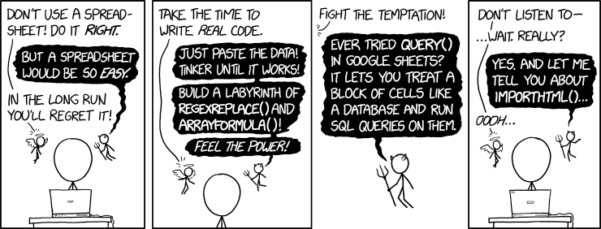
Figure 2. “Spreadsheets,” xkcd.com no. 2180.
MS Excel, Google Sheets, Apple Numbers, and for that matter, Calc, the spreadsheet application in my favorite office app LibreOffice (LibreOffice is a free, open-source alternative to Microsoft Office), can be used to calculate many descriptive statistics. With some effort, these applications can be extended by use of either Analysis ToolPak or Solver Add-ins to do more complicated statistics like regression and analysis of variance, and curve fitting.
Note 4. Perhaps you’re thinking: I’m a data science student — it’s not whether we chose between use of spreadsheet apps or R, we should be using Python, shouldn’t we? DrD — this is an open question, and if you judge the job market as the arbiter, I’d say learn Python over R — if you are primarily aiming for a data science position. However, from the point of view of learning statistics, my vote would be R — far more packages developed to accomplish our tasks, and, at least for this course, we are not teaching coding: our focus is on using statistics to explore (describe) and ask questions about data collected by observation or experimentation.
While we’re on the subject in 2025, it looks like the job market is in Machine Learning, which means R or Python knowledge will be a given, but advantage will go to those who know Alteryx or it’s open source alternative KNIME for data science workflow design — from data collection to model development.
However, use of MS Excel for statistical analysis involves learning a number of commands, syntax, and developing workflows that are neither intuitive nor standard. Some publishers have provided add-ins that are reportedly designed to simplify this process (eg, XLStat, UNISTAT, Real Statistics using Excel). None of these options are free and none are in use in any major way by scientists (see Robert Muenchen’s The popularity of data analysis software). The free add-ins of Analysis ToolPak and Solver may work for you if you own a Windows PC, but only Solver is included for the Mac versions of Excel. MacOS users may download and install StatPlus:MacLE, which is a limited, but free alternative to the Analysis ToolPak add-in; for a complete package a Pro version is available (licenses started at $89, web site: www.analystsoft.com/en/products/statplusmacle/).
An additional caution: you should be aware that there have been reports over the years that algorithms selected by Microsoft for Excel have not always been to industry standards (eg, McCullogh and Wilson 2005). In short, the fit of Excel and other spreadsheet apps for use in statistics is not a simple one. To do the kinds of statistics we will use routinely in class, Excel would need to be modified with add-ins, and the add-ins would be the result of programming by someone. And you would still need to learn how to write the code.
What about graphics? You may like Microsoft Excel’s ability to do graphics. Indeed, Excel, Google Sheets, and LibreOffice Calc can be used to generate many typical kinds of statistical plots. But again, in comparison to R, spreadsheet app graphics are limited and require a deal of effort to generate acceptable plots. I think you’ll be surprised at how straight-forward R is. Here’s an example, first rendered in Microsoft Excel, then in base R. And importantly, the kinds of plots Excel does well at are not necessarily the plots suitable for research publication. For example, Excel allows you to make bar charts easily, but cannot do box plots. Box plots are preferred over bar (column) charts for ratio scale data.
Note 5. base R refers to the core R programming language along with many functions and graphics routines. We extend capabilities of base R by adding packages, like R Commander.
Statistics comparisons between R and MS Excel.
.
About that learning curve. Let’s compare R and MS Excel for basic functions common in data analysis. Similar conclusions hold for comparisons to Google Sheets and LibreOffice Calcs.
Note 6. If you search for variants of this question, you’ll find other’s making the argument that the learning curve for many data science tasks is, perhaps surprisingly, shorter for R than it is for Excel. For example, see Amieroh Abrahams 2023 article at https://www.jumpingrivers.com/blog/comparing-r-excel-data-wrangling/ .
Table 2 lists the observations we can use to conduct comparisons of the applications.
A simple data set
| varA |
|---|
| 12 |
| 14 |
| 20 |
| 25 |
| 28 |
| 29 |
| 32 |
| 34 |
| 35 |
| 39 |
| 47 |
| 47 |
| 50 |
| 53 |
| 54 |
| 71 |
| 79 |
| 87 |
| 89 |
| 96 |
| 105 |
| 122 |
| 130 |
| 132 |
One of the first steps in data analysis is to produce what are called descriptive statistics. Common descriptive statistics are the mean and the sample standard deviation. Let’s compare Excel and R for retrieving these two statistics.
With Excel, to calculate the arithmetic mean of 24 numbers, enter the values into a single column of 24 rows, then enter “=average(A2:A25)“, without the quotes, into a new cell of the spreadsheet. “A2:A25” refers to where data would be contained in column A rows 2 through 25. Typically the first row in a worksheet would contain the name of the variable, eg, “A.” Depending on the significant figures set, the estimate returned by Excel for the mean of A is 59.58333333.
Similarly, to obtain the standard deviation, type =stdev(A2:A25), into a new cell of the spreadsheet. Again, depending on the significant figures set, Excel returns a value of 37.05215674 for the standard deviation of A.
In contrast, to obtain the mean and standard deviation for a variable in an R data set, all you would type at the R prompt (>), or in the script window
Note 7. Always run your code as a script. Entering code at the R prompt means you are working at the command-line interface, and you work one line at a time. This is not an efficient way to interact with R. Instead, I recommend you always create and work from a script document. For beginners, that’s why I recommend R Commander, which includes a script window. Simply type your code in the script window, highlight the code you wish to run, and run by clicking submit button (or Ctrl+R Win11 or Cmd+Enter macOS). When you are ready to move on from R Commander, RStudio is the IDE of choice.
and then submit the code is:
myA <- c(12, 14, 20, 25, 28, 29, 32, 34, 35, 39, 47, 47, 50, 53, 54, 71, 79, 87, 89, 96, 105, 122, 130, 132)where the “c” is a function to combine arguments into a vector and saved to the object myA, followed at the new line by
mean(myA)Hit enter after entering the command) and R returns
[1] 59.58333For the standard deviation, write the R base function sd()
sd(myA)Hit enter after entering the command and R returns
[1] 37.05216It’s not much of a difference, but note that to get the mean (arithmetic average) I typed seven characters in R, but 16 characters in Excel; similarly, for the standard deviation I typed in 5 characters in R, but 13 characters in Excel. That’s a savings of 56% and 62%, respectively. Excel tries to help by using AutoComplete to anticipate what you want to enter, but AutoComplete doesn’t always work properly (eg, see gene name errors generated by use of default Microsoft Excel settings, Ziemann et al 2016).
Note 8. I use spreadsheets all of the time for data entry and data management. Make sure AutoComplete and AutoCorrect options are turned off and these problems are much less.
In conclusion, R is quicker for descriptive statistics.
Graphics comparison between R and MS Excel.
.
MS Excel is often cited for its graphics capabilities (Camões 2016). We can make the familiar scatter plots, bar charts, and pie charts in Excel. These plots and more are easily obtained in R. I won’t elaborate here about graphics, we talk at some length about graphics in Chapter 4. But here’s one example in R.
Let’s plot myB vs myA. We already provided the data for variable A, here’s the data for variable B.
17, 21, 21, 26, 27, 32, 28, 42, 40, 30, 71, 53, 56, 61, 55, 89, 82, 63, 116, 162, 116, 154, 137, 149Don’t recall how to assign a set of numbers to an object, B, in R? See above and look again at how we assigned the numbers to object myA.
To get a simple scatter plot (Fig 3), I may write at the R prompt.
plot(myA,myB)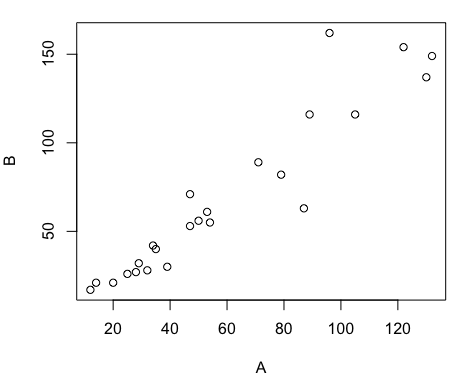
Figure 3. Basic scatter plot made in R, plot(myA,myB).
And here’s the comparable default plot (Fig 4) from Microsoft Excel, Office 365
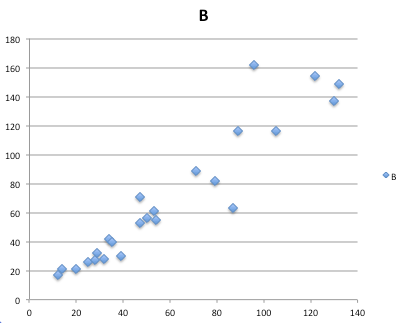
Figure 4. Basic scatterplot made in Microsoft Excel.
Now, both graphs need some work, and to be fair, these are just the defaults. With some effort, you can make an Excel graph look pretty good. But note — the defaults in Excel don’t generate axis labels, while R default plot does. Excel adds a useless title and legend; both need to be removed. Excel also adds grid lines where typically one would not include these in a scientific plot; for example, in the case of scatterplots, grid lines can distract the viewer from the data points and reduce the data-to-ink ratio Tufte 1984).
Count the steps to generate an acceptable scatter plot (Table 3). I’ve also added R Commander (Rcmdr) steps for comparisons (Rcmdr lets you use drop-down menus like Excel or Google Sheets or LibreOffice Calcs).
Table 3. Steps needed to make a simple scatterplot in R, R Commander, or Microsoft Excel.
| Steps | R | Rcmdr | Excel 365 |
| 1 | write the function | Select Graphs | Highlight columns |
| 2 | Select scatterplot | Select from Menu “Insert” | |
| 3 | Select variables | Select scatterplot | |
| 4 | Uncheck options | Select type of scatterplot | |
| 5 | Delete legend | ||
| 6 | Remove grids | ||
| 7 | Insert X-axis label | ||
| 8 | Insert Y-axis label |
Conclusion? R is quicker for routine statistical plots like a scatter plot. And I didn’t even count the steps needed to change MS Excel’s dreadful diamond icon points.
That’s one step in R, four steps in Rcmdr, but eight steps for Microsoft Excel. LibreOffice Calc is a little better at only four steps, but like MS Excel, you’d need to change several components to the graph (Fig 5).
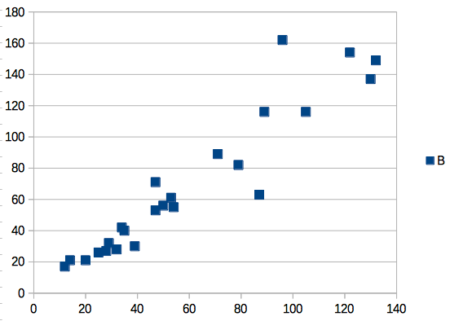
Figure 5. Basic scatterplot made in LibreOffice Calc.
Note 9. In R vernacular, these are referred to as pch, or point characters: pch = 23 returns a blue diamond character; for a blue square like Figure 5, add to the plot() command as
plot(myA,myB, pch = 22)
So, you’re telling me I don’t need a spreadsheet application?
.
No, not at all. We use spreadsheets, and more generally, databases, to store data. Spreadsheets apps are designed to make data entry and data management approachable and efficient. They remain an important tool for researchers (Browman and Woo 2017).
R is not that great of a spreadsheet; packages are available to seamlessly tie your spreadsheet and database data to R via ODBC. We will routinely enter and manipulate data in MS Excel, then import the data into R for analysis.
Spreadsheet apps like MS Excel and Google Sheets (see also LibreOffice Calc) are great at being a spreadsheet program, R is great at being a statistical software program. You should take advantage of what the tools do best.
Still not convinced?
.
R is in use all over the world, by students and professionals alike and if one is going to spend the time to learn how to use a statistics software program, you should learn a standard program, like R.
And it’s not just me. Read about R in this 2009 New York Times piece, “Data analysts captivated by R’s power.” Look who purchased (April 2015) Revolution Analytics, a major player in the development of the R programming language.
Note 10. The answer was Microsoft. For several years Microsoft supported R development via Microsoft Machine Learning Server & Microsoft R Open. However, as of July 2023, this service is no longer available. See Microsoft R application network retirement.
Why install R on your computer?
.
Convenience. Control. Offline.
At the Biology department of Chaminade University, we have installed and maintain R, Rcmdr, and RStudio along with all required packages on our Macbook Pro® Lab computers for your use during class and during optional, proctored biostatistics work sessions. Since 2018, R is increasingly available “in the cloud” (eg, RStudio Cloud), which would mean you could run R in your browser and avoid installation on your computer. You can run significant analysis with R in the cloud via the free Google Colaboratory and CoCalc are now available: I encourage you to look into these platforms. Unfortunately, these services are not quite ready for the classroom. For example, RStudio in the Cloud is free to use on a limited basis, but quickly requires a significant subscription cost with increasing use. Google Colab and GoCalcs require use of Jupyter notebooks, which add yet another layer to the learning curve without focusing on learning statistics. Second, although access to their servers is easy, running simultaneous connections via Chaminade’s single public IP address is likely to lead to problems for us. Third, I want you to use R Commander (Rcmdr) to assist in the learning curve — Rcmdr cannot be run in the Cloud (ie, RStudio in the Cloud, Google Colaboratory, or CoCalc).
Therefore, you are encouraged to install R, Rcmdr, and even RStudio, onto your own computers, in part because of the convenience, but also because R is not generally available to students on campus, ie, only the Biology department’s computers have the up-to-date R software installed.
To get started, go to your Canvas website and view How to install R on your own computer.
An additional benefit to installing a version of R on your computer, you’ll understand more about the software if you take the time to install and if need be, troubleshoot your installation of the software. Moreover, there’s a considerable amount of help out there for R. For example, a simple Google search(keywords: tutorial “install R”), returns more than 700K hits, and more than 40K January 2023 alone (add “after:2023-01-01” to Google search box). In fact, there’s so much out there that you’ll want to sample from several sites and select the voice that works best for you.
Questions
- Write up three learning outcomes for this page. Hint: Point your favorite generative AI to this page and ask for help.
- I listed several spreadsheet apps: Microsoft Excel, Google Sheets, Apple Numbers, LibreOffice Calc. Which of these are free to download and install to your computer? Which are freely available via the Cloud?
- What level of confidence do you have to this statement: I am confident in my ability to use spreadsheet apps for my BI-311 work this semester. Response options:
- Strongly disagree.
- Disagree.
- Agree.
- Strongly agree.
- What level of confidence do you have to this statement: I am confident in my ability to use the R programming software for my BI-311 work this semester. Response options:
- Strongly disagree.
- Disagree.
- Agree.
- Strongly agree.
.
Quiz Chapter 2.2
Why do we use R software?
Chapter 2 contents
.
1.1 – A quick look at R and R Commander
A first look at R.
R is a programming language for statistical computing (Venables et al 2009). R is an interpreted language — when you run (execute) an R program — the R interpreter intercepts and runs the code immediately through its command-line interface, one line at time. Python is another popular interpreted language common in data science. Interpreted languages are in contrast to compiled languages, like C++ and Rust, where program code is sent to a compiler to a machine language application. R is free to use and available via many platforms, from local installations on a person’s laptop to running on cloud servers (Fig 1). 
Figure 1. Choose how you will interact with R: on your computer (Blue box) or in the cloud (Red box). Users of Linux, macOS, and WinPC can either install R to their computer or choose to access R in the cloud (and/or, black arrow).
Before you begin, you have a choice: how do you want to work with R (Fig 1)? In part, the choice depends on your computing device. If you have a desktop or laptop computer, running Linux, Apple macOS, or Microsoft Windows, then R can be installed onto your computer (blue box, Fig 1). If, however, you have a ChromeBook, Apple iPad or iPhone, or any Android Tablet or Smartphone, you would go with the second option (red box, Fig 1).
For those going with installing R to their computer, the second choice is to pick the environment for creating and running scripts and managing file input and output during a session. Working environments for R in the cloud include RStudio and Jupyter Notebooks (eg, Google CoLab) (red box, Fig 1 — see Note 2 below). For installed R, two suggested environments are R Commander and RStudio, an Integrated Development Environment or IDE, RStudio (Fig 1). The choice depends on your needs — an IDE is helpful when you plan to write a lot of code, it’s a comprehensive programming environment, which includes many tools that support writing code from scratch.
For our course at Chaminade University, I recommend R Commander because of the drop-down menu approach to accessing statistical functions in R; R Commander is not a comprehensive environment, but it provides the necessary scripting window along with access to markdown editing. R Commander, Rcmdr, is an R package that provide a graphical user interface or GUI for R. It is based on the tcltk package. R must be installed first before installing the R Commander package. R Commander provides familiar menu functions, like many commercial statistical software. R Commander, like the IDE RStudio, is not necessary for R programming or conducting statistical analysis or even generating reports via markdown. R Commander, however, shrinks the learning curve with R programming basics so that students can focus on learning statistics, which is the chief objective of the Biostatistics course at Chaminade.
The following steps user through use of R and R Commander, from installation to writing and running commands. Mike’s Workbook for Biostatistics has a ten-part tutorial, A quick look at R and R Commander, which I recommend.
Note 1: Getting started? By all means rely on Mike’s Biostatistics Book (Appendix: Install R, Install R Commander, Use R in the cloud) and blogs or other online tutorials to point you in the right direction. You’ll also find many free and online books that may provide the right voice to get you working with R. However, the best way to learn is to go to the source. The R team has provided extensive documentation, all included as part of your installation of R. In R, run the command RShowDoc("doc name"). replace doc name with the name of the R manual or R user guide. For example, the Venables publication is accessed as RShowDoc("R-intro"). Similarly, the manual for installation is RShowDoc("R-admin") and the manual for R data import/export is RShowDoc("R-data").
Install R.
.
Full installation instructions are available at Install R, and for the R Commander package, at Install R Commander. Here, we provide a brief overview of the installation process.
Note 2: The instructions at Mike’s Biostatistics Book assume use of R on a personal computer running updated Microsoft Windows or Apple macOS operating systems. For Linux instructions, eg, Ubuntu distro, see How to install R on Ubuntu 22.04. For Chromebook users, if you can install a Linux subsystem, then you can also install and run R although it’s not a trivial installation. For instructions to install R see Levi’s excellent write up at levente.littvay.hu/chromebook/. (This works best with Intel-based CPUs — see my initial attempts with an inexpensive Chromebook at Install R.)
Another option is to run R in the cloud via service like Google’s Colab or CoCalc hosted by SageMath. Both support Jupyter Notebooks, a “web-based interactive computational environment.” Neither cloud-based service supports use of R Commander (because R Commander interacts with your local hardware). Colab is the route I’d choose if I don’t have access to a local installation of R. See Use R in the cloud for more details.
Download a copy of the R installation file appropriate for your computer from one of the Comprehensive R Archive Network (CRAN) mirror site of the r-project.org. For Hawaii, the most convenient mirror site is provided by the folks at RStudio (https://cloud.r-project.org/. In brief, Windows 11 users download and install the base distribution. MacOS users must first download and install XQuartz (https://Xquartz.org), which provides the X Window System needed by R’s GUI (graphic user interface). Once XQuartz is installed, proceed to install R to your computer. MacOS users — don’t forget to drag the R.app to your Applications folder!
Start R.
.
The following is a minimal look at how to use R and R Commander. Please refer to tutorials at Mike’s Workbook for Biostatistics (R work, part 1 – 10) to learn use of R and R Commander.
We’re just getting started, so the next thing to learn is how to set your working environment for your R sessions. Although we’ll discuss the R environment more as we proceed, it’s a good idea to start with a best practice action common in data science — always create and work from a working folder. This can be a local folder on your computer or pointed to a folder in your cloud storage. On my mac I usually create a folder on the desktop, example BI-311, and point to that as my working folder for a project. Now, we need to point R to use the working folder — we do this at start of each R session (or modify some code R needs during start up to always point to the folder — for now, we leave that for a later exercise).
Once R is installed on your computer, start R as you would any program on your computer. For example, the icon for the R.app as it appears in the dock on a MacBook is shown in Figure 2.

Figure 2. R.app icon shown on a MacBook dock.
To point R to our working folder, there are several options. For now, we’ll go with writing and submitting a simple function in R. Recall that R has a command-line. The R prompt appears on the command line in the RGUI as the greater-than typographical symbol “>” at the beginning of a line (Fig 2). The prompt is returned by R to indicate the interpreter is ready to accept the next line of code.
First, discover where R is pointing to by submitting (type the command exactly as written then select keyboard shortcuts on Windows enter, or on macOS return key) the function getwd() at the prompt.
Note 3: Unfamiliar with keyboard shortcuts? I created a page just for you at Keyboard shortcuts in Mike’s Workbook for Biostatistics.
Ready to
On my MacBook, R returns
> getwd()
[1] "/Users/[username]/Documents"
To point to my working folder, I submit setwd("/Users/[username]/Desktop/BI311". When I run getwd() again, R returns the update
> getwd()
[1] "/Users/[username]/Desktop/BI311"
Note 4: Windows users will recognize that, unlike macOS and Linux, they will need to write paths with the backslash, not the forward slash. This is discussed further in Mike’s Workbook.
[username] is just a placeholder here — no reason to share my actual user name!
Ready to do some work?
R coding practices in this book and in the companion workbook roughly follow guidance outlined in a September 2018 R-Bloggers post, “R Code — Best practices,” by The R Trader. Of note, naming conventions: variables are nouns, variable names are written in lowerCamelCase; functions are verbs, function names are period separated, eg, my.function; script file names all end with .R and are written snake_case.R. Comments, preceded by # and a single space, eg, # A brief comment, are sparingly included in code, but reserved for explanatory sentences in the text. We use <- and not = for assignment statements.
Where discussion requires reference to instructions on use of the R programming language, R code (instructions) the user needs to enter at the R prompt are shown in code blocks.
Courier New font within a “code block.”Until you write your own functions, the general idea is, you enter one set of commands at a time, one line at a time. For example, to create a new variable, curryPoints, containing points scored by the NBA’s Steph Curry during the 2016 playoffs, type the following code at the R prompt (displayed as >, the “greater than” sign)
curryPoints <- c(24,6,40,29,26,28,24,19,31,31,11,18,19).
and to obtain the mean, or arithmetic average, for curryPoints at the R prompt type and enter
.
mean(curryPoints).
Output from R function mean will look like the following
.
[1] 24.42857.
Functions in R, or any other data science programming language, are intended to automate a task.
Note 5: A good data management habit — store the variable as an R object called a data.frame.
df.curryPoints <- data.frame(curryPoints)
The R prompt appears in the RGUI as the greater-than typographical symbol “>” at the beginning of a line (Fig 3). The prompt is returned by R to indicate the interpreter is ready to accept the next line of code.
![Screenshot of the R GUI on a macOS system; red arrow points to the R prompt. The visible code reads curry.points and some numbers between parentheses, next line calls for the mean of the object, and the last line begins with [1] and the result.](https://biostatistics.letgen.org/wp-content/uploads/2020/09/RGUI_prompt.png "Figure 1. The R GUI on a macOS system; red arrow points to the R prompt.")
Figure 3. The R GUI on a macOS system; red arrow points to the R prompt.
Note 6: We just demonstrated one of several ways data can be brought into an R session, by creating a data.frame directly from a vector. Other methods include
- Reading a text file from your computer, eg, CSV, by
read.csv() - Importing a spreadsheet (Excel file) from your computer
using readxl::read_excel() - Entering small datasets directly using
read.table()with thetext= argument
Everything that exists is an object.
.
A brief programmer’s note — John M. Chambers, creator of the S programming language and a member of the R-project team, once wrote that sub-header phrase about R and objects. What that means for us: programming objects can be a combination of variables, functions, and data structures. During an R session the user creates and uses objects. The ls() function is a useful R command to list objects in memory. If you have been following along with your own installed R app, then how many objects are currently available in your session of R? Answer by submitting ls(). Hint: the answer should be one object.
A routine task during analysis is to calculate an estimate then use the result in subsequent work. For example, instead of simply printing the result of mean(curryPoints), we can assign the result to an object.
myResult <- mean(curryPoints)
.
To confirm the new object was created, try ls() again. And, of course, there’s no particular reason to use the object name, myResult, I provided! Like any programming language, creating good object names will make your code easier to understand.
When you submit the above code, R returns the prompt, and the result of the function call is not displayed. View the result by submitting the object’s name at the R prompt, in this case, myResult. Alternatively, a simple trick is to string commands on the same line by adding ; (semicolon) at the end of the first command. For example,
myResult <- mean(curryRoints); myResult
.
Objects created during an R session, like curryPoints, are stored in memory within the Global Environment. To remove an object, use the command rm(myVariable). Why remove objects during an R session? If you are attempting multiple tasks in a homework assignment, removing unneeded objects helps maintain a clean and organized workspace, improving code readability and reducing the chance of accidental errors.
Write your code as script.
.
While it is possible to submit code one line at a time, a much better approach is to create and manage code in a script file. A script file is just a text file with one command per line, but potentially containing many lines of code. Script files help automate R sessions. Once the code is ready, the user submits code to R from the script file.
Note 7: Working with scripts eliminates the R prompt, but code is still interpreted one line at a time. The user does not type the prompt in a script file.
Figure 4 shows how to create a new script file via the RGUI menu: File → New script.

Figure 4. Screenshot of drop down menu RGUI, create new script, Windows 11.
The default text editor opens (Fig 5).
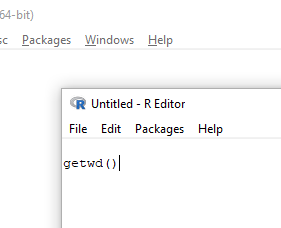
Figure 5. Screenshot of portion of R Script editor, Windows 11. A simple R command is visible.
Submit code by placing cursor at start of the code or, if code consists of multiple lines, select all of the code, then hit keyboard keys Ctrl + R (Windows 11) or for macOS, Cmd + Enter.
I recommend starting with a clean environment, by using rm(list = ls()) at the beginning of a script.
By default, save R script files for reuse with the file extension .R, eg, my_script.R. Because the scripts are just text files you can use other editors that may make coding more enjoyable (see RStudio in particular, but there are many alternatives, some free to use. A good alternative is ESS).
Install R Commander package.
.
By now, you have installed the base package of the R statistical programming language (see for detailed instructions). The base package contains all of the components you would need to create and run data analysis and statistics on sets of data. However, you would quickly run into the need to develop functions, to write your own programs to facilitate your work. One of the great things about R is that a large community of programmers have written and contributed their own code; chances are high that someone has already written a function you would need. These functions are submitted in the form of packages. Throughout the semester we will install several R packages to extend R capabilities. R packages discussed in this book are listed at R packages of the Appendix.
Our first package to install is R Commander, Rcmdr for short. R Commander is a package that adds function to R; it provides a familiar point-and-click interface to R, which allows the user to access functions via a drop-down menu system (Fox 2017). Thus, instead of writing code to run a statistical test, Rcmdr provides a simple menu driven approach to help students select and apply the correct statistical test. R Commander also provides access to Rmarkdown and a menu approach to rendering reports.
install.packages("Rcmdr")
.
In addition, download and install the plugin
install.packages("RcmdrMisc")
See Install R Commander for detailed installation instructions.
Note 8: Plugins are additional software which add function to an existing application.
Start R Commander.
.
After installing Rcmdr, to start R Commander, type library(Rcmdr) at the R prompt and enter to load the library
library(Rcmdr).
On first run of R Commander you may see instructions for installing additional packages needed by R Commander. Accept the defaults and proceed to complete the installation of R Commander. Next time you start R commander the start up will be much faster since the additional packages needed by R Commander will already be present on your computer.
Note that you don’t type the R prompt and, indeed, in R Commander Script window you won’t see the prompt (Fig 6). Instead, you enter code in the R Script window, then click “Submit” button (or Win11: Ctrl+R or for macOS: Cmd+Enter), to send the command to the R interpreter. Results are sent to Output window (Fig 6).
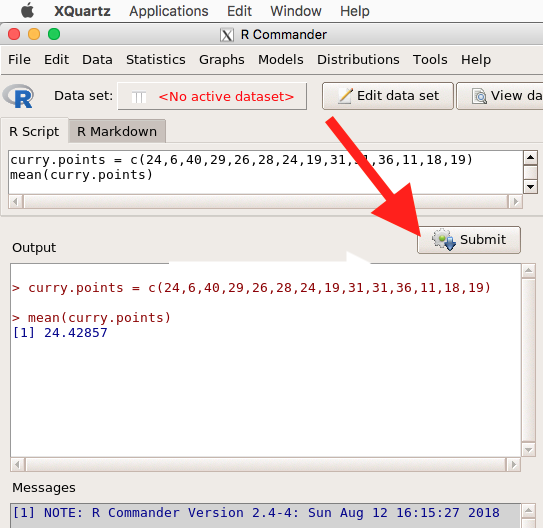
Figure 6. The windows of R Commander, macOS. From bottom to top: Messages, Output, Script (tab, Markdown) Rcmdr ver. 2.4-4.
Figure 6 shows how the R Commander GUI looks on a macOS computer. The look is similar on Microsoft Windows 11 machines (Fig 7).
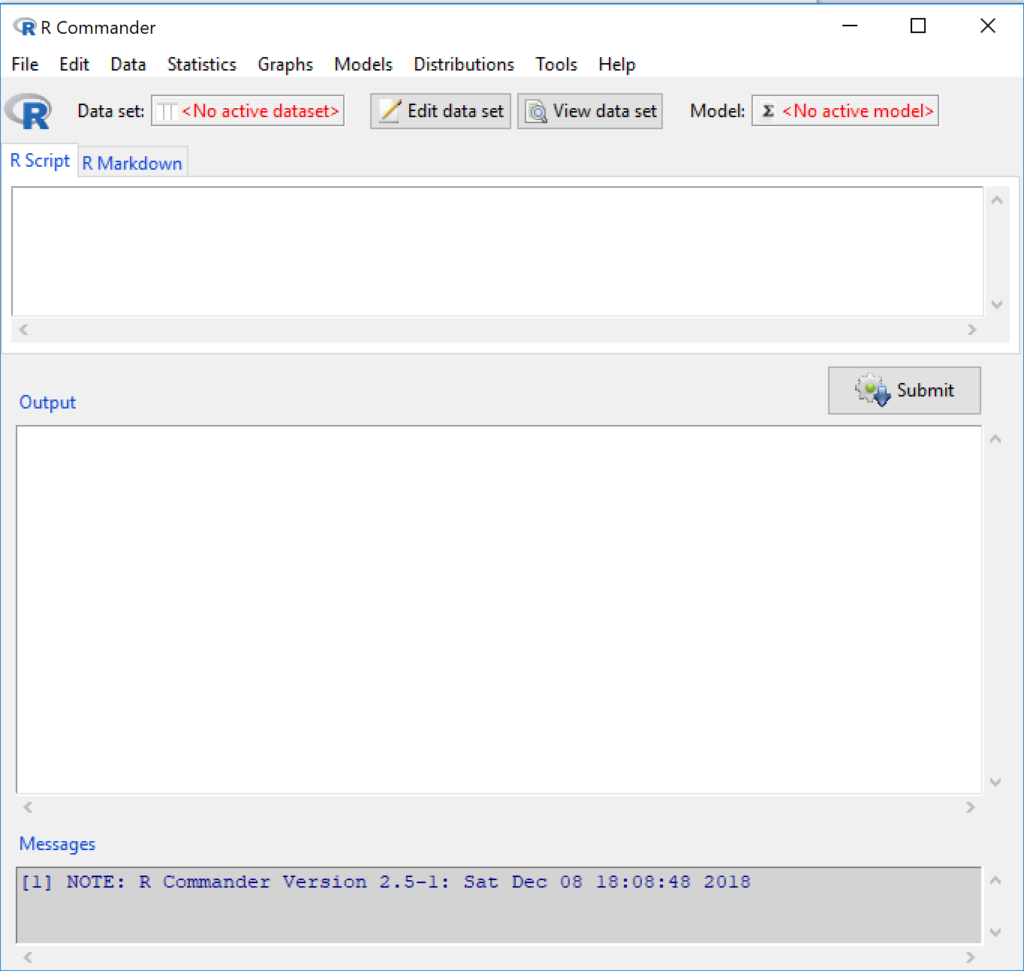
Figure 7. The windows of R Commander, Win11. From bottom to top: Messages, Output, Script (tab, R Markdown) Rcmdr ver. 2.5-1.
We use R Commander because it gives us access to code from drop-down menus, which at least initially, helps learn R (Fox 2005, Fox 2016). Later, you’ll want to write the code yourself, and RStudio provides a nice environment to accomplish your data analysis.
Improve Rcmdr experience.
Windows users: R Commander works best in Windows if SDI option is set. This can be accomplished during R installation (“Startup options” popup, change from default “No” to “Yes” to customize), but you can also change after installing R. Win11 users should change from MDI to SDI — from one big window to separate windows — (see Do explore settings, WinPC see Fig 9; macOS see Fig 10). The downside of SDI is that while multiple Windows may appear during an R session, one or more windows may be hidden by an open window. For example, plots will popup in a new window and may be obscured by the Rcmdr window if full screen. A simple trick to view active windows on Win11 is to use the keyboard shortcut s Alt + Tab to view and cycle between windows. What about SDI and RStudio? RStudio experience will be similar whether MDI (default) or SDI was selected.
macOS users: To improve R Commander performance, turn off Apple’s app nap (see Do explore settings, Figures 6), which should improve a Mac user’s experience with R Commander and other X Window applications.
Complete R setup by installing LaTeX and pandoc for Markdown.
.
LaTeX is a system for document preparation. pandoc is a document converter system. Markdown is a language used to create formatted writing from simple text code. Once these supporting apps are installed, sophisticated reports can be generated from R sessions, by-passing copy and paste methods one might employ. See Install R Commander for instructions to add these apps.
Note 9: If you successfully installed R and are running R Commander, but may be having problems installing pandoc or LaTeX, then this note is for you. While there’s advantages to getting pandoc etc working, it is not essential for BI311 work.
Assuming you have Rcmdr and RcmdrMisc installed, and if you have started Rcmdr and have it up and running, then we can skip pandoc and LaTeX installation and use features of your browser to save to pdf.
R Markdown by default will print to a web page (an html document called RcmdrMarkdown.html) and display it in your default browser. To meet requirements of BI311 — you submit pdf files — we can print the html document generated from “Generate Report” in R Commander to a pdf.
- Chrome browser, right click in the web page, from the popup menu select Print, then change destination to Save as pdf.
- Safari browser, right click then select Print page (or if an option, Save page as pdf), then find at lower left find PDF and option to Save as PDF.
R Markdown.
.
Markdown is a syntax for plain text formatting and is really helpful for generating clean html (web) files. R Commander also helps us with our reporting. R Markdown is provided as a tab (Fig 6, Fig 7). Provided you have also installed pandoc on your computer, you can also convert or “render” the work into other formats including pdf and epub. Unsure if your computer has pandoc installed? If you are unsure than most likely it is not installed. 😁 Rcmdr provides a quick check — go to Tools and if you see Install auxiliary software, then click on it and a link to pandoc website to find and download installation file. You can also confirm install of pandoc by opening a terminal on your computer (eg, search “terminal” on macOS or “cmd” on Win11), then enter pandoc –version at the shell prompt. Figure 8 shows version pandoc is installed on my Win11 HP laptop.
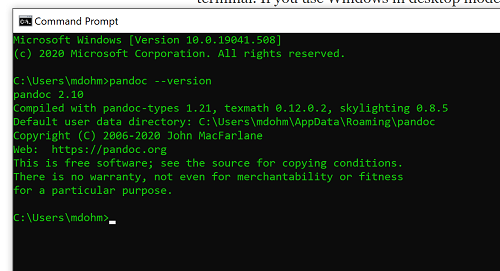
Figure 8. Screenshot of terminal window (cmd) on win11 computer, checking for installed pandoc on a win10 pc.
Enter your R code in the script window, submit your code, and your results (code, output, graphs) are neatly formatted for you by Markdown. Once the Markdown file is created in R Commander, you can then export to an html file for a a web browser, an MS Word document, or other modes.
Do explore settings!
.
After installation, R and R Commander are ready to go. However, students are advised that a few settings may need to be changed to improve performance. For example, on Win11 PCs, R Commander recommends changing from the default MDI (Multiple Document Interface) to SDI (Single Document Interface). Check the SDI button via Edit menu, select GUI preferences menu. Click save, which will make changes to .RProfile, then exit and restart R. Check to make sure the changes have been made (Fig 9).
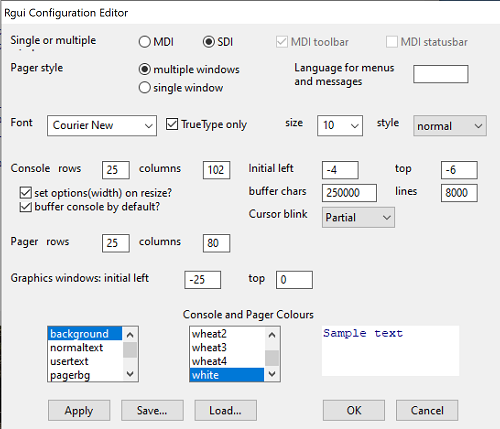
Figure 9. Screenshot of GUI preferences settings after changing from default MDI to SDI, win10
For macOS users, both R and Rcmdr will run better if you turn off Apple’s power saving feature called nap. From Rcmdr go to Tools and select Manage Mac OS X app nap for R.app… (Fig 10).
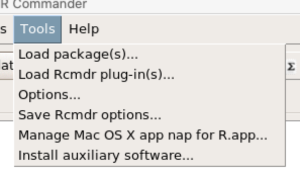
Figure 10. Screenshot Rcmdr Tools popup menu, macOS 10.15.6
A dialog box appears; select off to turn off app nap (Fig 11).
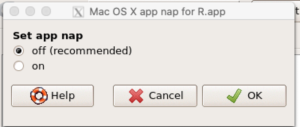
Figure 11. Screenshot Rcmdr Set app nap dialog box, macOS 10.15.6
Exit R Commander.
.
Click on Rcmdr: File → Exit, then choose to exit from just R Commander, or both R Commander and R.
If you exit just R Commander or both R and R Commander, you’ll receive a pop-up request to confirm you want to quit R Commander (click yes), and a second prompt asking if you want to save your script. In general, select yes and then you’ll be able to take up where you left off. Similarly, if asked to save your workspace, choose no. If you save workspace, this creates an .RProfile text file with settings for how R and R Commander will behave the next time you start R. The file will be saved to your current working folder, which R will use the next time R starts. At least while you are getting started, you should avoid creating these .RProfile files.
As long as the current session of R is active, then the library for Rcmdr, as well as any other library loaded during the R session, is in memory. To start R Commander again while R is running, at the R prompt, type and submit
Commander()
Questions.
- Biostatistics students should work through my ten R lessons, A quick look t R and R Commander, available in Mike’s Workbook for Biostatistics.
- Students should also search Internet for R tutorials and R Commander tutorials. Find recent tutorials and work through several of them. We get better when we practice.
Quiz Chapter 1.1
A quick look at R and R Commander
Chapter 1 contents
.
- Getting started
- A quick look at R and R Commander
- Chapter 1 – References
Preface
Overview.
.
The following pages, loosely called Mike’s Biostatistics Book, contain the extended versions of my lectures for BI311 Biostatistics, a biology course I teach at Chaminade University.
The companion site, Mike’s Workbook for Biostatistics, provides homework, problems and projects to learn-by-doing biostatistics, and several R tutorials. (I’ve also put together a number of handouts, background, and bioinformatics support at Mike’s Genetics & Genomics Workbook, consisting of materials used to support my lab classes these past 20 years.)
The Biology department faculty require biology majors to take this course. Class standing of students range from sophomores to first year graduate students.
We use and rely heavily on R, the open source “language and environment for statistical computing” (R-project [dot] org), and the R Commander package by J Fox (Fox 2005; Fox 2016). R Commander allows students to gain confidence with R commands by use of drop down menus to access functions. Increasingly, we also use Google CoLab to run simple R sessions.
The lecture notes are written from my perspective on what matters in a semester-long, first course in Biostatistics: concepts, context and practical advice along with a generous introduction to general linear models. The focus is on applied statistics with reference to other data science skill sets as needed. Concepts are illustrated by examples and multiple choice questions to “test” reader comprehension. Examples in Mike’s Biostatistics Book are generally from real data sets in biological or biomedical research. Therefore, context and practice comes from data sets we will work on throughout the semester. The data sets are presented in the accompanying workbook, body titled Mike’s Workbook for Biostatistics.
The material presented in Mike’s Biostatistics Book provide background and the examples needed to complete the problems presented in the course workbook.
- Chapter 2: Statistical reasoning.
- Workbook: Homework 1: Project data life cycle.
- Chapter 3 and 4: Exploring data.
- Workbook: Homework 2A: Descriptive statistics.
- Workbook: Homework 2B: Graphs.
- Chapter 5: Experimental design.
- Chapter 6: Probability.
- Workbook: Homework 3: Distributions & Probability.
- Chapter 7: Risk analysis.
- Workbook: Homework 4: Risk.
- Chapter 8: Inferential statistics.
- Workbook: Homework 5: Inference.
- Chapter 9: Qualitative (categorical) analyses.
- Workbook: Homework 6: Chi-square problems.
- Chapter 10 – 19: Quantitative (continuous) analyses.
- Chapter 10, 12, 13 – Workbook: Homework 7: t-tests and ANOVA.
- Workbook: Homework 8: Multiway ANOVA.
- Workbook: Homework 10: Correlation.
- Workbook: Homework 10: Multiple linear regression.
- Chapter 11: Power analysis.
- Chapter 15: Nonparametric tests.
- Chapter 19: Distribution-free methods.
- Chapter 20: Additional topics (partial listing).
- growth curves, dose response.
- logistic regression.
- others.
- Statistical tables.
- Appendix
While the intention is to downplay lists of statistical tests in favor of developing statistical reasoning, many of the kinds of tests one comes across are introduced and discussed in this book. The intent is to introduce these tests as special cases of general (or generalized) models from a data analyst’s point of view. Think of “k-means clustering“, “independent sample t-test“, “ANOVA“, “linear regression“, and the other tests as vocabulary. We understand biology best when we can talk the talk, and the same holds for learning statistics.
The book does not include machine learning — systems that can learn and help make decisions from data — and as of September 2023, includes only a short discourse on clustering and dimensionality reduction of data sets.
About this book (and website).
.
This textbook is an eBook and will undergo updates to correct errors, improve clarity, and even new content, throughout the semester. Although in spirit I welcome comments, corrections, and suggestions to improve coverage and content, I have closed comments at this site to minimize spam. As the book has a modest readership from multiple countries, I’m always happy to try and answer student questions — A little judicious search on the part of the reader likely will find a relevant email address.
Typesetting.
.
The manuscript was type set from a mix of html and Markup language — See Part 09: Making a report at Mike’s Biostatistics Book — and Ghostwriter (version 2 [dot] 1 [dot] 1), and the eBook (pdf version coming soon!) was generated and edited with Calibre (version 5 [dot] 35 [dot] 0).
Text to speech considerations.
Text to speech apps can get confused when a period appears within text and not just at the end of a sentence. Therefore, I’ve dropped periods from “Fig. 1” and the “e.g.” and “i.e.” Latin abbreviations. Periods appear in R commands, for example, data.frame(), and those remain as is. Similarly, I generally add a period after a subheading to encourage a break by text to speech apps.
Hosting.
Both books, Mike’s Biostatistics Book and Mike’s Workbook for Biostatistics, are hosted on my website. This site, Mike’s Biostatistics Book, is solely supported by me and I don’t monetize the site. As of Fall 2023, the site cookie only stores temporary session information during a users visit.
Equations.
.
Equations in the eBook were created with LaTeX — a software system used to prepare and format documents — and saved as PNG images, or embedded in text (QuickLaTeX WordPress plug-in). Pages with many images or equations may be slow to load in your browser: in general, to improve browsing experience reduce the number of open tabs and use of additional apps.
References and citations.
.
Introductory textbooks often lack in-line citations. The absence of in-line citations improves readability, but at the very real expense of giving credit to the original and to providing the reader the opportunity to verify facts and opinions presented. I have tried a balance: first, I included in-line citations to references. One of many remaining tasks for me to improve the book is to complete linkage of in-page citations to reference lists. I have, however, refrained from an exhaustive, dissertation-like reference listing for each point raised in the book. Second, most citations are to open access articles (or articles with pdfs available by judicious search), with the justification of the reader has access to the original material. However, this approach is a form of citation bias. Thus, I refer to reference pages as References and Suggested Readings, and don’t claim Mike’s Biostatistics Book as an authoritative voice on the subject (cf. discussion in Greenberg 2009 Bmj 339).
A note about me.
.
I’m an Associate Professor of Biology at Chaminade University. My PhD was not in statistics, I trained in evolutionary physiology and quantitative genetics. Quantitative genetics is an applied field that depends heavily on use of mathematics and statistics, particularly linear models. I took courses in applied statistics while at the University of Wisconsin, but I would not call my training in statistics thorough or complete. Much of what I know comes from self-study. My strengths in biostatistics, I believe, are in translation of sometimes dense mathematics to direct use and application. Thus, I have developed a direct style to the material that I hope you will find helpful as you work on the material. It also means we won’t spend a lot of time with proofs, not because these are unimportant, but because they can side-track from developing your statistical thinking when it comes to data analysis — but primarily because this is not my strength. References are presented in the book to support the algorithms and mathematical foundations of biostatistics and to back claims I make about applied statistics.
Thus, I don’t claim that I have all of the answers, nor am I saying that the mathematical foundations are unimportant, far from it. But we have to start somewhere and I elect to spend our time on the concepts in statistics, the why do we do it this way, as opposed to the mechanics of the mathematics, the how do we do it.
What I have learned about statistics comes from publications from many real statisticians; Mike’s Biostatistics Book, such as it is, stands on on their work. I apologize in advance to any author whose work has not been given proper credit. Mistakes or mischaracterizations are, of course, mine alone.
Other sources of expertise.
.
Mike’s Biostatistics Book of lecture notes is intended to provide students with a foundation in biostatistics: the concepts of assumptions, probability, sampling, description, and modeling that support a researcher’s ability to advance knowledge in biology. But you will very much benefit from other opinions, other voices. And, as much as I have adopted the online presence, it is hard to beat a book in hand as a guide. Good statistics books retain their value well passed their publication date. Some of the textbooks I have found useful over the years include the following:
Introduction and general statistics.
.
Chaterjee S, Price B (1977) Regression analysis by example. Wiley Interscience (5th edition now published in 2006)
Glover T, Mitchell K (2008) Introduction to biostatistics, 2nd edition. Waveland Press
Norman GR, Streiner DL (2003) PDQ Statistics, 3rd edition. BC Decker
Snedecor GW, Cochran WG (1989) Statistical methods, 8th edition. Iowa State University Press
Sokal RR, Rohlf (1981) Biometry, 2nd edition. WH Freeman (4th edition published in 2011)
Whitlock MC, Schluter D (2008) The analysis of biological data. Roberts and Company
Zar J (1999) Biostatistical analysis, 4th edition. Prentice Hall (5th edition published in 2011)
Intermediate and advanced books.
Abelson RP (1995) Statistics as principled argument. Taylor & Francis (epub available)
Bulmer MG (1967) Principles of statistics. Dover Publications (epub available)
Davidson AC, Hinkley DV (1997) Bootstrap methods and their application. Cambridge University Press (epub available)
Edwards AWF (1992) Likelihood, expanded edition. Johns Hopkins University Press
Fisher RA (1934) Statistical methods for research workers, 5th edition. Oliver and Boyd (The last edition was the 14th)
Härdle W, Simar L (2003) Applied multivariate statistical analysis. Springer-Verlag
Lee PM (1989) Bayesian statistics: An introduction. Oxford University Press – McCullagh P, Nelder JA (1989) Generalized linear models, 2nd edition. Chapman and Hall
Montgomery DC, Peck EA (1992) Introduction to linear regression analysis, 2nd edition. John Wiley & Sons (5th edition published in 2013)
Neter J, Wasserman W, Kutner MH (1989) Applied linear regression models, 2nd edition. Robert D Irwin (4th edition published in 2003)
Quinn GP, Keough MJ (2002) Experimental design and data analysis for biologists. Cambridge University Press.
Shao J (2003) Mathematical statistics, 2nd ed. Springer Science
Wei WWS (1990) Time series analysis. Addison-Wesley (2nd edition published in 2005)
Some of these titles are old!
.
One of the good things about statistics is that many of the standard statistical applications were developed a long time ago, so “old textbooks” in statistics retain their value. A quick search online will result in many options to purchase one or more of these books for under $10. In addition, most of the books listed above have new editions; where appropriate I have listed the most recent available edition.
What about books on R?
None of the listed books teach R. Between Mike’s Biostatistics Book and the companion Mike’s Workbook for Biostatistics, several tutorial and lots of worked examples are provided to help you learn how to use R to help statistical work. A quick Google search, e.g., “free online books learn R,” returns thousands of suggested titles. Search “R tutorials,” for millions more. Chances are, if you have a question about how to do some task in R, someone has already solved the task and published code examples for you to borrow (always cite your sources!).
Concluding remarks about these lecture notes.
.
These collected lecture notes will serve as your official textbook – I have tried to make them accurate, informative, and yet balanced between providing too much detail while still providing depth to the presentation. In class, lecture slides will be provided as outline to these more extensive notes. Homework and quizzes support the progress through the notes.
The lecture notes contained in Mike’s Biostatistics Book are very much a work in progress, with some areas more developed than others. If you find areas that make no sense, seem abrupt, or you would like more examples, please do let me know. Your input is important to improve this textbook; the Discussion Forum on the course website is a good place to do lend your critiques and suggestions.
Like most subjects one voice is not enough; you will benefit from acquiring a second opinion, either from one or more of the books listed above or from the many online sites on statistics you will find. The good news is that you will find substantial overlap between what I write and other sources you may acquire because the topics we will cover are foundational and my take is mainstream.
However, you will also find some differences in detail. For one example, I have included much more on risk analysis and an epidemiology tilt as compared to many of the the titles listed under the Introduction and General statistics category. For a second example, I give a different perspective on how to work with probability calculations, emphasizing use of natural numbers over frequency calculations. Many examples provided in the book are drawn from data sets created in lab classes or as preliminary and pilot projects from my research at Chaminade University: growth curves, dose-response, working with RT-PCR traces, multi-well plate assays and more.
Preface contents
.
Preface