4.7 – Q-Q plot
Introduction
Use of graphs by a data analyst may serve different purposes: communication of results or as diagnostics. The Q-Q plot is one example of a graph used as a diagnostic.
The quantile-quantile, or Q–Q plot is a probability plot used to compare graphically two probability distributions. In brief, a set of intervals for the quantiles is chosen for each sample. A point on the plot represents one of the quantiles from the second distribution (y value) against the same quantile from the first distribution (x value).
A common use of Q-Q plot would be to compare data from a sample against a normal distribution. If the sample distribution is similar to a normal distribution, the points in the Q–Q plot will approximately lie on the line y = x.
R code
In R, the Q-Q plot can be obtained directly in Rcmdr.
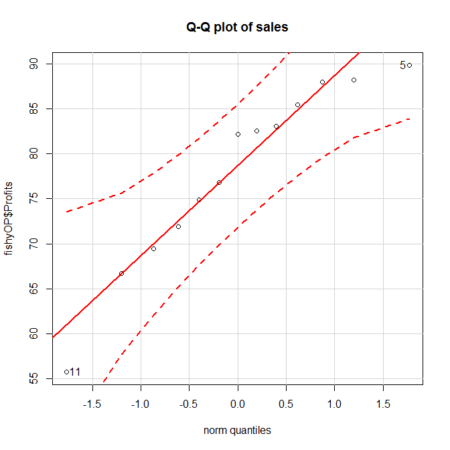
Figure 1. A Q-Q plot, the default command in Rcmdr
Rcmdr: Graphics → Quantile-comparison plot…
After choosing the variable (in this case, Sales), click on Options tab and make additional selections before making the graph. Here, selected normal distribution.
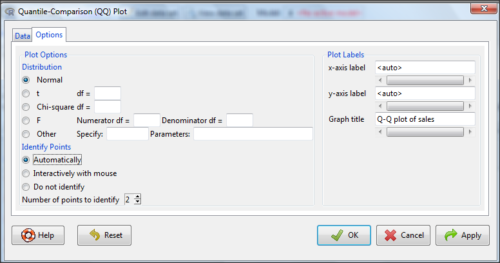
Figure 2. Screenshot of R Commander menu for Q-Q plot
Another version is available in the KMggplot2 package.
Questions
- What is a Q-Q plot used for in statistics?
- Looking at the plot in Figure 1, explain why the confidence lines get further and further away from the straight line.
Quiz Chapter 4.7
Q-Q plots
Chapter 4 contents
4.6 – Adding a second Y axis
Introduction
Scatter plots are used to show association between two continuous variables. However, it is not uncommon to have a third variable for which association between the same X variable is expected. Thus, a common scatter plot includes a second Y axis. These graphs are a bit more involved to make regardless of which application used. The purpose of this short section is to provide a way to create a plot with two Y axes against a common X axis. Additional plotting options are also provided and explained.
The data set
The first draft of this post was written in September 4, 2019, peak time for hurricanes. Hurricane Dorian passed the Bahamas as a category 4 storm heading for Florida. For context I include a screenshot of imagery from NOAA; you can see Dorian along the Florida coastline as well as four additional storms lined up from the coast of Africa across the Atlantic Ocean (Fig 1).

Figure 1. Screenshot from NOAA GOES-East – Sector view: Tropical Atlantic – GeoColor, 4 September 2019. Click image to view full sized image.
The data set here is the number of Atlantic Ocean Category 1, 2, 3, 4, or 5 storms since 1900, tabulated by decade. Storms are categorized by wind speed according to the Saffir-Simpson Hurricane Wind Scale, or SSHWS.
Note 1: Since September 2019 there have been 36 major hurricanes: 2019, October – December = 3; 2020 = 13; 2021 = 3; 2022 = 3; 2023 = 2; 2024 = 12.
Additional data, average levels of carbon dioxide (CO2), a greenhouse gas, measured at Mauna Loa and average global temperature index from NOAA were also acquired for the same period. (The temperature index is called anomaly data as it is the difference of temperature between the average temperatures between 1950 and 1980).
#Create the time data, 12 decades, with 2010 based on 8 years only -- up to 2018
decade <- seq(1900,2010, by = 10)
#Saffir-Simpson Hurricane Wind Scale; compiled from Wikipedia, checked against NOAA
cat01 <- c(2,0,1,3,0,9,4,11,18,11,27,46)
cat02 <- c(2,0,1,3,10,4,5,4,3,13,9,8)
cat03 <- c(7,2,3,1,4,10,9,5,4,12,11,7)
cat04 <- c(1,6,5,8,9,10,9,5,5,10,15,8)
cat05 <- c(0,0,2,6,0,2,4,3,3,2,9,4)
#land ocean anomaly temperature index, NOAA
tempIndex <- c(-0.317,-0.329,-0.241,-0.123,0.042,-0.048,-0.028,0.034,0.247,0.387,0.591,0.791)
#mauna kea CO2, mean by decade, record starts 1958
co2 <- c(NA,NA,NA,NA,NA,316.0,320.3,330.9,345.5,360.5,378.6,399.0)
Note 2: Corresponding temperature anomalies and CO2 data: cc
Combine all of the variables into a single data frame.
storms <- data.frame(decade,tempIndex,cat01,cat02,cat03,cat04,cat05,co2)
head(storms)
Output from R should look like
  decade tempIndex cat01 cat02 cat03 cat04 cat05 co2
1   1900    -0.317     2     2     7     1     0  NA
2   1910    -0.329     0     0     2     6     0  NA
3   1920    -0.241     1     1     3     5     2  NA
4   1930    -0.123     3     3     1     8     6  NA
5   1940     0.042     0    10     4     9     0  NA
6   1950    -0.048     9     4    10    10     2 316
Create a new variable with all categories of storms summed by decade.
#Sum all of the storms
allHur <- cat01+cat02+cat03+cat04+cat05
#Add new variable to the data frame
storms$allHur <- allHur
#Attach the data frame so you don't have to keep referring to the data frame when you call variables.
attach(storms)
Now, create a simple scatter plot, number of hurricanes by decade (Fig 2).
plot(decade,allHur,pch=16)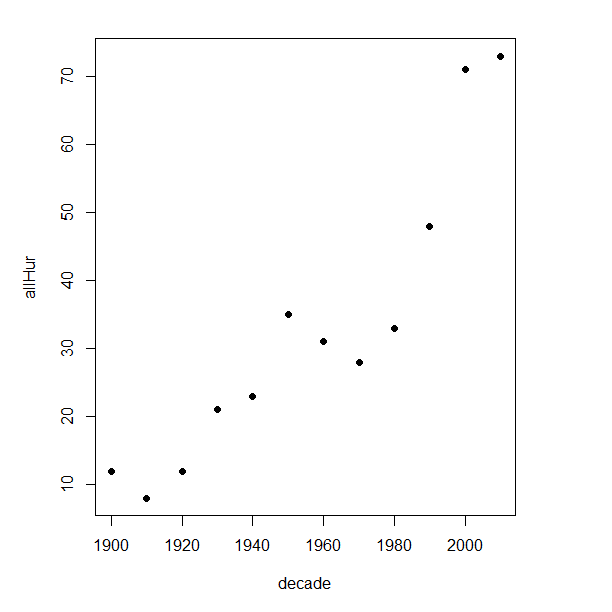
Figure 2. Plot of hurricanes from 1900 to present by decade.
Note 3: Best data come from the satellites, which means use of data since the 1980s would be more appropriate. IPCC reports climate change is projected to increase the intensity of hurricanes, with higher wind speeds and more rainfall. While there is not a consensus on the frequency of storms, the proportion of the most intense storms (Category 4 and 5) is expected to increase, and rapid intensification is also likely to become more common (Masson-Delmotte, et al (2021), IPCC Sixth Assessment Report (AR6) – The Physical Science Basis).
A note on data management
This note is not needed for the plots. However, it’s as good a place as any to comment about how to work with your data in R. For the hurricane data, I set the data frame storms as an unstacked (wide) worksheet. The code that follows shows how to use the reshape2 package, part of the tidyverse set of packages for data manipulation, to convert the data frame from unstacked (wide) to stacked (long).
#code modified from examples presented by Thomas Eisfeld
library(reshape2)
library(dplyr)
tryMe <- melt(storms, id.vars=c("decade", "tempIndex", "co2"), variable.name = "SSHWS", value.name = "hurricanes")
head(tryMe)
You can also take a stacked (long) worksheet and convert it to unstacked (wide) with dcast().
tryAgain <- dcast(tryMe, decade + tempIndex + co2 ~ SSHWS)Make the plots
At last, here’s the code for adding a second Y axis. Code modified from https://www.r-bloggers.com/r-single-plot-with-two-different-y-axes/. The work flow begins by setting parameters of the plotting window, creating the first plot, followed up by adding the second plot (par=TRUE), setting graphing elements, then adding labels and a legend.
First plot example: Total number of hurricanes by decades, with Temperature Index by decades. Number of hurricanes represented on first (left) axis and Temperature Index represented on second (right) axis (Fig 3).
par(mar = c(5,5,2,5))
#Create the first plot
plot(tryAgain$decade, tryAgain$allHur, pch=16, cex=1.5, col="black", xlab="Decades", ylab="Hurricanes", main="Atlantic Hurricanes by Decade")
the syntax par(mar = c(bottom, left, top, right))
#Add the second plot
par(new=T)
plot(tryAgain$decade, tryAgain$tempIndex, type="l", lty="dashed", lwd=2, col="red3", axes=F, xlab=NA, ylab=NA)
axis(side=4)
mtext(side=4,line=3,"Temperature Index")

#Add a legend
legend("topleft",legend=c("Hurricanes", "Temperature Index"),lty=c(0,2), pch=c(16,NA), col=c("black", "red3"))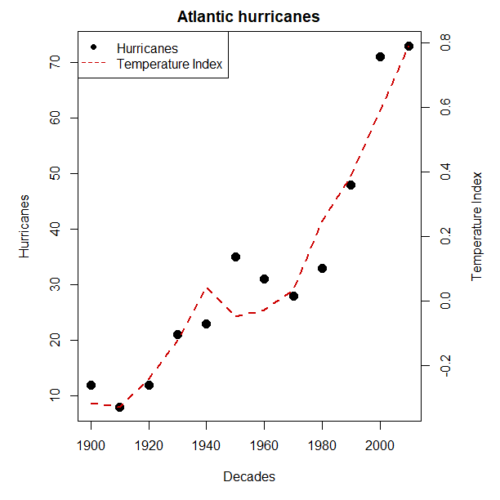
Figure 3. Total number of hurricanes by decades, with Temperature Index by decades. Number of hurricanes represented on first (left) axis and Temperature Index represented on second (right) axis.
Next plot example: Total number of hurricanes by decades, with Atmospheric CO2 measured at Mauna Loa by decades. Number of hurricanes represented on first (left) axis and Atmospheric CO2 represented on second (right) axis (Fig 4).
par(mar = c(5,5,2,5))
plot(tryAgain$decade, tryAgain$allHur, pch=16, cex=1.5, col="black", xlab="Decades", ylab="Hurricanes", main="Atlantic Hurricanes by Decade")
Create space for the second plot in the same frame (use T or TRUE, both work).
par(new=T)Code for the second plot. Note that axes=F (“F” or “FALSE” works) is used to suppress printing axes — Recall that lines were already created by the first plot; if you do not add this, then additional lines are added to the plot.”NA” is used to suppress adding labels; if you do not add this code, then labels will be printed over the existing labels created for the first plot. The code axis=4 sets the right-hand Y axis to active. The next code, mtext() is used to place the axis label for the second Y axis.
plot(tryAgain$decade, tryAgain$co2, type="l", lty="dashed", lwd=2, col="red3", axes=F, xlab=NA, ylab=NA)
axis(side=4)
mtext(side=4,line=3,"Mean CO2, ppm")
Add the legend.
legend("topleft",legend=c("Hurricanes", "CO2"),lty=c(0,2), pch=c(16,NA), col=c("black", "blue"))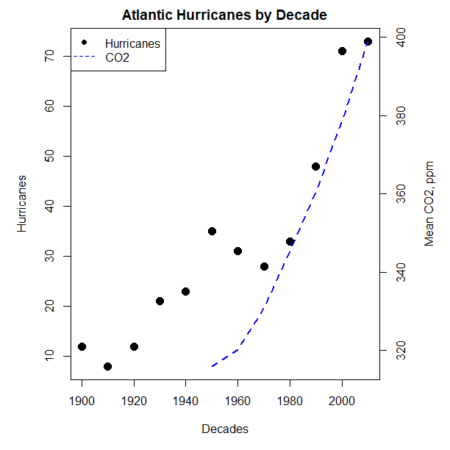
Figure 4. Total number of hurricanes by decades, with Atmospheric CO2 measured at Mauna Kea by decades. Number of hurricanes represented on first (left) axis and Atmospheric CO2 represented on second (right) axis.
Go ahead and try these plots. Change the settings (e.g., lty, pch, cex, col), and note how the graphs look.
Bubble (chart) plot
From the basic scatter plot a variety of variants have been developed to convey additional information about ratio scale variables. The bubble chart is one common example and can be used as an alternative to adding a second Y-axis in some cases. A bubble plot uses the area of a bubble to represent a third variable, while a second y-axis is used to display a second set of data with its own scale on the same chart.
In brief, a third variable is added, mapped to circle size. Spreadsheet apps also include options to make bubble charts and the wonderful plot.ly library provides a vehicle to produce sophisticated graphs including bubble charts online or as a package in R — and it works well with the ggplot2 package. A nice bubble chart introduction is available at Atlassian.
Examples of bubble charts with R code are provided in Ch16.3. That said, what’s one more? Here’s example R code:
ggplot(storms, aes(x = decade, y = tempIndex, size = total_storms)) +
  geom_point(alpha = 0.7, color = "lightgreen") + # Added color = "lightgreen"
  scale_size_continuous(range = c(3, 15)) +
  labs(title = "Temperature Index vs. Decade with Total Storms",
       x = "Decade",
       y = "Land Ocean Anomaly Temperature Index",
       size = "Total Storms") +
  theme_classic()
and the plot, Figure 4.
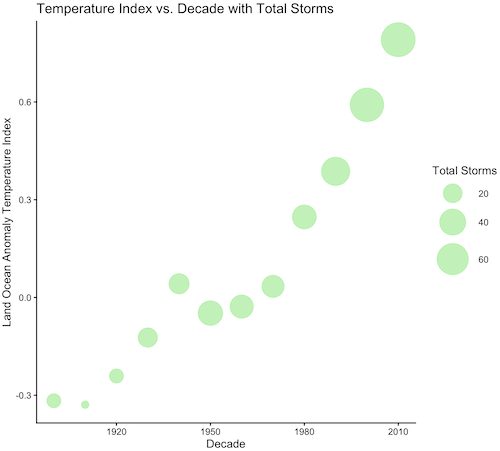
Figure 4. Bubble plot of association between total hurricanes and Land-Ocean Temperature Anomalies by Decade.
If you are interested in trying yourself, a bubble chart yourself, CO2 datas with the hurricane data set is a good candidate for a bubble plot.
Questions
-
Using the
plot()command, make the following graphs- One scatter plot for each category of storm by decade
- Explore the kinds of graph elements available by changing
pchvalues. Create your own - Change point size by changing valued for
cex
- Create a new plot with Decade on X axis, Temperature Index on first Y axis, and CO2 on the second Y axis.
- Include a legend for the plot.
- What is a Q-Q plot used for in statistics?
- Looking at the plot in Figure 5, explain why the confidence lines get further and further away from the straight line.
- What are some advantages and disadvantages of heat map for communicating data.
- What color pallet is considered “color-friendly” for accessible visualization?
- Create a table with three columns.
- In column 1, list the name for each graph type discussed in Chapter 5.
- In column 2, state the kind of data appropriate for each graph.
- In column 3, enter the name of a function in the base R package you can use to make the graph
- In column 4, enter the name of a function from the ggplot2 package you can use to make the graph
Quiz Chapter 4.6
Adding a second Y axis
Chapter 4 contents
4.4 – Mosaic plots
Introduction
Mosaic plots are used to display associations among categorical variables, eg, from a contingency table analysis. Mosaic plots and tree plots (next chapter) are used to show part-to-whole associations or to show whether or not results are consistent across sub-groups (Ballarini et al 2020). Mosaic plots, a type of visual grid, are simple versions of heat maps (next chapter). Like stacked bar charts, the wdth of each column shows the size of each group, the height of any boxes within the columns shows the size of the sub-groups. Used appropriately, mosaic plots may be useful to show relationships. However, like pie-charts and bar charts, care needs to be taken to avoid their over use; the mosiac plot works for a few categories, but quickly loses clarity as numbers of categories increase. As an alternative, particularly if intended for a general audience, icon arrays, aka waffle plots, may be a better choice (see discussion in Garcia-Retamero et al 2013).
In addition to the function mosaicplot() in the base R package, there are a number of packages in R that will allow you to make these kinds of plots; depending on the analyses we are doing we may use any one of three Rcmdr plugins: RcmdrPlugin.mosaic (depreciated), RcmdrPlugin.KMggplot2, or RcmdrPlugin.EBM.
Example data
Table 1. Records of American and National Leagues baseball teams at home and away midway during 2016 season
| No | Yes | |
|---|---|---|
| AL | 10 | 5 |
| NL | 7 | 8 |
The configuration of major league baseball (MLB) parks differ from city to city. For example, Boston’s American League (AL) Fenway Park has the 30-feet tall “Green Monster” fence in left field and a short distance of only 302 feet along the foul line to right field fence. For comparison, Globe Life Park in Arlington, TX the distance along the foul lines left field (332 feet) and right field (325 feet). So, it suggests that teams may benefit from playing 81 games at their home stadium. To test this hypothesis I selected Win-Loss records of the 30 teams at the midway point of the 2016 season. Data are shown in the Table 1.
mosaicplot() in R base
The function mosaicplot() is included in the base install of R. The following code is one way to directly enter contingency table data like that from Table 1.
myMatrix <- matrix(c(10,  5,  7,  8),  nrow = 2, ncol = 2, byrow = TRUE)
dimnames(myMatrix) <- list(c("AL", "NL"), c("No","Yes"))
myTable <- as.table(myMatrix); myTable
mosaicplot(myTable, color=2:3)
The simple plot is shown in Figure 1. color = “2” is red, color = “3” is green.
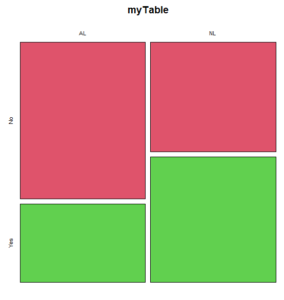
Figure 1. Mosaic plot made with basic function mosaicplot().
mosaic plot from EBM plugin
A good option in Rcmdr is to use the “evidence-based-medicine” or “EBM” plug-in for Rcmdr (RcmdrPlugin.EBM). This plugin generates a real nice mosaic plot for 2 X 2 tables.
After loading the EBM plugin, restart Rcmdr, then select EBM from the menu bar and choose to “Enter two-way table…”
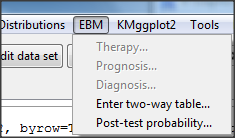
Figure 2. First steps to make mosaic plot in R Commander EBM plug-in.
Complete the data entry for the table as shown in the image below. After entering the values, click the OK button.
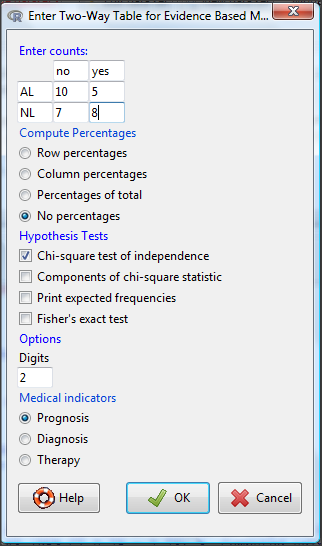
Figure 3. Next steps to make mosaic plot in R Commander EBM plug-in.
Along with the requested statistics a mosaic plot will appear in a pop-up window.
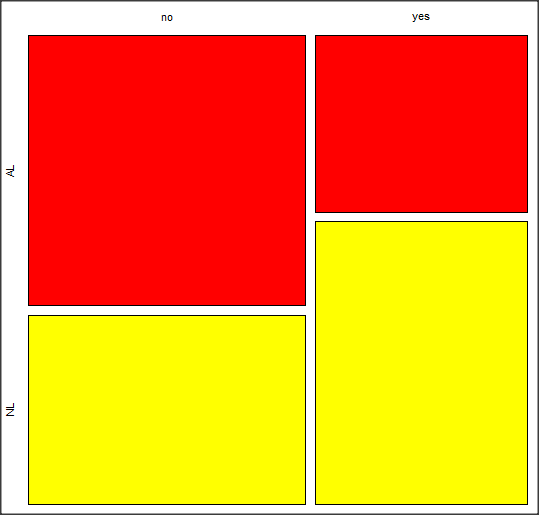
Figure 4. Mosaic plot made from R Commander EBMplug-in
mosaic-like plot KMggplot2 plugin
The KMggplot2 plugin for Rcmdr will also generate a mosaic-like plot. After loading the KMggplot2 plugin, restart Rcmdr, then load a data set with the table (e.g., MLB data in Table 1). Next, from within the KMggplot2 menu select, “Bar chart for discrete variables…”
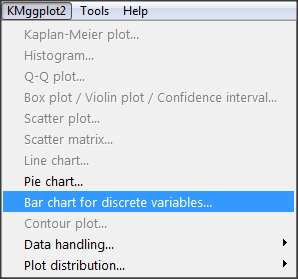
Figure 5. First steps to make mosaic plot in R Commander KMggplot2 plug-in.
From the bar chart context menu make your selections. Note that this function has many options for formatting, so play around with these to make the graph the way you prefer.
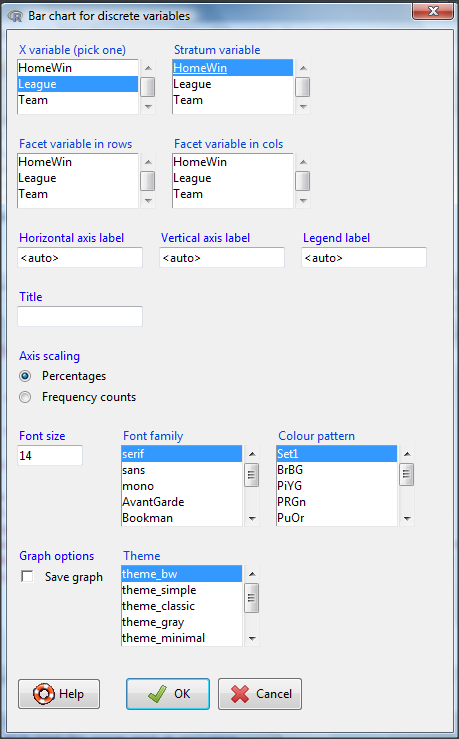
Figure 6. Next steps to make mosaic plot in R Commander KMggplot2 plug-in.
And here is the resulting mosaic-like plot from KMggplot2.
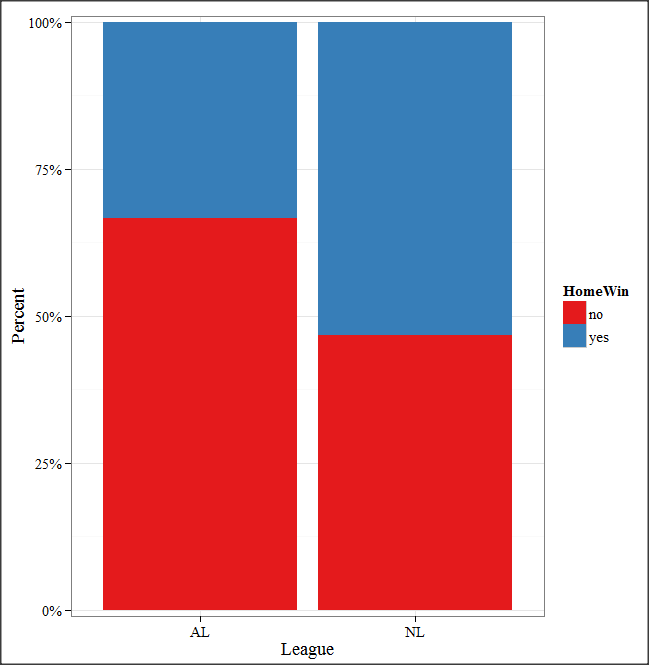
Figure 7. Mosaic-like plot made from R Commander KMggplot2 plug-in.
Questions
1. Most US states have laws that dictate pre-employment drug testing for job candidates; Interestingly, states are increasingly legalizing marijuana use. Data for states plus District of Columbia are presented in the table. Make a mosaic plot of the table.
Table 2. Marijuana use is US states, legal or not legal
| Marijuana-use legal | Marijuana-use not legal | |
|---|---|---|
| Yes | 19 | 12 |
| No | 14 | 6 |
Data adopted from https://www.paycor.com/resource-center/pre-employment-drug-testing-laws-by-state
Quiz Chapter 4.4
Mosaic plots
Depreciated material
As of summer 2020, Rcmdrplugin.mosaic is depreciated. While you can install the archived version, it is not recommended. Therefore, this material is left as is but for information purposes only. For a simple mosaic plot in Rcmdr I recommend working with the RcmdrPlugin.EBM.
Download the RcmdrPlugin.mosaic package, start Rcmdr, then navigate to Tools and choose Load Rcmdr plug-in(s).… Select Rcmdrplugin.mosaic (Fig. 8), then restart Rcmdr (Fig. 9). The plugin adds mosaic plot to the regular Graphics menu of Rcmdr.
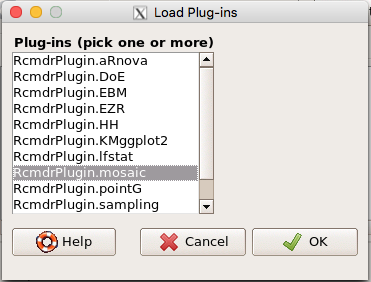
Figure 8. Screenshot of popup menu from Rcmdr with mosaic plugin selected.
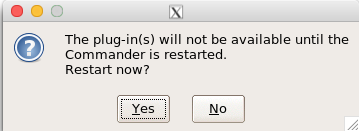
Figure 9. After clicking OK (Fig 8), click Yes to restart Rcmdr. The plugin will then be available.
Load a data set with 2X2 arranged data, or create the variables yourself (Yikes, 30 rows!). The mosaic plugin requires that you submit data in a table format. We can check whether our data are currently in that format. At the R prompt type
is.table(MLB)
And R will return
[1] FALSE
(To be complete, confirm that the data set is a data.frame: is.data.frame(MLB).)
You will need a table before proceeding with the mosaic plug-in. then create a table using a command like the one shown below.
MLBTable <- xtabs(~League+HomeWin, data=MLB)
Once the table is ready, select “mosaic or assoc plot” from the Rcmdr Graphics menu (Fig. 10)
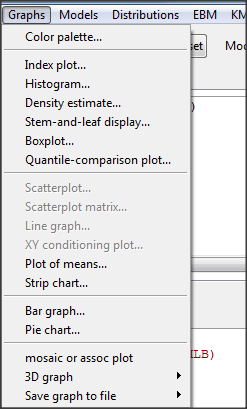
Figure 10. How to access the mosaic plot in R Commander.
A small window will pop up that will allow you to select the table of data you just created (Fig. 11). Note that you may need to hunt around your desktop to find this menu! Select the table (in this example, “MLBTable), then click on “Create plot” button.
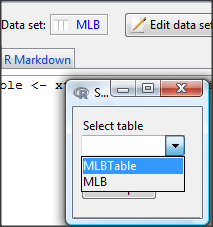
Figure 11. Screenshot of popup menu in mosaic plugin in R Commander.
R Note: The popup from the mosaic menu shown in Fig. 11 will also display the data.frame MLB. If you mistakenly select the dataframe MLB, you’ll get an error message in Rcmdr (Fig. 12). The plugin behaves erratically if you select MLB: On my computer, the function hangs and requires restarting R.
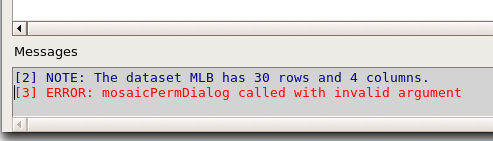
Figure 12. Error message as result of selecting a dataframe for use in mosaic plugin.
After you select the table, two additional windows will pop up: on the left (Fig. 13) is the context menu to change characteristics of the mosaic plot; on the right (not shown) will be a mosaic plot itself in default grey scale colors.
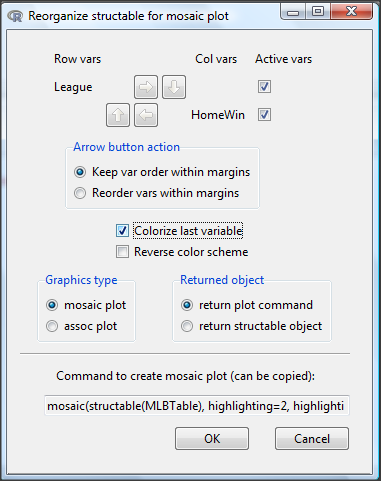
Figure 13. Options for the mosaic plot
At a minimum, change the plot from grey scale to a colorized version by checking the box next to the “Colorize last variable” option. The new plot is shown in Figure 14.
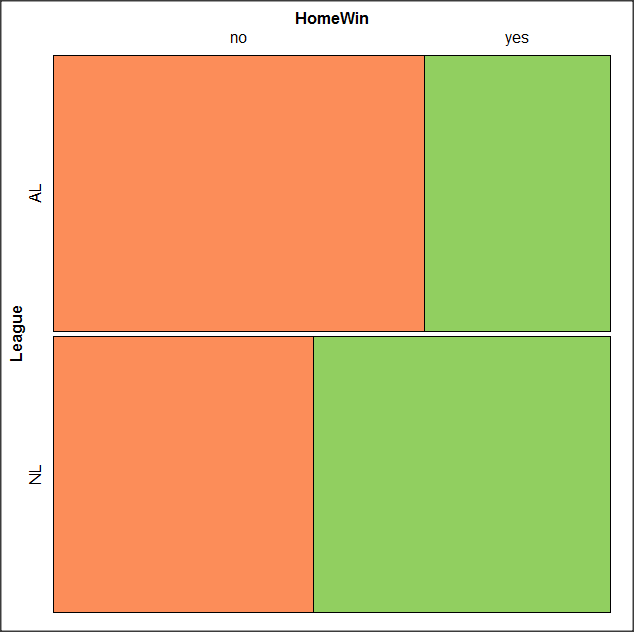
Figure 14. Our new mosaic plot.
OK. Take a moment and look at the plot. What conclusions can be made about our hypothesis — are there any differences between the leagues for home versus road Wins-Loss records?
By default the mosaic command copies the command to the R window. You can change the graph by taking advantage of the options in the brewer palette. Here’s the command for the mosaic image above.
mosaic(structable(MLBTable), highlighting=2, highlighting_fill=brewer.pal.ext(2,"RdYlGn"))
Change the options in the brackets following “brewer.pal.ext.” For example, replace RdYlGn with Blues to make a plot that looks like the following
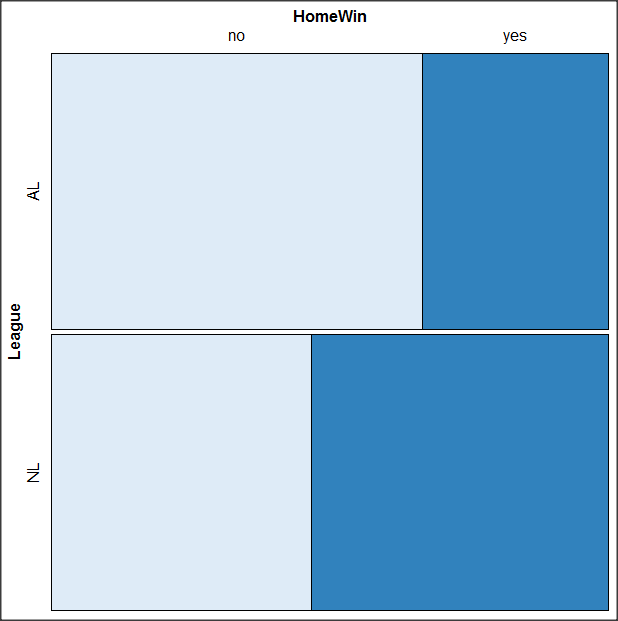
Figure 15. Mosaic plot with changed color scheme.
The colors are selected from the Rcolorbrewer package. For more, see this blog for starters.
Chapter 4 contents
- Graphs and tables (How to report statistics)
- Bar (column) charts
- Histograms
- Box plot
- Mosaic plots
- Scatter plots
- Add a second Y axis
- Q-Q plot
- Ternary plots
- Heat maps
- Graph software
- References and suggested readings
4.3 – Box plot
Introduction
Box plots, also called whisker plots, should be your routine choice for exploring ratio scale data. Like bar charts, box plots are used to compare ratio scale data collected for two or more groups. Box plots serve the same purpose as bar charts with error bars, but box plots provide more information.
Purpose and design criteria
Box plots are useful tool for getting a sense of central tendency and spread of data. These types of plots are useful diagnostic plots. Use them during initial stages of data analyses. All summary features of box plots are based on ranks (not sums). So, they are less sensitive to extreme values (outliers). Box plots reveal asymmetry. Standard deviations are symmetric.
The median splits each batch of numbers in half (center line). The “hinge” (median value) splits the remaining halves in half again (the quartiles). The first, second (median), and third quartiles describes the interquartile range, or IQR, 75% of the data (Fig 1). Outlier points can be identified, for example, with an asterisk or by id number (Fig 1).
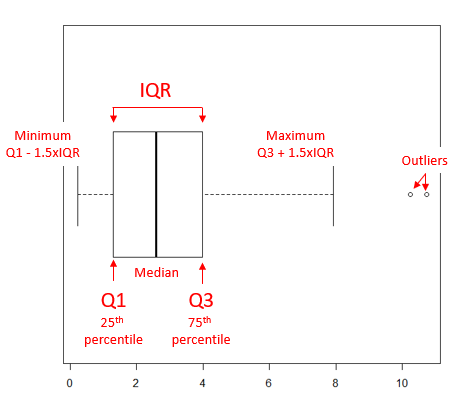
Figure 1. A box plot. Elements of box plot labelled.
We’ll use the data set described in the previous section, so if you have not already done so, get the data from Table 1, Chapter 4.2 into your R software.
Note 1: See Chapter 4.10 — Graph software for additional box plot examples, but made with different R packages or software apps.
R Code
Command line
We’ll provide code for the base graph shown in Figure 2A. At the R prompt, type
boxplot(OliveMoment~Treatment)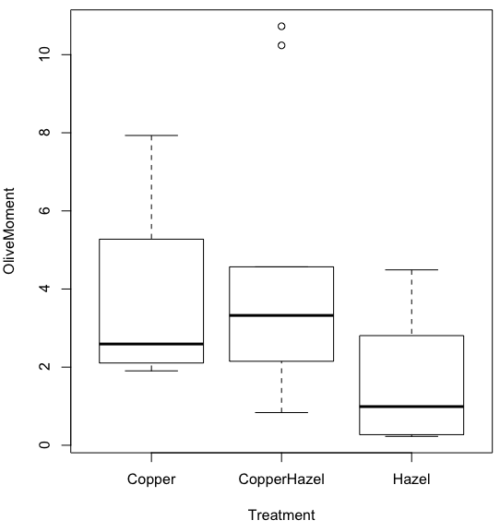
Figure 2A. Box plot, default graph in base package
Boxplot is a common function offered in several packages. In the base installation of R, the function is boxplot(). The car package, which is installed as part of R Commander installation, includes Boxplot(), which is a “wrapper function” for boxplot(). Note the difference: base package is all lower case, car package the “B” is uppercase. One difference, base boxplot() permits horizontal orientation of the plot (Fig 2B).
Note 2: Wrapper functions are code that links to another function, perhaps simplifying working with that function.
boxplot(OliveMoment ~ Treatment, horizontal=TRUE, col="steelblue")
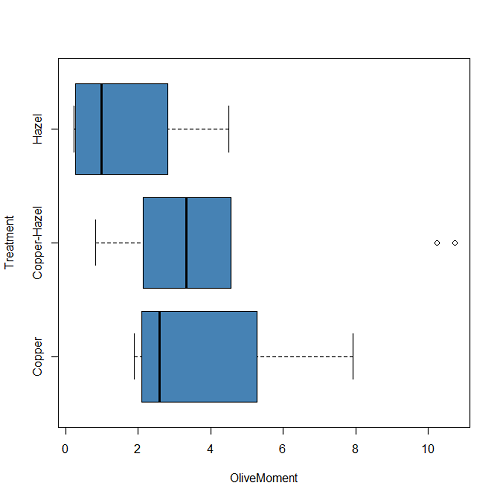
Figure 2B. Same graph, but with color and made horizontal; boxplot(), default graph in base package
Base package boxplot() has additional features and options compared to Note 3: Boxplot() in the car package. i.e., not all barcode() options are wrapped. For example, I had more success adding original points to boxplot() graph (Fig 2C) following the function call with stripchart().
stripchart(OliveMoment ~ Treatment, method = "overplot", pch = 19, add = TRUE)
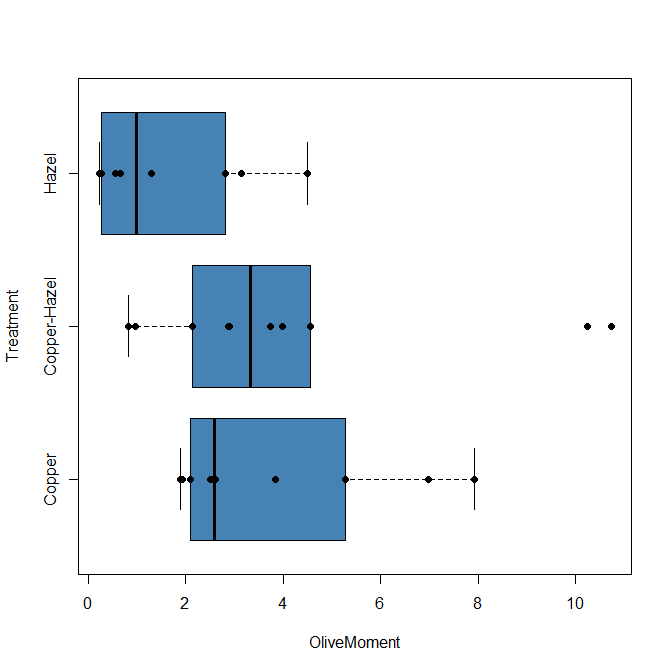
Figure 2C. Same graph, added original points; boxplot(), default graph in base package.
Note 3: boxplot and stripchart functions part of ggplot2 package, part of tidyverse, easily used to generate graphs like Fig 2B and Fig 2C. The overplot option was used to jitter points to avoid overplotting. See below: Apply tidyverse-view to enhance look of boxplot graphic and Fig 9.
Jittering adds random noise to points, which helps view the data better if many points are clustered together. Note however that jitter would add noise to the plot — if the objective is to show an association between two variables, jitter will reduce the apparent association, perhaps even compromising the intent of the graph. Beeswarm also can be used to better visualize clustered points, but uses a nonrandom algorithm to plot points.
Rcmdr: Graph → Boxplot…
Select the response variable, then click on the Plot by: button
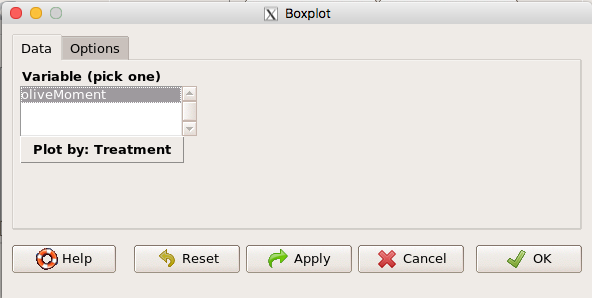
Figure 3. Popup menu in R Commander: Select the response variable and set the Plot by: option.
Next, select the Groups (Factor) variables (Fig 4). Click OK to proceed
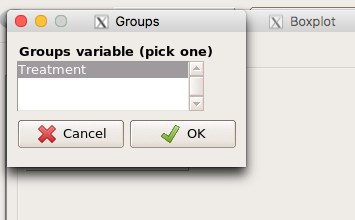
Figure 4. Select the group variable
Back to the Box Plot menu, click “Options” tab to add details to the plot, including a graph title and how outliers are noted (Fig 5),
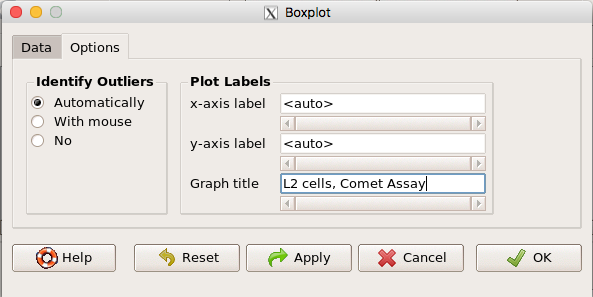
Figure 5. Options tab, enter labels for axes and a title.
And here is the resulting box plot (Fig 6)
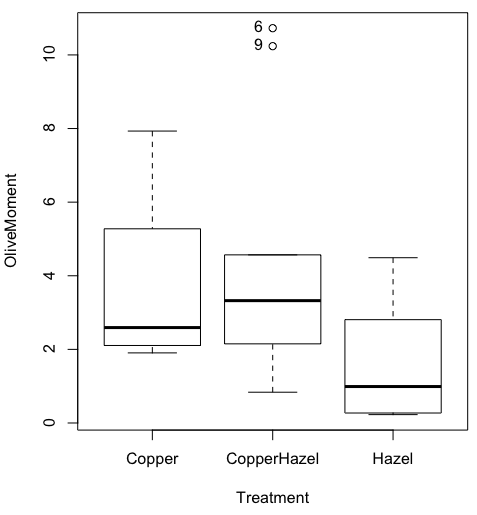
Figure 6. Resulting box plot from car package implemented in R Commander. Outliers are identified by row id number.
The graph is functional, if not particularly compelling. The data set was “olive moments” from Comet Assays of an immortalized rat lung cell line exposed to dilute copper solution (Cu), Hazel tea (Hazel), or Hazel & Copper solution.
Apply Tidyverse-view to enhance look of boxplot graphic
Load the ggplot2 package via the Rcmdr plugin to add options to your graph. As a reminder, to install Rcmdr plugins you must first download and install them from an R mirror like any other package, then load the plugin via Rcmdr Tools → Load Rcmdr plug-in(s)… (Fig 7, Fig 8).
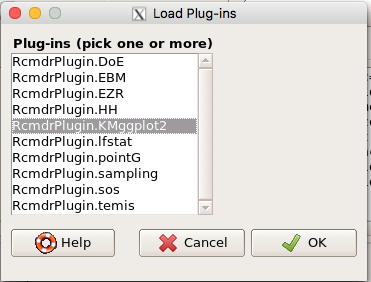
Figure 7. Screen shot of Load Rcmdr plug-ins menu, Click OK to proceed (see Fig 8).
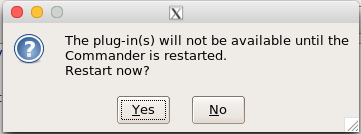
Figure 8. To complete installation of the plug-in, restart R Commander.
Significant improvement, albeit with an “eye of the beholder” caveat, can be made over the base package. For example, ggplot2 provides additional themes to improve on the basic box plot. Figure 8 shows the options available in the Rcmdr plugin KMggplot2, and the default box plot is shown in Fig 9.
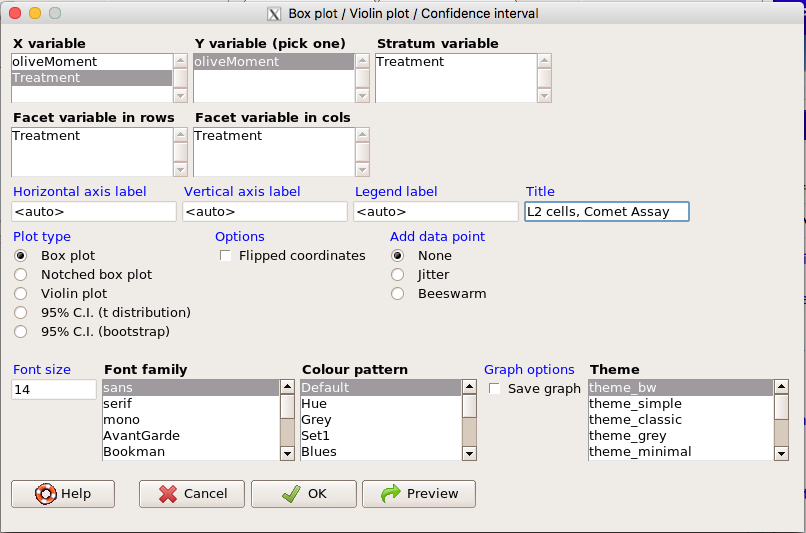
Figure 9. Menu of KMggplot2. A title was added, all else remained set to defaults.
The next series of plots, Fig 10 – 12, explore available formats for the charts.
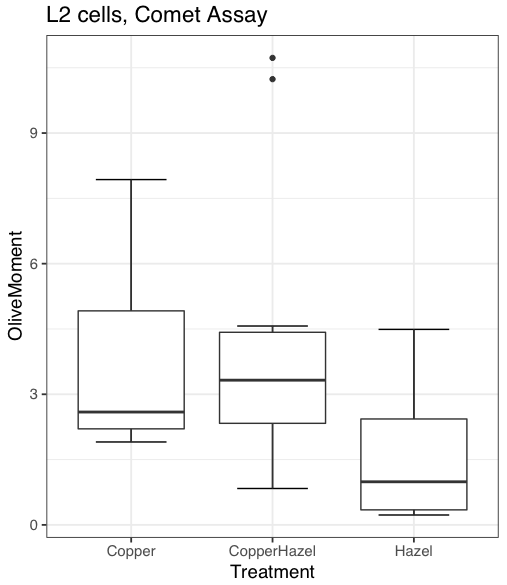
Figure 10. Default box plot from KMggplot.
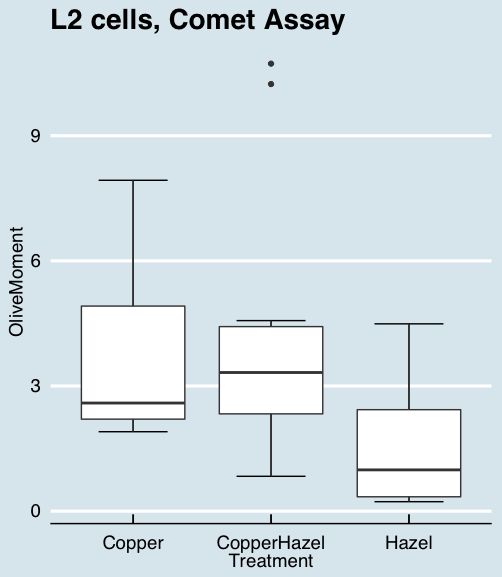
Figure 11. “Economist” theme box plot from KMggplot2.
And finally, since the box plot is often used to explore data sets, some recommend including the actual data points on a box plot to facilitate pattern recognition. This can be accomplished in the KMggplot2 plugin by checking “Jitter” under the Add data points option (see Fig 8). Jitter helps to visualize overlapping points at the expense of accurate representation. I also selected the Tufte theme, which results in the image displayed in Figure 12.
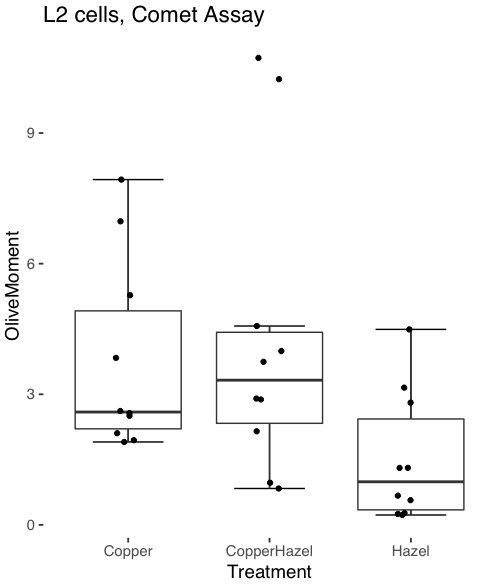
Figure 12. Tufte theme and data points added to the box plot.
Note 4: The Tufte theme is so named for Edward Tufte (2001), Chapter 6 Data-Ink Maximization and Graphical Design.” In brief, the theme follows the “maximal data, minimal ink” principle.
Conclusions
As part of your move from the world of Microsoft Excel graphics to recommended graphs by statisticians, the box plot is used to replace the bar charts plus error bars that you may have learned in previous classes. The second conclusion? I presented a number of versions of the same graph, differing only by style. Pick a style of graphics and be consistent.
Questions
- Why is a box plot preferred over a bar chart for ratio scale data, even if an appropriate error bar is included?
- With your comet data (Table 1, Chapter 4.2), explore the different themes available in the box plot commands available to you in Rcmdr. Which theme do you prefer and why?
Quiz Chapter 4.3
Box plots
Chapter 4 contents
4.2 – Histograms
Introduction
Displaying interval or continuously scaled data. A histogram (frequency or density distribution), is a useful graph to summarize patterns in data, and is commonly used to judge whether or not the sample distribution approximates a normal distribution. Three kind of histograms, depending on how the data are grouped and counted. Lump the data into sequence of adjacent intervals or bins (aka classes), then count how many individuals have values that fall into one of the bins — the display is referred to as a frequency histogram. Sum up all of the frequencies or counts in the histogram and they add to the sample size. Convert from counts to percentages, then the heights of the bars are equal to the relative frequency (percentage) — the display is referred to as a percentage histogram (aka relative frequency histogram). Sum up all of the bin frequencies and they equal one (100%).
Figure 1 shows two frequency histograms of the distribution of ages for female (left panel) and male (right panel) runners at the 2013 Jamba Juice Banana 5K race in Honolulu, Hawaii (link to data set).
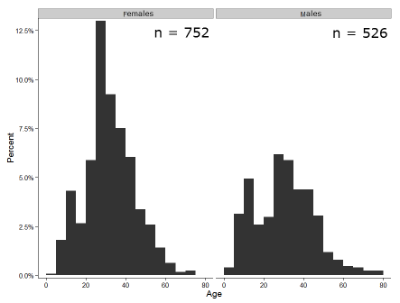
Figure 1. Histograms of age distribution of runners who completed the 2103 Jamba Juice 5K race in Honolulu
The graphs in Fig 1 were produced using R package ggplot2.
The third kind of histogram is referred to as a probability density histogram. The height of the bars are the probability densities, generally expressed as a decimal. The probability density is the bin probability divided by the bin width (size). The area of the bar gives the bin probability and the total area under the curve sums to one.
Which to choose? Both relative frequency histogram and density histogram convey similar messages because both “sum to one (100%), i.e., bin width is the same across all intervals. Frequency histograms may have different bin widths, with more numerous observations, the bin width is larger than cases with fewer observations.
Purpose of the histogram plot
The purpose of displaying the data is to give you or your readers a quick impression of the general distribution of the data. Thus, from our histogram one can see the range of the data and get a qualitative impression of the variability and the central tendency of the data.
Kernel density estimation
Kernel density estimation (KDE) is a non-parametric approach to estimate the probability distribution function. The “kernel” is a window function, where an interval of points is specified and another function is applied only to the points contained in the window. The function applied to the window is called the bandwidth. The kernel smoothing function then is applied to all of the data, resulting in something that looks like a histogram, but without the discreteness of the histogram.
The chief advantage of kernel smoothing over use of histograms is that histogram plots are sensitive to bin size, whereas KDE plot shape are more consistent across different kernel algorithms and bandwidth choices.
Today, statisticians use kernel smoothing functions instead of histograms; these reduce the impact that binning has on histograms, although kernel smoothing still involves choices (smoothing function? default is Gaussian. Widths or bandwidths for smoothing? Varies, but the default is from the variance of the observations). Figure 2 shows smoothed plot of the 752 age observations.
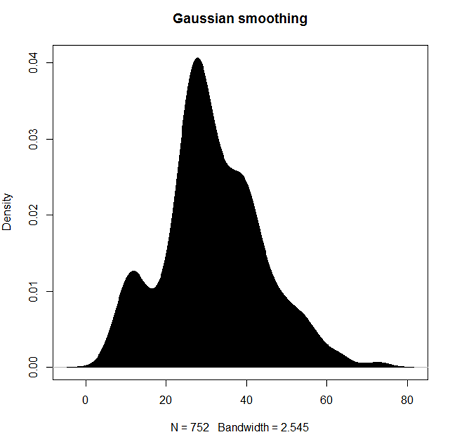
Figure 2. KDE plot of age distribution of female runners who completed the 2103 Jamba Juice 5K race in Honolulu.
Note 1: Remember: the hashtag # preceding R code is used to provide comments and is not interpreted by R
R commands typed at the R prompt were, in order
d <- density(w) #w is a vector of the ages of the 752 females
plot(d, main="Gaussian smoothing")
polygon(d, col="black", border="black") #col and border are settings which allows you to color in the polygon shape, here, black with black border.
Conclusion? A histogram is fine for most of our data. Based on comparing the histogram and the kernel smoothing graph I would reach the same conclusion about the data set. The data are right skewed, maybe kurtotic (peaked), and not normally distributed (see Ch 6.7).
Design criteria for a histogram
The X axis (horizontal axis) displays the units of the variable (eg, age). The goal is to create a graph that displays the sample distribution. The short answer here is that there is no single choice you can make to always get a good histogram — in fact, statisticians now advice you to use a kernel function in place of histograms if the goal is to judge the distribution of samples.
For continuously distributed data the X-axis is divided into several intervals or bins:
- The number of bins (intervals) depends (somewhat) on the sample size and (somewhat) on the range of values. Thus, the shape of the histogram is dependent on your choice of intervals: too many bins and the plot flattens and stretches to either end (over smoothing); too few bins and the plot stacks up and the spread of points is restricted (under smoothing). For both you lose the
- A general rule of thumb: try to have 10 to 15 different intervals. This number of intervals will generally give enough information.
- For large sample size (N=1000 or more) you can use more intervals.
The intervals on the X-axis should be of equal size on the scale of measurement.
- They will not necessarily have the same number of observations in each interval.
- If you do this by hand you need to first determine the range of the data and then divide this number by the number of categories you want. This will give you the size of each category (eg, range is 25; 25 / 10 = 2.5; each category would be 2.5 unit).
For any given X category the Y-axis then is the Number or Frequency of individuals that are found within that particular X category.
Software
Rcmdr: Graphs → Histogram…
Accepting the defaults to a subset of the 5K data set we get (Fig 3)
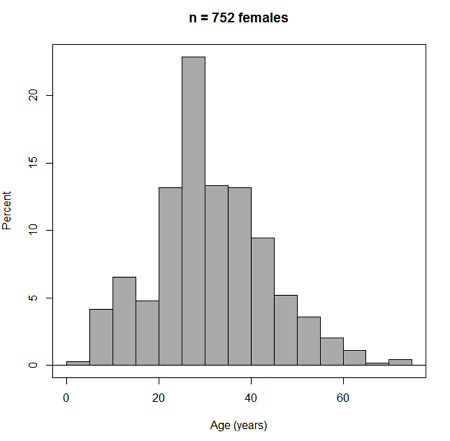
Figure 3. Histogram of 752 observations, Sturge’s rule applied, default histogram.
Note 2: R calculates a target number of intervals using nclass.Sturges(x) (log2(752) + 1 = 11, in this case), but then hands that number to the pretty() algorithm. pretty() overrides the Sturges count and adjusts the range and bin boundaries so that labels fall on clean, human-friendly numbers. Thus, pretty() plotted 15 intervals.
To bypass pretty(), replace code with breaks = seq(min(data), max(data), length.out = 11).
The subset consisted of all females or n = 752 that entered and finished the 5K race with an official time.
R Commander plugin KMggplot2
Install the RcmdrPlugin.KMggplot2as you would any package in R. Start or restart Rcmdr and load the plugin by selecting Rcmdr: Tools → Load Rcmdr plug-in(s)… Once the plugin is installed select Rcmdr: KMggplot2 → Histogram… The popup menu provides a number of options to set to format the image. Settings for the next graph were No. of bins “Scott,” font family “Bookman,” Colour pattern “Set 1,” Theme “theme_wsj2.”
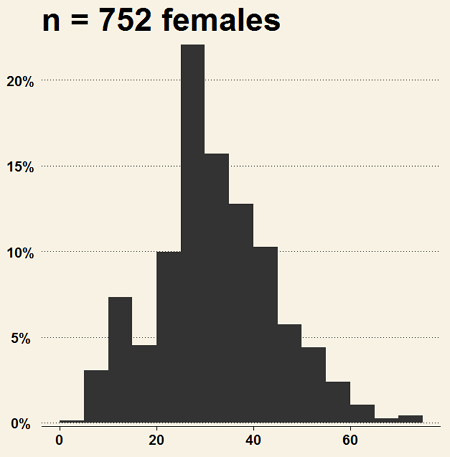
Figure 4. Histogram of 752 observations, Scott’s rule applied, ggplot2 histogram
Selecting the correct bin number
You may be saying to yourself, wow, am I confused. Why can’t I just get a graph by clicking on some buttons? The simple explanation is that the software returns defaults, not finished products. It is your responsibility to know how to present the data. Now, the perfect graph is in the eye of the beholder, but as you gain experience, you will find that the default intervals in R bar graphs have too many categories (recall that histograms are constructed by lumping the data into a few categories, or bins, or intervals, and counting the number of individuals per category => “density” or frequency). How many categories (intervals) should we use?
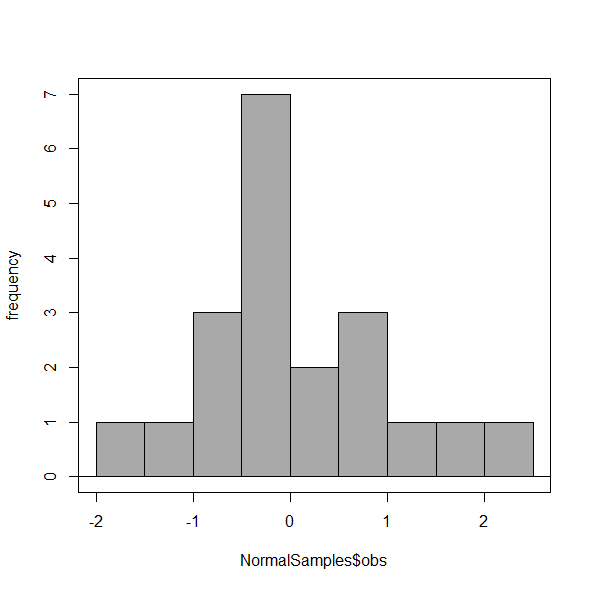
Figure 5. Default histogram with different bin size.
R’s default number for the intervals seems too much to me for this data set; too many categories with small frequencies. A better choice may be around 5 or 6. Change number of intervals to 5 (click Options, change from automatic to number of intervals = 5). Why 5? Experience is a guide; we can guess and look at the histograms produced.
Improving estimation of bin number
I gave you a rough rule of thumb. As you can imagine there have been many attempts over the years to come up with a rational approach to selecting the intervals used to bin observations for histograms. Histogram function in Microsoft’s Excel (Data Analysis plug-in installed) uses the square root of the sample size as the default bin number. Sturge’s rule is commonly used, and the default choice in some statistical application software (e.g., Minitab, Prism, SPSS). Scott’s approach (Scott 2009), a modification to Sturge’s rule, is the default in the ggplot() function in the R graphics package (the Rcmdr plugin is RcmdrPlugin.KMggplot2). And still another choice, which uses interquartile range (IQR), was offered by Freedman and Diacones (1981). Scargle et al (1998) developed a method, Bayesian blocks, to obtain optimum binning for histograms of large data sets.
What is the correct number of intervals (bins) for histograms?
- Use the square root of the sample size, e.g., at R prompt sqrt∗n∗ = 4.5, round to 5). Follow Sturges’ rule (to get the suggested number of intervals for a histogram, let k = the number of intervals, and k = 1 + 3.322(log10n),
- where n is the sample size. I got k = 5.32, round to nearest whole number = 5).
- Another option was suggested by Freedman and Diacones (1981): find IQR for the set of observations and then the solution to the bin size is k = 2IQRn-1/3, where n is the sample size.
Select Histogram Options, then enter intervals. Here’s the new graph using Sturge’s rule…
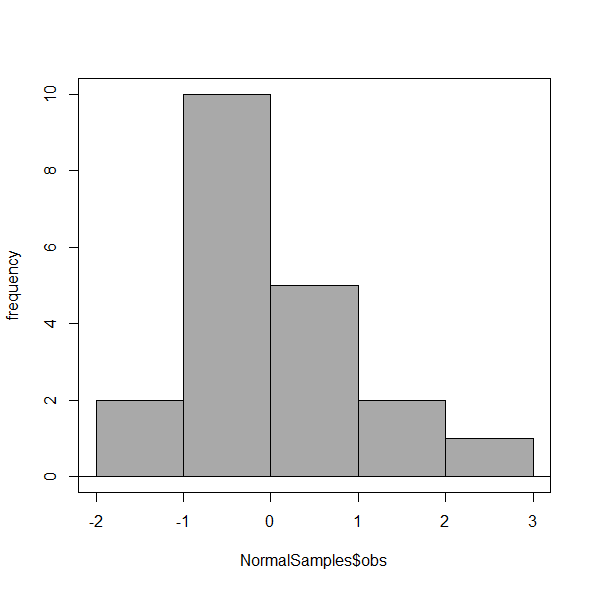
Figure 6. Default histogram, bin size set by Sturge’s rule.
OK, it doesn’t look much better. And of course, you’ll just have to trust me on this — it is important to try and make the bin size appropriate given the range of values you have in order that the reader/viewer can judge the graphic correctly.
Two histograms on same plot
In many cases you may wish to compare sample distributions among two or more groups.
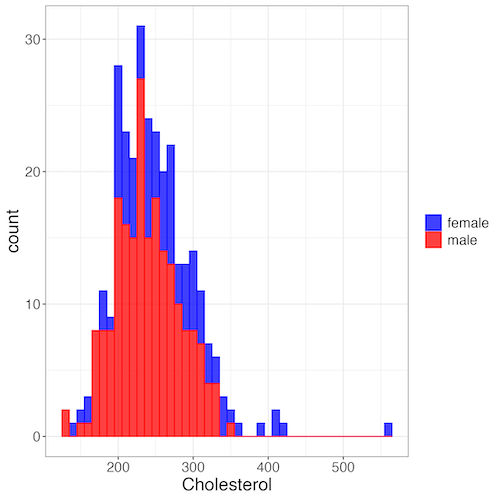
Figure 7. Two histograms on same plot with ggplot2.
R code
Stacked data set, data from Kaggle.
myColors=c(female="blue", male="red")
ggplot(sexChol, aes(chol, fill = sex, color=sex)) +
  geom_histogram(binwidth = 10, alpha=0.75) +
  labs(x = "Cholesterol") +
  theme_bw() +
  theme(legend.title= element_blank(),legend.text=element_text(size=14),
     axis.text=element_text(size=14),axis.title=element_text(size=18)) +
  scale_color_manual(values=myColors) +
  scale_fill_manual(values=myColors)
Base graphics version
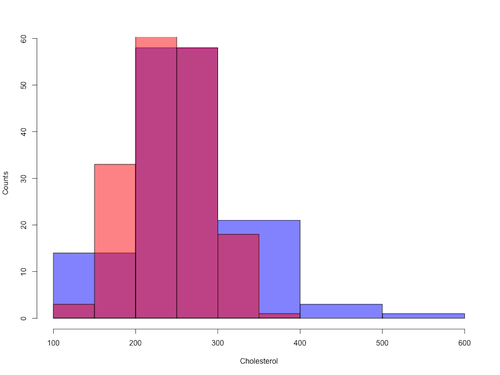
Figure 8. Same data as Fig 7, but using base hist() and plot() functions.
Not an aesthetically pleasing graph (Fig 8), but the idea was to recreate Figure 7 and show regions of overlap. We do this by setting transparent colors (h/t DataAnalytics.org.uk).
First, pick you colors. I like blue and red. Next, we identify how the colors are declared in the three rgb channels. Use the col2rgb() function.
col2rgb("blue")
[,1]
red 0
green 0
blue 255
Create my transparent blue with the alpha setting (125 = 50%). Note the command asks for names, but we won’t use it further.
myBlue <- rgb(0, 0, 255, max = 255, alpha = 125, names = "blue50")
Repeat for 50% transparent red.
col2rgb("red")
[,1]
red 255
green 0
blue 0
myRed <- rgb(255, 0, 0, max = 255, alpha = 125, names = "red50")
Now, we make the plots. Data unstacked, a column with cholesterol values for females (fChol), and another for male cholesterol values mChol). Bin size is different from Figure 7.
hist1 <- hist(fChol, breaks=6, plot=FALSE)
hist2 <- hist(mChol, add=T, breaks=6, plot=FALSE)
Open a Graphics Device so that we can save image to png format. I’ve set width and height in numbers of pixels.
png("base_histograms_two_chol.png", width = 800, height = 600)
Make the graph
plot(hist1, col = myBlue, main="", xlab="Cholesterol", ylab="Counts")
plot(hist2, col = myRed, add = TRUE)
Close the device, the image file is saved to working folder.
dev.off()
Draw region on a histogram
From time to time it may be necessary to highlight a region on a histogram (eg., see Chapters 6.7 – Normal distribution and the normal deviate (Z) and 8 – Inferential statistics). Various solutions to this, but here’s example code using only base R graph options.
First, generate some data from a normal distribution with mean 50 and standard deviation of 10. We show two examples: highlight regions between 40 and 60, and highlight regions
set.seed(123)
data <- rnorm(1000, mean = 50, sd = 10)
As always, a good idea to view at least a portion of the data, stored in object data.
head(data)
R returns
[1] 44.39524 47.69823 65.58708 50.70508 51.29288 67.15065
Next, create the histogram. It’s a good idea to set plot = FALSE, which prevents immediate plotting.
h <- hist(data, breaks = 20, plot = FALSE)
plot(h, main = "Histogram with Highlighted Regions",
     xlab = "Value", ylab = "Frequency")
And last, as the goal was to highlight a region from 40 to 60, we set color to red and impose 30% transparency, no border. The plot is shown in Figure 9.
rect(xleft = 40, ybottom = 0, xright = 60, ytop = max(h$counts),
col = rgb(1, 0, 0, 0.3), border = NA)

Figure 9. Using only base R graphics, a lot with region between 40 and 60 highlighted in red.
The second example, we highlight another region from 70 to 80 in blue, and this time 50% transparency, no border.
rect(xleft = 70, ybottom = 0, xright = 80, ytop = max(h$counts),
col = rgb(0, 0, 1, 0.5), border = NA)
Other options
The base graphs are OK for teaching purposes (and homework answers!), but not examples of data visualization excellence. As part of the tidyverse approach to R programming, ggplot2 includes options to accomplish highlighting regions on plots, including histograms.To draw regions on a histogram plot using ggplot2 in R, you can use geom_rect() or geom_ribbon(). geom_rect() is a good choice to highlight a specific rectangular areas; geom_ribbon() is useful for shading areas under a curve, such as a density plot overlaid on a histogram.

Figure 10. Using geom_ribbon() and ggplot2 package, a plot with region between 40 and 60 highlighted in red.
R code with # comments was:
set.seed(123)
data_normal <- data.frame(rnorm(1000, mean = 50, sd = 10))
# View the dataframe
head(data_normal)
# Output shows need to rename the column.
colnames(data_normal) <- "value"
Note 3: If you use R Commander: Distributions > Continuous distributions > Normal distribution > Sample from normal, the column name will be updated for you. The name will be “obs,” not “value,” however, so where the following code asks for value, replace with obs.
Get the histogram. first, create the plot object, but don’t draw it yet.
myPlot <- ggplot(data_normal, aes(x = value)) +
geom_histogram(bins = 30)
Next, use ggplot_build to extract the bin data.
bin_data <- ggplot_build(myPlot)$data[[1]]
Create a new data frame for the geom_ribbon layer. The ribbon needs x, ymin, and ymax values.
ribbon_data <- bin_data
Set ymin to 0 for the shaded area.
ribbon_data$ymin <- 0
Next, set ymax to the height of the bars (the ‘count’ or ‘y’ column from bin_data).
ribbon_data$ymax <- ribbon_data$count
Filter the ribbon data so that only the region between 40 and 60 is included.
ribbon_data <- ribbon_data[ribbon_data$x >= 40 & ribbon_data$x <= 60, ]
Plot with both layers. Draw the main histogram first (optional: fill to distinguish). Overlay the shaded region using geom_ribbon with the filtered data. Add axes labels. I selected the classic theme; try other themes on your own.
ggplot(data_normal, aes(x = value)) +
     geom_histogram(aes(y = after_stat(count)),
     bins = 30, fill = "lightblue", color = "white") +
     geom_ribbon(data = ribbon_data, aes(x = x,
     ymin = ymin, ymax = ymax), fill = "red",
     alpha = 0.5) +
     labs(x = "Value",y = "Count") +
     theme_classic()
A package tigerstats, now removed from CRAN, was a nice set of tools to accomplish adding regions to a histogram plot with base R graphics. I leave an example which was used to draw regions on a standard normal curve for Chapter 8.
library(tigerstats)
pnormGC(1.645, region="above", mean=0, sd=1,graph=TRUE)
pnormGC(-1.645, region="below", mean=0, sd=1,graph=TRUE)
Questions
Example data set, comet tails and tea

Figure 11. Examples of comet assay results.
The Comet assay, also called single cell gel electrophoresis (SCGE) assay, is a sensitive technique to quantify DNA damage from single cells exposed to potentially mutagenic agents. Undamaged DNA will remain in the nucleus, while damaged DNA will migrate out of the nucleus (Figure 11). The basics of the method involve loading exposed cells immersed in low melting agarose as a thin layer onto a microscope slide, then imposing an electric field across the slide. By adding a DNA selective agent like Sybr Green, DNA can be visualized by fluorescent imaging techniques. A “tail” can be viewed: the greater the damage to DNA, the longer the tail. Several measures can be made, including the length of the tail, the percent of DNA in the tail, and a calculated measure referred to as the Olive Moment, which incorporates amount of DNA in the tail and tail length (Kumaravel et al 2009).
The data presented in Table 1 comes from an experiment in my lab; students grew rat lung cells (ATCC CCL-149), which were derived from type-2 like alveolar cells. The cells were then exposed to dilute copper solutions, extracts of hazel tea, or combinations of hazel tea and copper solution. Copper exposure leads to DNA damage; hazel tea is reported to have antioxidant properties (Thring et al 2011).
| Treatment | Tail | TailPercent | OliveMoment* |
|---|---|---|---|
| Copper-Hazel | 10 | 9.7732 | 2.1501 |
| Copper-Hazel | 6 | 4.8381 | 0.9676 |
| Copper-Hazel | 6 | 3.981 | 0.836 |
| Copper-Hazel | 16 | 12.0911 | 2.9019 |
| Copper-Hazel | 20 | 15.3543 | 3.9921 |
| Copper-Hazel | 33 | 33.5207 | 10.7266 |
| Copper-Hazel | 13 | 13.0936 | 2.8806 |
| Copper-Hazel | 17 | 26.8697 | 4.5679 |
| Copper-Hazel | 30 | 53.8844 | 10.238 |
| Copper-Hazel | 19 | 14.983 | 3.7458 |
| Copper | 11 | 10.5293 | 2.1059 |
| Copper | 13 | 12.5298 | 2.506 |
| Copper | 27 | 38.7357 | 6.9724 |
| Copper | 10 | 10.0238 | 1.9045 |
| Copper | 12 | 12.8428 | 2.5686 |
| Copper | 22 | 32.9746 | 5.2759 |
| Copper | 14 | 13.7666 | 2.6157 |
| Copper | 15 | 18.2663 | 3.8359 |
| Copper | 7 | 10.2393 | 1.9455 |
| Copper | 29 | 22.6612 | 7.9314 |
| Hazel | 8 | 5.6897 | 1.3086 |
| Hazel | 15 | 23.3931 | 2.8072 |
| Hazel | 5 | 2.7021 | 0.5674 |
| Hazel | 16 | 22.519 | 3.1527 |
| Hazel | 3 | 1.9354 | 0.271 |
| Hazel | 10 | 5.6947 | 1.3098 |
| Hazel | 2 | 1.4199 | 0.2272 |
| Hazel | 20 | 29.9353 | 4.4903 |
| Hazel | 6 | 3.357 | 0.6714 |
| Hazel | 3 | 1.2528 | 0.2506 |
Tail refers to length of the comet tail, TailPercent is percent DNA damage in tail, and OliveMoment refers to Olive's (1990), defined as the fraction of DNA in the tail multiplied by tail length
Copy the table into a data frame.
- Create histograms for tail, tail percent, and olive moment
- Change bin size
- Repeat, but with a kernel function.
- Looking at the results from question 1 and 2, how “normal” (i.e., equally distributed around the middle) do the distributions look to you?
- Plot means to compare Tail, Tail percent, and olive moment. Do you see any evidence to conclude that one of the teas protects against DNA damage induced by copper exposure?
Quiz Chapter 4.2
Histograms
Chapter 4 contents
4.1 – Bar (column) charts
Introduction
Bar chart, also called a bar graph, or column chart in many spreadsheet apps (e.g., Google Sheets, Microsoft Excel, Libreoffice Calc — “bar charts” is reserved for horizontal bar plots), are used to compare counts among two or more categories, i.e., an alternative to pie charts (Fig. 1).
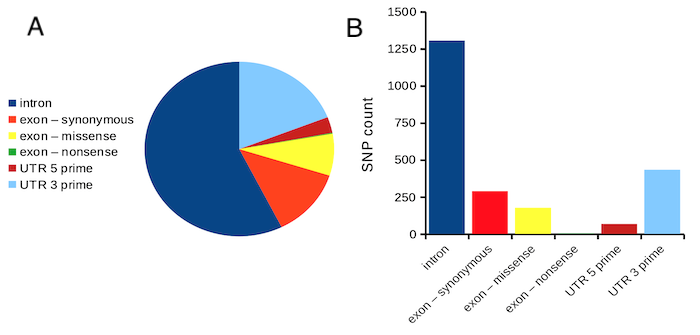
Figure 1. Single nucleotide variants for human gene ACTB by DNA and functional element (data collected 19 May 2022 from NCBI SNP database with Advanced search query). A. Pie chart. Note that slide for “exon – nonsense” is not visible. B. Bar chart – color coded bars to facilitate comparison with pie chart.
Although bar charts are common in the literature (Cumming et al 2007; Streit and Gehlenborg 2014), bar charts may not be a good choice for comparisons of ratio scale data (Streit and Gehlenbor 2014). Bar charts for ratio data are misleading. Parts of the range implied by the bar may never have been observed: the bars of the chart always start at zero. Box (whisker) plots are better for comparisons of ratio scale data and are presented in the next section of this chapter. That said, I will go ahead and present how to create bar charts for both count — generally considered acceptable — and ratio scale data, for which their use is controversial.
Purpose of the bar chart
Like all graphics, a bar chart should tell a story. The purpose of displaying data is to give your readers a quick impression of the general differences among two or more groups of the data. For counts, that’s where the bar chart comes in. The bar chart is preferred over the pie chart because differences are represented by lengths of the bars in the bar chart. Differences among categories in a pie chart are reflected by angles, and it seems that humans are much better at judging lengths than angles.
Bar chart with counts
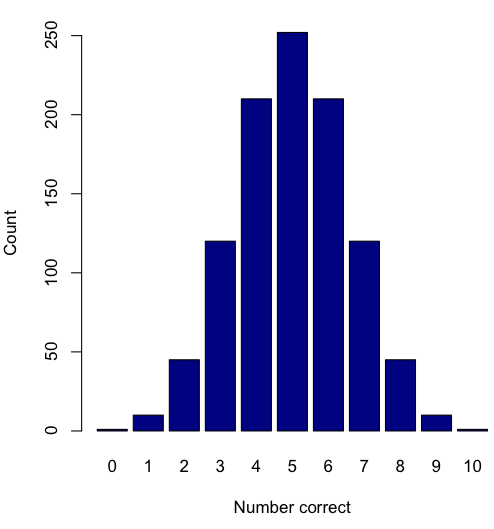
Figure 2. A simple bar chart
myCombo <- seq(0,10, by=1)
myCounts <- choose(10, myCombo)    #combinations
barplot(myCounts, names.arg = myCombo, xlab = "Number correct", ylab = "Count",col = "darkblue")
A stacked bar chart is used to
myCombo <- seq(0,10, by=1)
myCounts <- choose(10, myCombo)    #combinations
barplot(myCounts, names.arg = myCombo, xlab = "Number correct", ylab = "Count",col = "darkblue")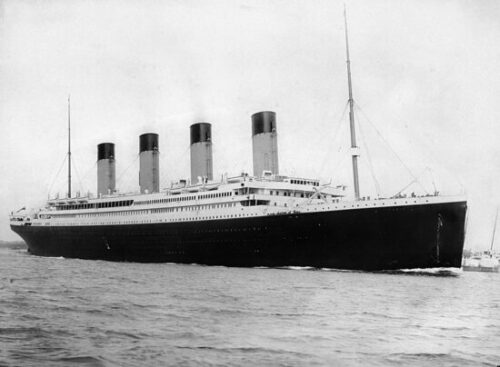
Figure 3. The luxury ship RMS Titanic, which sunk 15 April 1912, More than 1500 souls were lost. Public domain image, Wikipedia. Click image to view full sized image.
Stacked bar chart, data set TitanicSurvival in package carData.
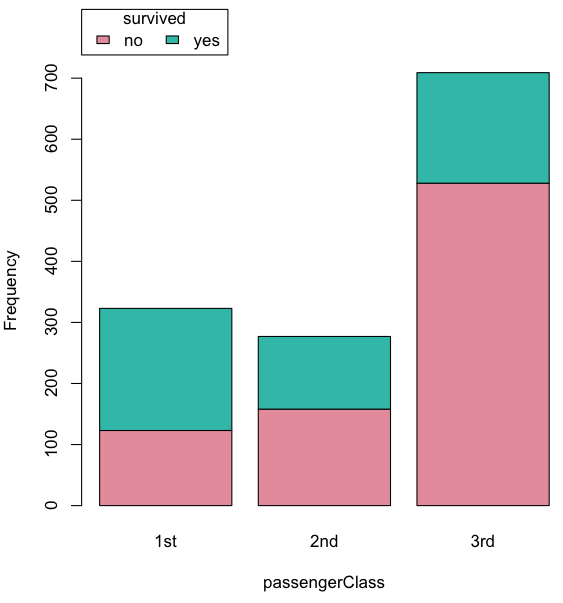
Figure 4. A stacked bar chart, survival Titanic
Barplot(passengerClass, by=survived, style="divided", legend.pos="above", xlab="passengerClass", ylab="Frequency")Bar charts with error bars
Although many data visualization specialists argue against the bar chart — they tend to obscure data — their use is well established. For the familiar bar chart with ratio scale data, the X (horizontal) axis displays the categories of one variable (e.g., location, or treatment group). You plot groups to emphasize comparisons. The Y (vertical) axis then is the mean for each group.
You need error bars with your bar chart to convey variability. A bar chart plus error bars is sometimes called (pejoratively) a dynamite plot. If the mean is displayed, some measure of precision should be (must be?) displayed (Cumming et al 2007). And, as you should recall by now, your choices are standard deviation (Chapter 3.2), standard error of the mean (SEM) (Chapters 3.2, 3.4), or confidence interval (see Chapter 3.4). It is strongly advised, that without a representation of precision, one should not interpret trends or group differences from representations of means (i.e., height of bars) alone.
The bar charts on this page are means plus or minus the standard error of the mean, + SEM. I’m not advocating here for the bar chart — box plots with efforts to show the actual data are better. However, bar charts remain common and may be more familiar to certain audiences. We’ll discuss which choice to make.
Examples
The Copper_rats_PMID3357063 dataset will be used for the next series of graphs (Data set). Refer to Mike’s Workbook for Biostatistics Part07 to review how to import the data.
A portion of the data set is shown below
head(Copper)
         Diet     Body    Heart    Liver
1 Adequate-Cu 320.1381 1.125037 10.259657
2 Adequate-Cu 329.6879 1.158982 9.843295
3 Adequate-Cu 327.9838 1.090374 9.855975
4 Adequate-Cu 334.6669 1.118183 9.942997
5 Adequate-Cu 338.3134 1.172636 9.860971
6 Adequate-Cu 345.4608 1.056183 8.885820
The data set consists of organ weights (heart, liver) from rats fed a diet adequate in copper, deficient in copper, and then a third group who received the adequate diet from perspective of amount of copper, but calorie restricted to match the decreased feeding rates of the rats fed the copper deficient diet. Copper is an essential trace element in our diet. The data set was simulated from descriptive statistics (means, standard deviation, number of subjects) of published data by sampling from a normal distribution. (Table 1, Ovecka et al 1988).
On we go with some graphs.
Note 1: R has many options to create bar charts, and especially ggplot2 can be used to great advantage, but there is a learning curve. One of the great things about R is that folks help each other by sharing code. For example, http://www.cookbook-r.com/Graphs/Plotting_means_and_error_bars_(ggplot2)/
But, I’m still learning about R graphics, and for bar charts with error bars, I find other packages more straight-forward. So, I’ll use this moment to point out that making a good graph is more about the end product then the particular tools. I have been using other tools for years to make my graphics, so I tend to default on these options first. Graphs presented here are mostly from Veusz software program (pronounced “views”). I like it because the software allows me to edit any of the elements of the graph.
Here’s a typical looking bar chart with ratio scale data: means ± SEM. Let’s look at them more critically.
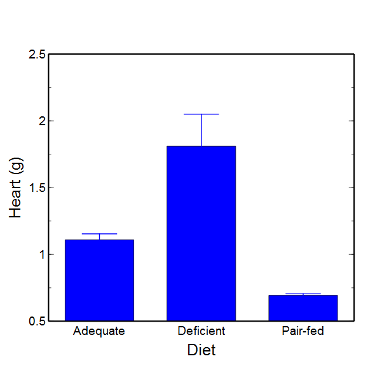
Figure 5. A bar chart with error bars (standard error of the mean).
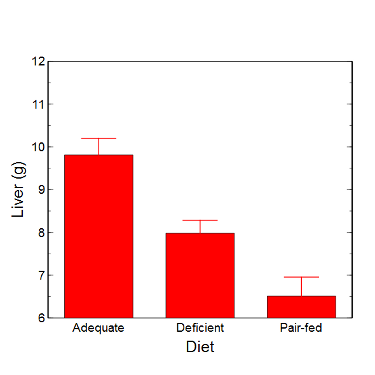
Figure 6. Another bar chart. with standard errors of mean
When making comparisons, make sure the axes have the same scale, or consider putting the graphs together.
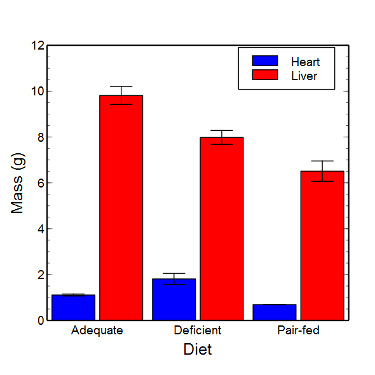
Figure 7. Bar chart that allows for a comparison among levels of a a factor (organs, liver vs. heart).
Analysis note: For variables that covary with body size (for example, on average, tall people generally are heavier too), is how to present (and analyze) the data in such a way that body size is accounted for. Here, the solution was to express organ weight as the ratio of organ weight to body weight for the mice. This may or may not be a good solution, and the answer is too complicated for us now (has to do with a thing called allometric scaling), but I wanted to at least present the issue and show how the graphics can be improved to handle some of these concerns.
Here’s the organ weights again, but taken as ratio of body mass.
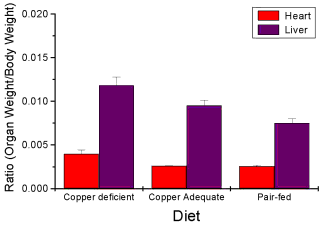
Figure 8. Same chart as in Figure 6, but on ratios.
Note 2. Lets be clear about expectations of you for statistics class. Now, R (and Rcmdr) do lots of graphics, pretty much anything you want, but it is not as friendly as it could be. For BI311 homework, the default graphics available via Rcmdr will generally be adequate for assignments. R and Rcmdr has many bar chart options, but there isn’t a straightforward way to get the error bars, unless you are willing to enter some code to the command line or learn a particular package (like gplots or ggplot2).
How to make a bar chart with error bars in R
Option 1. First, let’s try a work-around. Instead of an error bar option for bar chart menu, Rcmdr provides a plot of means that allows you to plot with error bars. These are equivalent graphs, the “bar chart” and the “plot of means”, though you should favor the bar chart format for publishing.
Rcmdr: Graphs → Plot of means…
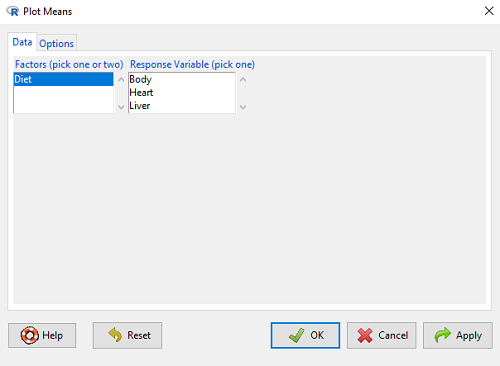
Figure 9. Rcmdr menu popup for Plots Means
Here, Rcmdr takes the data and calculates the mean and your choice of standard errors or deviations, confidence intervals, or no error bars. the resulting graph is below.
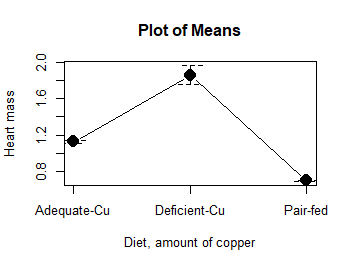
Figure 10. Plot of means
That’s an ugly graph (Fig. 10). Functional, good enough for data exploration and preliminary results, and certainly good enough for a Biostatistics homework or report. Additionally, connecting the dots here is a no-no. It implies that if we had measured categories between “adequate copper” and “deficient copper,” then the points would fall on those lines. That would be a complete guess. So, why did I include the connecting lines? That was the default setting for the command, and it makes the point — think before you click. One argument for connecting points in a graph is that it makes it easier for the reader to visualize trends.
This graph (Fig. 10) is fine for exploring data, but you will want to do better for publication.
Let’s make some better graphs with R
Once you are ready to go beyond the default settings available in Rcmdr, there is tremendous functionality in R for graphics. To access R’s potential, you’ll need to get into the commands a bit. I’m going to continue to try and shield you from the programming aspects of R, but from time to time you really need to see what is possible with R. Graphics is one such area. I use the package gplots, with 23 different graphing functions (type at R prompt ?gplots to call up the manual pages).
gplots should be among the packages on your R installation; if not, then install the package and run library(gplots) to complete the installation. We’ll try the barchart2 function.
But first, we need to get means for each of our groups.
At the R command prompt:
hrtWt <- tapply(Dataset$HeartWt, list(Group=Dataset$Group), mean, na.rm=TRUE) This code extracts means from our HeartWt variable for each Group, then stores the three (in this case, because our data set has 3 groups) in the place holder I had called hrtWt. To verify that the three means are there, type “hrtWt” without the quotes then enter.
You should see
hrtWt Group Cu adequate Cu deficient Pair-fed
               1.200000     1.566667 0.900000
R functions used: tapply, list, mean; na.rm was not needed but would be used to remove all missing values (recall during our import phase we were asked how missing observations were noted in our file; the default is NA).
Next, I want to apply standard error bars
stdDEV <- tapply(Dataset$HeartWt, list(Group=Dataset$Group), sd, na.rm=TRUE)
cil <- hrtWt-(stdDEV/sqrt(3))
ciu <- hrtWt+(stdDEV/sqrt(3))
I used cil and ciu to designate the lower cil and upper ciu values for my ± SEM (standard error of the mean). ciu stands for “confidence interval lower;” ciu stands for “confidence interval upper.”
Finally, here’s the plot command
barplot2(hrtWt, beside = TRUE, main=c("Mice fed different amounts of copper in diet"), col = c("blue", "red", "green"), xlab="Copper in diet", ylab="Heart mass (g)", ylim = c(0, 2), plot.ci=TRUE, ci.l=cil, ci.u=ciu)Now, draw a box around the graphic
box()Whew!
What does your new graph look like? My graph is below (Fig. 11).
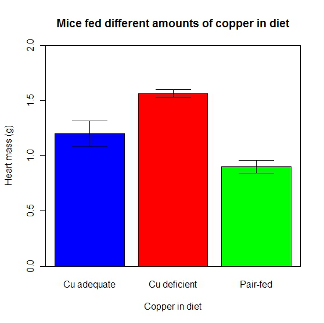
Figure 11. A bar chart using barplot2.
This works and the point is that once the script is written it easy to make small changes as you need in the future to make nice graphs.
If you are impatient like me, I like a GUI option, at least to start crafting the graph. The Rcmdr plugin KMggplot2 provides a good set of tools to make bar charts with error bars. An even better option I think is to use a software package that is designed for graphics, at least simple graphics like a bar chart. I use SciDAVis and Veusz for simple graphs like pie charts and bar charts; much easier to control.
ggplot2 bar charts with error bars
Nevertheless, here’s how to make a bar chart with error bars using ggplot2 (Fig. 11). First, we need to create a statistics summary. The script printed here was modified from scripts at R Graph Cookbook website.
require(plyr)
summarySE <- function(data=NULL, measurevar, groupvars=NULL, na.rm=FALSE,
     conf.interval=.95, .drop=TRUE) {
length2 <- function (x, na.rm=FALSE) {
     if (na.rm) sum(!is.na(x))
     else length(x)
}

#returns a vector with N, mean, and sd
datac <- ddply(data,groupvars, .drop=.drop,
    .fun = function(xx,col){
      c(N=length2(xx[[col]],na.rm=na.rm),
      mean=mean(xx[[col]],na.rm=na.rm),
      sd=sd(xx[[col]],na.rm=na.rm)
     )
    },
    measurevar
   )

#Rename the "mean" column
datac <- rename(datac,c("mean"=measurevar))

#Calculate the standard error of the mean
datac$se <- datac$sd/sqrt(datac$N)

#Get confidence interval
ciMult <- qt(conf.interval/2 + .5, datac$N-1)
datac$ci <- datac$se*ciMult

return(datac)
}
Applying this function to the BMI dataset yields the following output.
sumBMI <- summarySE(BMI, measurevar="BMI", groupvars=c("Sex", "Smoke"));sumBMI

   Sex Smoke   N      BMI       sd        se       ci
1    F    No  23 26.83567 7.610271 1.5868511 3.290928
2    F   Yes  14 25.76133 4.658625 1.2450698 2.689810
3    M    No  10 26.35731 3.363575 1.0636557 2.406156
4    M   Yes  27 26.71879 4.675631 0.8998256 1.849618
Now we are ready to make the bar chart with error bars
ggplot(tgc,aes(x=Smoke,y=BMI,fill=Sex)) +
 geom_bar(position=position_dodge(),stat="identity",color="black") +
 geom_errorbar(aes(ymin=BMI,ymax=BMI+se),width=.2,position=position_dodge(.9))
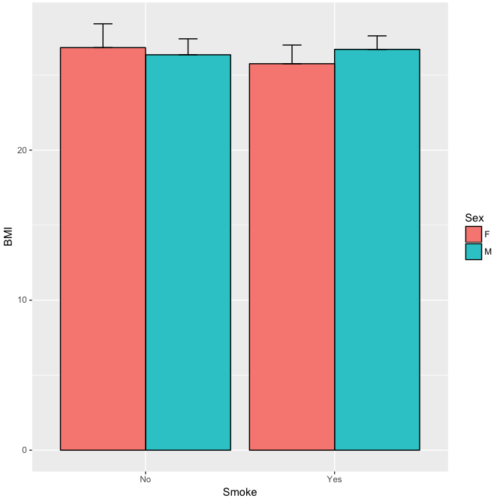
Figure 12. A barchart from ggplot2
Questions
1. Why should you use box plots and not bar charts to display comparisons for a ratio scale variable between categories? Obtain a copy of the article by Streit and Gehlenbor 2014 — it’s free! After reading, summarize the pro and cons for box plots over bar charts with error bars.
2. Enter the following data into R. The data are sulfate levels in water, parts per million.
type = c("Palolo Stream","Chaminade tap water", "Aquafina","Dasani")
sulfateppm =c(11, 14, 5, 12)
try = data.frame(type,sulfateppm)
byWater = tapply(try$sulfateppm,list(Group=try$type),mean)
Make a simple bar chart using the boxplot2 function in gplots package.
3. Change the range of values on the vertical axis to 0, 20
4. Change the color of the bars from gray to blue
5. Add a label to the vertical axis, “Sulfates, ppm” (without the quotes)
6. Add a box around the graph.
Quiz – Chapter 4.1
Bar charts
Data set
| Diet | Body | Heart | Liver |
|---|---|---|---|
| Adequate-Cu | 320.1381 | 1.125037 | 10.259657 |
| Adequate-Cu | 329.6879 | 1.158982 | 9.843295 |
| Adequate-Cu | 327.9838 | 1.090374 | 9.855975 |
| Adequate-Cu | 334.6669 | 1.118183 | 9.942997 |
| Adequate-Cu | 338.3134 | 1.172636 | 9.860971 |
| Adequate-Cu | 345.4608 | 1.056183 | 8.88582 |
| Adequate-Cu | 343.089 | 1.081261 | 10.166647 |
| Adequate-Cu | 328.3403 | 1.111278 | 10.124185 |
| Adequate-Cu | 324.9723 | 1.189194 | 10.158402 |
| Adequate-Cu | 325.2378 | 1.14715 | 9.939521 |
| Deficient-Cu | 195.5052 | 1.90973 | 7.907565 |
| Deficient-Cu | 182.7809 | 1.823672 | 8.430167 |
| Deficient-Cu | 184.3701 | 1.632249 | 7.619104 |
| Deficient-Cu | 193.7867 | 1.831765 | 8.742489 |
| Deficient-Cu | 180.0417 | 1.710367 | 7.975879 |
| Deficient-Cu | 208.5349 | 2.495623 | 8.652445 |
| Deficient-Cu | 182.3048 | 1.262053 | 7.257726 |
| Deficient-Cu | 203.0413 | 2.153639 | 8.081782 |
| Deficient-Cu | 193.3829 | 1.986028 | 7.807328 |
| Deficient-Cu | 195.0523 | 1.76975 | 8.297611 |
| Pair-fed | 211.0858 | 0.6911343 | 6.251177 |
| Pair-fed | 210.4041 | 0.6928067 | 7.696669 |
| Pair-fed | 208.5969 | 0.6911901 | 6.973803 |
| Pair-fed | 209.3333 | 0.7039211 | 6.629303 |
| Pair-fed | 208.8889 | 0.7077486 | 6.038704 |
| Pair-fed | 208.2994 | 0.7004535 | 6.606877 |
| Pair-fed | 209.4524 | 0.6915543 | 6.228888 |
| Pair-fed | 210.2699 | 0.6984497 | 6.638466 |
| Pair-fed | 208.8142 | 0.7214847 | 6.353705 |
| Pair-fed | 209.2977 | 0.6848656 | 6.536642 |
Chapter 4 contents
3.3 – Measures of dispersion
More about summary statistics.
The statistics of data exploration involve calculating estimates of the middle, central tendency, and the variability, or dispersion, about the middle. Statistics about the middle were presented in the previous section, Chapter 3.1. Statistics about measures of dispersion, and how to calculate them in R, are presented in this page. Use of Z score to standardize or normalize scores is introduced. Statistical bias is also introduced.
Describing the middle of the data gives your reader a sense of what was the typical observation for that variable. Next, your reader will want to know something about the variation about the middle value — what was the smallest value observed? What was the largest value observed? Were data widely scattered or clumped about the middle?
Measures of dispersion or variability are descriptive statistics used to answer these kinds of questions. Variability statistics are very important and we will use them throughout the course. A key descriptive statement of your data, how variable?
Note 1: Data is plural = a bunch of points or values; datum is the singular and rarely used.
Examine the two figures below (Fig 1 and Fig 2): the two sample frequency distributions (put data into several groups, from low to high, and membership is counted for each group) have similar central tendencies (mean), but they have different degrees of variability (standard deviation).
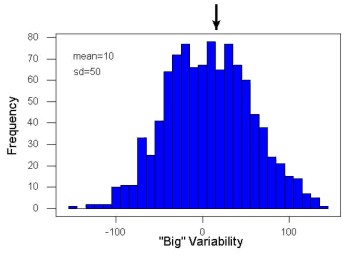
Figure 1. A histogram which displays a sampling of data with a mean of 10 (arrow marks the spot) and standard deviation (sd) of 50 units.
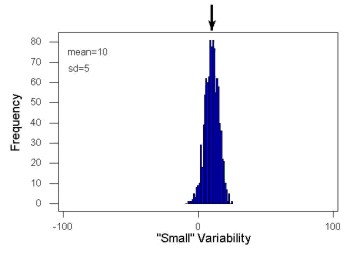
Figure 2. A histogram which displays a sampling of data with the same mean of 10 (arrow marks the spot) displayed in Fig. 1, but with a smaller standard deviation (sd) of 5 units.
Clearly, knowing something about the middle of a data set is only part of the required information we need when we explore a data set; we need measures of dispersion as well. Provided certain assumptions about the frequency of observations hold, estimates of the middle (eg, mean, median) and the dispersion (eg, standard deviation) are adequate to describe the properties of any observed data set.
For measures of dispersion or variability, the most common statistics are: Range, Mean Deviation, Variance, Standard Deviation, and Coefficient of Variation.
The range.
The range is reported as one number, the difference between maximum and minimum values.

Arrange the data from low to high, subtract the minimum, Xmin, from the maximum, Xmax, value and that’s the range.
For example, the minimum height of a collection of fern trees might be 1 meter whereas the maximum height might be 2.2 meters. Therefore, the range is 1.2 meters (= 2.2 – 1).
The range is useful, but may be misleading (as index of true variability in population) if there is one or more exceptional “outlier” (one individual that has an exceptionally large or small value). I often just report Xmin and Xmax. That’s the way R does it, too.
If you recall, we used the following as an example data set.
x = c(4,4,4,4,5,5,6,6,6,7,7,8,8,8,15)The command for range in R is simply range().
range(x)
[1] 4 15
There is apparently no universally accepted symbol for “range,” so we report the statistic as range = 15 – 4 = 11.
You may run into an interquartile range, which is abbreviated as IQR. It is a trimmed range, which means, like the trimmed mean, it will be robust to outlier observations. To calculate this statistic, divide the data into fourths, termed quartiles. For our example variable, x, we can get the quartiles in R
quantile(x)
  0%  25%  50%  75% 100%
 4.0  4.5  6.0  7.5 15.0
Thus, we see that 25% of the observations are 4.5 (or less), the second quartile is the median, and 75% of the observations are less than 7.5. The IQR is the difference between the first quartile, Q1, and the third quartile, Q3.
The command for obtaining the IQR in R is simply IQR(). Yes. You have to capitalize “IQR” — R is case sensitive; that means IqR is not the same as IQR or iqr.
IQR(x)
[1] 3.5
and we report the statistic as IQR = 3.5. Thus, 75% of the observations are within 3.5 points of the median. The IQR is used in box plots (Chapter 4). Quartiles are special cases of the more general quantile; quantiles divide up the range of values into groups with equal probabilities. For quartiles, four groups at 25% intervals. Other common quantiles include deciles (ten equal groups, 10% intervals) and percentiles (100 groups, 1% intervals).
The mean deviation.

Subtract each observation from the sample mean; each  is called a deviate: some observations will be positive (greater than
  ) and some will be negative (less than ).
Take the absolute value of the deviation and then add up the absolute values of the deviations from the mean. At the end, divide by the sample size, n. Large values for this statistic implies that much of the data is spread out, far from the mean. Small values in turn imply that each observation is close to the mean.
Note 2: The mean deviation will always be positive, which is why we take the absolute. By taking the absolute value of each deviate, then the sum is greater than zero. Now, we rarely use this statistic by itself — but that difference is integral to much of the statistical tests we will use. Look for this difference in other equations!
In R, we can get the mean deviation with the mad() function. At the R prompt, then
mad(x)
[1] 2.9652
Population variance and population standard deviation.
The population variance is appropriate for describing variability about the middle for a census. Again, a census implies every member of the population was measured. Equation of the population variance is
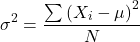
The population standard deviation also describes the variability about the middle, but has the advantage of being in the same units as the quantity (ie, no “squared” term). Equation of the population standard deviation is

Sample variance and sample standard deviation.
The above statements about the population variance and standard deviation hold for the sample statistics. Equation of the sample variance
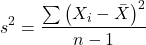
and the equation of the sample standard deviation

Of course, instead of taking the square-root of the sample variance, the sample standard deviation could be calculated directly.
*** QuickLaTeX cannot compile formula:
\begin{align*}s = \sqrt{\frac{\sum \left ( X_{i} - \bar{X} \right )^2}{n-1}\end{align*}

*** Error message:
File ended while scanning use of \align*.
Emergency stop.
n - 1 instead of N. This is Bessel’s correction and we will take a few moments here and in class to show you why this correction makes sense. Bessel’s correction to the sample variance illustrates a basic issue in statistics: when estimating something, we want the estimator (ie, the equation), to be an unbiased value for the population parameter it is intended to estimate.Statistical bias is an important concept in its own right; bias is a problem because it refers to a situation in which an estimator consistently returns a value different from the population parameter for which it is intended to estimate. Thus, the sample mean is said to be an unbiased estimator of the population mean. Here, bias means that the formula will give you a good estimate of the value. This turns out not to be the case for the sample variance if you divide by n instead of n - 1. Now, for very large values of n, this is not much of an issue, but it shows up when n is small. In R you get what you ask for — if you ask for the sample standard deviation, the software will return the correct value; calculators, go to watch out for this — not all of them are good at communicating which standard deviation they are calculating, the population or the sample standard deviation.
Winsorized variances.
Like the trimmed mean and winsorized mean (Ch3.2), we may need to construct a robust estimate of variability less sensitive to extreme outliers. Winsorized refers to procedures to replace extreme values in the sample with a smaller value. As noted in Chapter 3.2, we chose the level ahead of time, eg, 90%. Winsorized values then The winsorized variance is just the sample variance of the winsorized values. winvar() from the WRS2 package.
Making use of the sample standard deviation.
Given an estimate of the mean and an estimate of the standard deviation, one can quickly determine the kinds of observations made and how frequently they are expected to be found in a sample from a population (assuming a particular population distribution). For example, it is common in journal articles for authors to provide a table of summary statistics like the mean and standard deviation to describe characteristics of the study population (aka the reference population), or samples of subjects drawn from the study population (aka the sample population). The CDC provides reports of attributes of for a sample of adults (more than forty thousand) from the USA population (Fryar et al 2018). Table 1 shows a sample of results for height, weight, and waist circumference for men aged 20 – 39 years.
Table 1. Summary statistics mean ( standard deviation) of height, weight, and waist circumference of 20-39 year old men USA.
| Years | Height, inches | Weight, pounds | Waist Circumference, inches |
|---|---|---|---|
| 1999 – 2000 | 69.4 (0.1) | 185.8 (2.0) | 37.1 (0.3) |
| 2007 – 2008 | 69.4 (0.2) | 189.9 (2.1) | 37.6 (0.3) |
| 2015 – 2016 | 69.3 (0.1) | 196.9 (3.1) | 38.7 (0.4) |
We introduced the normal deviate as a way to normalize scores, and which we we will use extensively in our discussion of the normal distribution in Chapter 6.7, as a way to standardize a sample distribution, assuming a normal curve.

For data that are normally distributed, the standard deviation can be used to tell us a lot about the variability of the data:
62.26% of the data will lie between  of
of
95.46% of the data will lie between  of
of
99.0% of the data will lie between  of
of
This is known as the empirical rule, where 68% of the observations will be within one standard deviation, 95% of observations will be within two standard deviations, and 99% of observations will be within three standard deviations.
For example, men aged 20 years in the USA are on average μ = 5 feet 11 inches tall, with a standard deviation of σ = 3 inches. Consider a sample of 1000 men from this population. Assuming a normal distribution, we predict that 623 (62.26%) will be between 5 ft. 8 in. and 6 ft. 2 in. ( ).
).
Where did the 5 ft. 8 in. and the 6 ft. 2 in. come from /? We add or subtract multiples of standard deviations. Thus, 6 ft. 2 in. = 5 ft. 11 in.  (replace σ = 3) and 5 ft. 8 in. = 5 ft. 11 in.
  (again, replace σ = 3″).
Can generalize to any distribution. Chebyshev’s inequality (or theorem) guarantees that no more than a particular fraction  of observations can be a specified
  standard deviations distance away from the mean ( needs to be greater than 1). Thus, for
  standard deviations, we expect a minimum of 75% of values within (
 ) two standard deviations away from the mean, or for
  , then 89% of values will be within (
 ) three standard deviations from the mean.
Hopefully you are now getting a sense how this knowledge allows you to plan an experiment.
For example, for a sample of 1000 observations of height of men, how many do we expect to be greater than 6 ft. 7 in. tall? Apply the empirical rule and do a little math — 79 inches (6 ft. 7 in) minus 71 inches (the mean) is equal to 8. Divide 8 by 3 (our value of  ) you’ll get 2.66667; so, 6 ft. 7 in. tall is about 2.67 X standard deviations greater than the mean. From Chebyshev’s inequality we have
  , or 14% of observations less than or greater than the mean (
 ).
).
Our question asks only about expected number of observations greater than  ; divide 14% in half — we therefore expect about 70 individuals out of 1000 men sampled to be 6 ft. 7 in. or taller. Note we made no assumption about the shape of the distribution. If we assume the sample of observations comes from the normal distribution, then we can apply the Z score: about 4 individuals out of 1000 expected to be from the mean (see R code in Note box). We extend the Z-score work in Chapter 6.7.
Note 4: R code:
round(1000*(pnorm(c(79), mean=71, sd=3,lower.tail=FALSE)),0)
or alternatively
round(1000*(pnorm(c(2.67), mean=0, sd=1,lower.tail=FALSE)),0)
R output
[1] 4
R Commander command
Rcmdr: Distributions → Continuous distributions → Normal distribution → Normal probabilities …, select Upper tail.
Another example, this time with a data set available in R, the diabetic retinopathy data set in the survival package.
data(diabetic, package="survival")
Ages of the 394 subjects ranged from 1 to 58. Mean was 20.8 + 14.81 years. How many out of 100 subjects do we expect greater than 50 years old? With Chebyshev’s inequality we have  , or 25.7% of observations less than or greater than the mean, so about 13. If we assume normality, then Z score (Upper tail) is 28.5% and we expect 28 subjects older than 50. Checking the data set, only eight subjects were older than 50. Our estimate by Chebyshev’s inequality was closer to the truth. Why /? Take a look at the histogram (Ch4) of the ages (Fig 3).
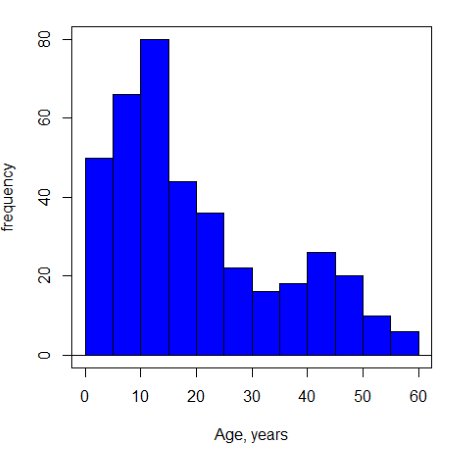
Figure 3. Histogram of ages of subjects in the diabetic retinopathy data set in the survival package.
Doesn’t look like a normal distribution, does it/?.
Z-score or Chebyshev’s inequality, which to use /? Chebyshev’s inequality is more general — it can be used whether the variables is discrete or continuous and without assumption about the distribution. In contrast, the Z score assumes more is known about the variable: random, continuous, drawn from a normally distributed population. Thus, as long as these assumptions hold, the Z score approach will give a better answer. Makes intuitive sense — if we know more, our predictions should be better.
In summary from the above points, and perhaps more formally for our purposes, the standard deviation is a good statistic to describe variability of observations on subjects, it’s integral to the concept of precision of an estimate and is part of any equation for calculating confidence intervals (CI). For any estimated statistic, a good rule of thumb is to always include a confidence interval calculation. We introduced these intervals in our discussion of risk analysis (approximate CI of NNT), and we will return to confidence intervals more formally when we introduce t-tests.
When you hear people talk about “margin of error” in a survey, typically they are referring to the standard deviation — to be more precise, they are referring to a calculation that includes the standard deviation, the standard error and an accounting for confidence in the estimate (see also Chapter 3.5 – Statistics of error).
Corrected Sums of Squares.
Now, take a closer look at the sample variance formula. We see a deviate

The variance is the average of the squared deviations from the mean. Because of the “squared” part, this statistic will always be positive and greater (or typically, equal to) zero. The variance has squared units (eg, if the units were grams, then the variance units are grams2). The sample standard deviation has the same units as the quantity (ie, no “squared” term). The numerator is called a sums of squares, and will be abbreviated as SS. Much like the deviate, will show up frequently as we move forward in statistics (eg, it’s key to understanding ANOVA).
Other standard deviations of means.
Just as we discussed for the arithmetic average, there will be corresponding standard deviations for the other kinds of means. With the geometric mean, one would calculate the standard deviation of the geometric mean, sgm, as
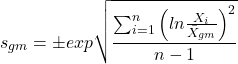
where exp is the exponential function, ln refers to natural logarithm, and  refers to the sample geometric mean.
For the sample harmonic mean, it turns out there isn’t a straight-forward formula, only an approximation (which I will spare you — it involves use of expectations and moments).
Base R, and therefore Rcmdr, doesn’t have built in functions for these, although you could download and install some R packages which do (eg, package NCStats, and the function is geosd() ).
If we run into data types appropriate for the geometric or harmonic means and standard deviations I will point these out; for now, I present these for completeness only.
Coefficient of variation (CV).
An unfortunate property of the standard deviation is that it is related (= “correlated”) to the mean — a fact recognized by Pearson (1896, p 276). Thus, if the mean of a sample of 100 individuals is 5 and variability is about 20%, then the standard deviation is about 1; compare to a sample of 100 individuals with mean = 25 and 20% variability, the standard deviation is about 5. For means ranging from 1 to 100, here’s a plot to show you what I am talking about.
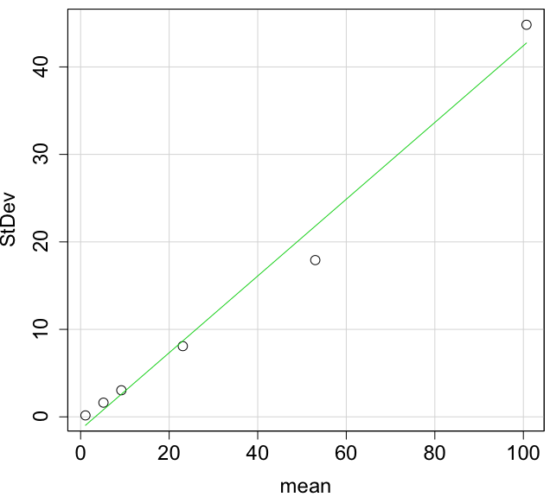
Figure 4. Scatter plot of the standard deviation (StDev) by the mean. Data sets were simulated.
The data presented in the Figure 4 graph were simulated. Is this bias, a correlation between mean and standard deviation, something you’d see in “real” data? Here’s a plot of height in inches at withers for dog breeds (Fig 5). A line is drawn (ordinary linear regression, see Chapter 17) and as you can see, as the mean increases, the variability as indicated by the standard deviation also increases.
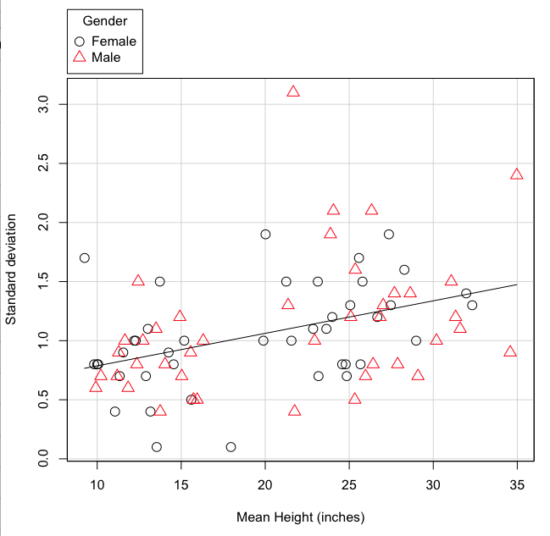
Figure 5. Plot of the standard deviation by the mean for heights of different breeds of dogs.
So, to compare variability estimates among groups when the means also vary, we need a new statistic, the coefficient of variation, abbreviated CV (Pearson 1896). The coefficient of variation is also known as the relative standard deviation, RSD. Many statistics textbooks not aimed at biologists do not provide this estimator (eg, check your statistics book).
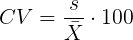
This is simply the standard deviation of the sample divided by the sample mean, then multiplied by 100 to give a percent. The CV is useful when comparing the distributions of different types of data with different means.
Many times, the standard deviation of a distribution will be associated with the mean of the data.
Example. The standard deviation in height of elephants will be larger on the centimeter scale than the standard deviation of the height of mice. However, the amount of variability RELATIVE to the mean may be similar between elephants and mice. The CV might indicate that the relative variability of the two organisms is the same.
The standard deviation will also be influenced by the scale of measurement. If you measure on the mm scale versus the meter scale the magnitude of the SD will change. However, the CV will be the same!
By dividing the standard deviation by the mean you remove the measurement scale dependence of the standard deviation and generally, you also remove the relationship of the standard deviation with the mean. Therefore, CV is useful when comparing the variability of the data from distributions with different means.
One disadvantage is that the CV is only useful for ratio scale data (ie, those with a true zero).
The coefficient of variation is also one of the statistics useful for describing the precision of a measurement. See Chapter 3.4 Estimating parameters.
Standard error of the mean (SEM).
All estimates should be accompanied by a statistic that describes the accuracy of the measure. Combined with the confidence interval (Chapter 3.4), one such statistic is called the standard error of the mean, or SEM for short. For the error associated with calculation of our sample mean, it is defined as the sample standard deviation divided by the square root of n, the sample size.
sem → 
The concept of error for estimates is a crucial concept. All estimates are made with error and for many statistics, a calculation is available to estimate the error (see Chapter 3.4).
Although related to each other, the concepts of sample standard deviation and sample standard error have distinct interpretations in statistics. The standard deviation quantifies the amount of variation of observations from the mean, while the standard error quantifies the difference between the sample mean and the population mean. The standard error will always be smaller than the standard deviation and is best left for reporting accuracy of a measure and statistical inference rather than description.
Questions.
- For a sample data set like
myY <- c(1,1,3,6), you should now be able to calculate, by hand, the
• range
• mean
• median
• mode
• standard deviation
• coefficient of variation - For our example data set,
myX <- c(4,4,4,4,5,6,6,6,7,7,8,8,8,8,8)calculate
• IQR
• sample standard deviation, s
• coefficient of variation - Use the
sample()command in R to draw samples of size 4, 8, and 12 from your example data set stored inmyX. Repeat the calculations from question 4. For examplex4 <- sample(x,4)will randomly select four observations from x, and will store it in the object x4, like so (your numbers probably will differ!)x4 <- sample(x,4); x4 [1] 8 6 8 6 - Repeat the exercise in question 4 again using different samples of 4, 8, and 12. For example, when I repeat sample(
x,4) a second time I getsample(x,4) [1] 8 4 8 6 - For Table 1, determine how many multiples of the standard deviation for observations greater than 95-percentile (eg, determine the observation value for a person who is in the 95-percentile for Height in the different decades, etc.
- Calculate the sample range, IQR, sample standard deviation, and coefficient of variation for the following data sets
• Height in inches of mothers,mom <- c(67, 66.5, 64, 58.5, 68, 66.5) #(data from GaltonFamilies in R package HistData)
and fathers,dad <- c(78.5, 75.5, 75, 75, 74, 74) #(data from GaltonFamilies in R package HistData)
• Carbon dioxide (CO2) readings from Mauna Loa for the month of December for
years <-c (1960, 1965, 1970, 1975, 1980, 1985, 1990, 1995, 2000, 2005, 2010, 2015, 2020)years <-c (1960, 1965, 1970, 1975, 1980, 1985, 1990, 1995, 2000, 2005, 2010, 2015, 2020) #obviously, do not calculate statistics on years; you can use to make a plotco2 <- c(316.19, 319.42, 325.13, 330.62, 338.29, 346.12, 354.41, 360.82, 396.83, 380.31, 389.99, 402.06, 414.26) #(data from Dr. Pieter Tans, NOAA/GML (gml.noaa.gov/ccgg/trends/) and Dr. Ralph Keeling, Scripps Institution of Oceanography (scrippsco2.ucsd.edu/))
• Body mass of Rhinella marina (formerly Bufo marinus) (see Fig. 1),bufo <- c(71.3, 71.4, 74.1, 85.4, 85.4, 86.6, 97.4, 99.6, 107, 115.7, 135.7, 156.2)
Quiz – Chapter 3.3
Measures of dispersion
Chapter 3 contents
3.2 – Measures of Central Tendency
- Introduction to summary statistics.
- Other “means”.
- How to calculate these other means.
- Do try on your own!.
- Other measures of central tendency.
- Why the median may be a better middle than the mean.
- Scaling and transformation of data.
- R operators.
- Creating objects in R.
- R code calculate central tendency.
- There’s an R package for that.
- Use aggregate() to calculate summary statistics by group.
- Questions.
- Quiz.
- Chapter 3 contents .
Introduction to summary statistics.
For a sample of observations we can begin the summary by identifying the “typical” value. Various statistics are used to describe the middle and collectively these are referred to as measures of central tendency. The mean, the median, and the mode are the most common measures of central tendency. In the situation in which we work with data from a population census, we would calculate population descriptive statistics — not inferential statistics; because we more often work with samples from populations, we report sample descriptive statistics.
First we review the familiar arithmetic mean and introduce the weighted mean. Next we introduce “other means,” which you may not be as familiar with.
Means.
There are several means beyond the simple arithmetic average or mean. Here we review a few. We use this topic also to start introducing standard notation we will use throughout the book.
The population mean, μ (pronounced “mu”) is given by
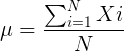
Xi, an observation on the i-th individual
Σ, or “sigma,” which instructs you to add them up (the X’s), from i = 1 (the first observation) to i = N (the last observation).
The sample mean, , pronounced “eks bar,” of a collection of observations is given by
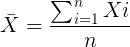
Note 1: Parameters (aka random variables) get Greek letters and sample variables get Roman letters. See Chapter 3.4
Weighted arithmetic mean.
In some cases you may have several samples from the same population. If the sample sizes are the same, you can calculate the average of averages without any fuss — just take all of the sample means and add them up, then divide by the total number of samples. If the sample sizes differ, then you needs to weight (W) each sample mean by its sample size. Simply divide each sample mean by its appropriate sample size, then add all of these up. That is the weighted average.
More generally, we can write

For example, consider a variable containing the following observations, for example, over the course of watching birds gathering at a drinking source (eg, recorded over 20 days, a single 5 minute interval per day), we can count how many times zero, one, two, etc birds are observed.
Table 1. A sample of counts of observations, eg, how many birds
| Observation | Frequency |
|---|---|
| 1 | 0 |
| 2 | 0 |
| 3 | 2 |
| 4 | 4 |
| 5 | 2 |
| 6 | 3 |
| 7 | 2 |
| 8 | 3 |
| 9 | 1 |
The observation “4” was observed four times; the observation “5” was observed twice, and so on for a total of 15 observations.
What is the arithmetic mean of these 15 observations? To solve this, well, you have a couple of choices. You could copy the numbers down as often as they appear and then calculate the mean in the usual way.
Other “means”.
The arithmetic average (illustrated above) is not the only way to estimate the mean.
The trimmed mean, also called the truncated mean, is a useful approach when data is widely dispersed — data spread away from the middle (see Chapter 3.3). Thus, the trimmed mean will be less influenced compared to the arithmetic mean by outlier data points, ie, data far from other data points in the set.
You would use the trimmed mean to describe the middle of a data set in which a plot shows most of the values are clumped together around a middle – and yet you see a few values that are much smaller or much greater. A specified percentage of the smallest and largest values are removed from the data set and then the simple arithmetic mean is calculated for the trimmed data set. For example, given a data set of daily rainfall for different cities, you might wish to remove the driest 5% and wettest 5% of the days in order to better compare the rainfall trends for the cities.
Calculating the trimmed mean is straight-forward in R: use the same built-in function, mean(), but add some options.
Note 2: This is a good time to remind you how to get help with R commands. Do you recall how to get help in R?
At the R prompt type
help(mean) or
?mean
The R Documentation page for mean() will pop up (assuming you allowed R to install help pages as html). Figure 1 shows a screenshot of a portion of the help page for mean()
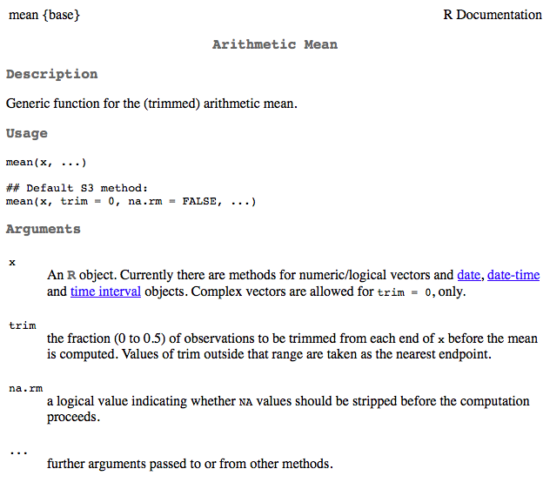
Figure 1. A portion of the R help page about the function mean.
From the help page (Fig 1) we can see that we can specify a trimmed mean by adding options to the mean(x, ...) command. For our x variable defined above, get the trimmed mean after 25% of the data are removed.
mean(x, trim=0.25)[1] 6From the help page we see that the only required option you need to feed the mean command is the name of the variable, in this case, “x” (it can be, of course, any name provided the data are attached). In this case we removed 25% of the values – 12.5% of the smallest values and 12.5% of the largest values – that’s also called the interquartile mean. We use a dot plot to show these trends (Fig 2).
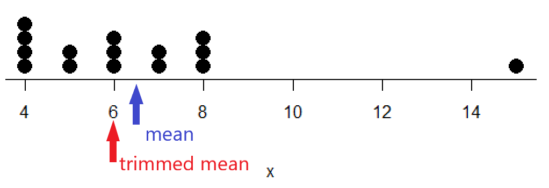
Figure 2. Dot plot of our x variable with locations of the mean (blue) and the trimmed mean (red). The Dotplot(x) function in package RcmdrMisc was used in Rcmdr to make this graphic. Arrows were added by hand. Dotplot() example code presented in Chapter 3.4.
If we recalculate a trimmed mean after dropping 10% of the points, or even 40% of the points, we get the same mean value of 6. The trimmed mean is an example of a robust estimator; it’s resistant to the influence of outliers.
Another useful descriptor of the middle is the geometric mean. The geometric mean is useful for calculating the average of ratios. Geometric mean would be used when you want to compare central tendency for different variables, each differing in scale. For example, gene expression results, reported as fold-changes, for different genes often shows tremendous differences among genes and would be best described by logarithmic scale, not arithmetic scale. Geometric mean expression values would be better choice for central tendency. Other examples are found in economics: for example, calculating compound interest or interest. The geometric mean applies whenever the scale is multiplicative and not additive
The geometric mean is given by the equation

The geometric mean (gm) is equivalent to log-transforming your data, then calculating the arithmetic mean, and transforming the result back (with the antilog exponent.) As you recall, for our simple data set the arithmetic mean was 6.2. The geometric mean for this data was 5.977. Taking the natural log for each of the values from our simple data set, then calculating the arithmetic mean we have 1.788.
The antilog of this value is
exp(1.788)[1] 5.977Another frequently encountered mean is the harmonic mean, which is defined by the equation

Harmonic mean is appropriate for averaging rates. For example, what is the average speed traveled if you travel 30 miles per hour (mph) between point A and B, then on the return trip, your speed was 40 mph? If you think (30 + 40)/2 = 35 mph, then this would be incorrect — after all, the distance covered has not changed, just the time. The harmonic mean returns 34.2 mph. Let
y = c(30,40)The harmonic mean returns 34.2 mph ( see below “How to calculate these other means”)
Both harmonic and geometric means apply for values greater than zero.
How to calculate these “other” means.
In Microsoft Excel, calculate geometric mean via the function GEOMEAN(); calculate harmonic mean via the function HARMEAN().
The base R (and Rcmdr) doesn’t have built in functions for these, although you could download and install some R packages which do (eg, package psych, geometric.mean(variable), harmonic.mean(variable)). It is quicker to just to calculate these by submitting a snippet of code into the script window
For geometric mean of variable “x” at the R prompt type
exp(mean(log(x)))For harmonic mean of variable “x” at the R prompt type
1/mean(1/x)where is the base of the natural logarithm, Euler’s number, and log is the natural logarithm (in R, to get log to other bases you can use log10 for base 10 logarithm or log2 for base 2 logarithm, or log(x, base = n) for any base n of the variable x, and variable is the name of the variable you wish to do the calculations on.
R code: Do try on your own!
Here’s some numbers to try your hand. For example, create a variable containing a few numbers, any numbers. and write it to the variable named z
myZ = c(3,4,6,7,9,11,4)Now, calculate the arithmetic mean, the geometric mean, and the harmonic mean for the variable myZ. You should get Table 4.2)}
Table 2. Comparison of different means for myZ.
| mean | value |
|---|---|
| Arithmetic | 6.285714 |
| Geometric | 5.716403 |
| Harmonic | 5.204936 |
Try three more. In R (or R Commander script window), create three new variables.
varA = c(3,3,3,3)varB = c(1,2,3,12)varC = c(-3,0,1,3)Now, calculate the arithmetic mean, geometric mean, and harmonic mean for each variable.
For the simple arithmetic mean
mean(varA)For the geometric mean, use the formula above
exp(mean(log(varA)))For the harmonic mean, use the formula above
1/mean(1/varA)What did you get?
Other measures of central tendency
Median
The median, which lacks an accepted notation — we’ll go with  , divides a set of observed numbers into two equal halves. Half the observations are above the median, half of the observations are below the median. Arrange data from lowest to highest, take the middle measurement:

odd number of measurements minus the middle value minus even number of measurements minus average of the 2 middle values

Or, more succinctly, we have
![\begin{align*}Med(X) = \left\{\begin{matrix} X\left [ \frac{n+1}{n} \right ] & if \ n \ is \ odd\\ \frac{X\frac{n}{2}+X\frac{n}{2}+1}{2} & if \ n \ is \ even \end{matrix}\right. \end{align*}](https://biostatistics.letgen.org/wp-content/ql-cache/quicklatex.com-9a1a58dc16fffb57b1de96b28c65f0dc_l3.png "Rendered by QuickLaTeX.com")
To get the median in R type at the R prompt
median(variable)and of course, replace variable with the name of the variable containing the numbers. For our x variable created earlier, the function median returns in R
[1] 6[Note that the median for x was the same as the trimmed mean for x, which is consistent with with our view that the trimmed mean is a robust estimator of the middle of a data set.
Mode
Mode is another way to express the middle and it refers to the most frequent occurring measurement. Use of mode makes most sense for discrete or countable numbers. For a normal distribution, the mean, median and mode will be the same value. Note that a data set may have more than one mode. For example, what is the mode for the variable we created earlier?
myX = c(4,4,4,4,5,5,6,6,6,7,7,8,8,8,15)For this small data set we see that “4” is the most frequent with a count of four occurrences in the set.
Mode would seem like a straightforward function in R. However, it turns out there is not a mode function in the base package.
A little explanation is in order. In R, typing mode at the R prompt like so
mode(myX)returns
[1] "numeric" Not the answer we were expecting. In R, mode command is used to tell you what the mode (ie, way or manner in which some task is accomplished) of storage is for the variables.
In order to get the statistical mode we want, we either hunt down a package that contains mode estimation (eg, install the package DescTools use the Mode function — see below), or we can write a little code.
Note 3: A reminder — what we are attempting is to estimate a statistic. DescTools includes about 80 different statistics functions, including functions to calculate every statistic described in this chapter, chapter 3.3, and most other chapters in this book.
A quick Google search found a number of answers at stackoverflow.com (eg, question 2547402). The simplest response was to use names and max commands like so
temp = table(as.vector(myX))names (temp)[temp==max(temp)]Why the median may be a better middle than the mean
Comparing the two measures of central tendency can tell you without plotting how your data are distributed about the middle. Sample distributions are discussed in Chapter 6.
- When the distribution of the data is symmetric or normally distributed (discussed in Chapter 6.7) then the mean and the median will be about the same value
- When data are right-skewed (a few large values), then the mean will be greater than the median.
- When the data are left-skewed (a few small values), then the mean will be less than the median.
Here’s an illustration (Fig 3). I sampled 100 points from a random normal distribution with mean zero and standard deviation 0ne and another 100 points from a log-normal distribution also with mean zero and standard deviation one. In Figure 3, the histograms (see Chapter 4.2 – Histograms), along with summary statistics (see Note 4). Means are indicated with red arrows and medians are indicated with blue arrows.
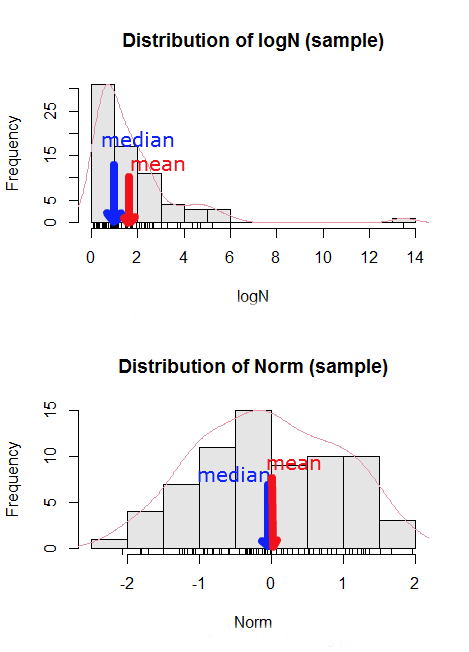
Figure 3. Normal and lognormal distributions with mean (red) and median (blue) noted for comparison.
So the median is a better descriptor or the central tendency of a sample distribution when the distribution is NOT normally distributed.
Note 4: “Summary statistics” refers to reporting of one or more descriptive statistics on a data set. The mean, median, standard deviation, range are common reported statistics. R Commander provides a menu to select from descriptive statistics, returning a table of the estimates. Rcmdr: Statistics → Summaries → Numerical summaries…
Scaling and transformation of data
Sometimes it is useful to standardize your data so that the variables all have the same scale. One algorithm for standardization is called normalization. Normalization implies that you correct the data so that data has a mean, μ, of zero, and a standard deviation, σ, of 1 (unit variance). There are several ways to standardize, each with strengths and limitations. To normalize we use the Z-score equation (see Chapter 6.7 for other uses of Z score).

where Xi is each observation in your data set.
Normalization will make outliers, the few points in a data set that are noticeably different from the central tendency of the rest of the data, smaller and less influential. When you normalize multiple sets of data, then each will have the same mean (0) and variance (unit variance), but the ranges will differ. An example of this is the simple product moment correlation — by standardizing you change the variances for the different variables to have the same unit variance.
As we will see later in class it is also useful to expand or contract the variability of the data or to change the shape of the distribution (if the data is not normally distributed). For example, if you compare individuals of a population for many morphological traits (eg body size, growth rate), the spread of points (called a distribution) will look more like a Poisson distribution (not symmetrical about the mean, a few individuals may be much larger…). This is partly due to the way in which morphological traits are measured. We normally measure body size on a linear scale (inches or centimeters). However, body size is affected by physiological processes that are more related to volume. Therefore, the more appropriate scale of measurement is on a log scale. We can transform the data measured on a linear scale to a log scale. For morphological traits this can produce a distribution that is normally distributed (bell shape). There are many more statistical procedures for data that is normally distributed than there are statistical procedures for Poisson distributions or any other type of distribution. Additional discussion about data transformation is introduced in Chapter 13.3.
You can always uncode or unstandardize your data after performing the statistical procedures and return to the original scale. In fact, when reporting descriptive statistics you should report the untransformed, uncoded data. Moreover, you will find it useful to report means adjusted for other variables (eg, from ANOVA or regression); if the ANOVA or regression equations are performed on transformed or coded data you would want to back calculate to the original scale after applying the ANOVA or regression adjustments. This advise will make more sense after we’ve discussed ANOVA (Chapter 12) and linear regression (Chapter 17).
R operators
The names command can be used to retrieve the names contained in the variable (if text types) or to set the names of the observations, which is what we are using it for here. We set the numbers to text names “4”, “5”, etc. then find the maximum count of named items in the temp table. The double equals operator (==) is used to tell R to find the object that is “equal to” something we specify, in this case, the max value (R Language Definition 2014). Table 3 shows common operators in R.
Table 3. Common arithmetic* and comparison** operators
| Operator | Description |
|---|---|
| ? | help |
| + | plus |
| - | minus |
| * | multiply |
| / | divide |
| : | series |
| > | greater than |
| < | less than |
| >= | greater than or equal to |
| <= | less than or equal to |
| = | left assignment |
| <- | left assignment |
== | equal to |
** To list and get help with use of comparison operators enter at the R prompt
help(Arithmetic)
help(Comparison)
The R package modeest has a number of algorithms for calculating the mode, depending on the kind of data you are working with. After installing the package and its dependencies, type at the R prompt
require(modeest)
mfv(myX)
[1] 4
Creating objects in R
Everything in R is an object (Chambers 2008). We provide many worked examples in Part 07. Working with your own data – Mike’s Workbook for Biostatistics. In brief, create a variable in R by assigning the vector x, either directly at the R prompt or in a script window (Rcmdr, RStudio), like so
myX = c(4,4,4,4,5,5,6,6,6,7,7,8,8,8,15)
The function c(), which stands for combine is used to combine the set of numbers into the object, myX. For small sets like this you may find it convenient to enter the values one by one and let R store it into the vector for you. For R installed on your computer, use the scan() function and your keyboard — scan() doesn’t work consistently in serverless R instances (eg., Google CoLab). Careful! Make sure that you remember to assign the results from scan to a vector.
I’ll create the object tryScan just to distinguish it from x, although I will enter the same values. Until R receives an interrupt signal from you, it will prompt you to enter numbers one row at a time. When you’ve reached the end, use the keyboard shortcut Ctrl + q (Windows) or Cmd + q (macOS) to interrupt keyboard input.
tryScan = scan()
1: 4
2: 4
3: 4
4: 4
5: 5
6: 5
7: 6
8: 6
9: 6
10: 7
11: 7
12: 8
13: 8
14: 8
15: 15
Read 15 items
tryScan
 [1] 4 4 4 4 5 5 6 6 6 7 7 8 8 8 15
The function tryScan is a very useful command, with many options, and can be used for more than keyboard entry. For example, you can paste from your computer’s clipboard a column of numbers from your spreadsheet.
R code calculate central tendency
Once we have the vectormyX, calculate the mean by entering at the R prompt
mean(myX)
and you should get the answer of 6.466667
And of course, you don’t type in the R prompt >, right?
Or, for the better option, create two variables, one containing the list of observed numbers and the second that contains the frequency for each observed number in the series. You would then use the command for weighted mean.
myY = c(4,5,6,7,8,15)
myW = c(4/15, 1/15, 3/15, 2/15, 4/15, 1/15)
Note — you can check that the frequencies sum to 1 by using the sum command like so
sum(myW)
For the weighted mean, the command is
weighted.mean(myY,myW)
and, the answer returned is 6.466667, the same as before.
There’s an R package for that.
We list code examples for all of the statistics described on this page, but as you can imagine, there are packages that include these and other useful functions, or “wrapper functions” that make writing code easier in R. A good example is the DescTools package. One advantage of using a package like DescTools is that it cuts through the need to remember specific commands for basic data exploration. For example, just call the Desc() function to yield several measures of central tendency and dispersion (see Chapter 3.3).
The R code and output follows, along with a plot (Fig 4). The mean and median are highlighted in orange.
Desc(myX)
────────────────────────────────────────────────────────────────────────────────
myX (numeric)

length      n   NAs unique   0s  mean meanCI'
    15     15     0      6    0  6.47    4.92
       100.0%  0.0%        0.0%          8.02

   .05    .10   .25 median  .75   .90     .95
  4.00   4.00  4.50   6.00 7.50  8.00   10.10

range      sd vcoef    mad  IQR  skew    kurt
11.00    2.80  0.43   2.97 3.00  1.72    2.94

  value freq   perc cumfreq cumperc
1     4    4  26.7%       4   26.7%
2     5    2  13.3%       6   40.0%
3     6    3  20.0%       9   60.0%
4     7    2  13.3%      11   73.3%
5     8    3  20.0%      14   93.3%
6    15    1   6.7%      15  100.0%

' 95%-CI (classic)

Figure 4. Histogram, box plot, and cumulative distribution function plot generated by default by Desc() call.
Lots of output! This is a good example of how to explore data — describe the middle (eg, mean and median), but also the variability about the middle (eg, range, standard deviation — sd, mean absolute deviation — mad, coefficient of variation — vcoef), and distribution shape (quantiles — 0.05, 0.25 etc, kurt, skew). The plots — histogram, box plot, and cumulative distribution plots — are explained in Chapter 4.
Use aggregate() to calculate summary statistics by group.
So far, all code presumes need to calculate descriptive statistics one vector at a time. In general, we need summary statistics for more than one group or strata. For example, we may ask, what are the average body temperature readings measured by IR device on different body areas from several subjects (question 8a, Homework 2A: Descriptive statistics in Mike’s Workbook for Biostatistics).
The aggregate() function in R simplifies calculating means by groups by providing a concise and efficient way to apply a summary function (like mean()) to a variable, grouped by one or more other variables. The format for aggregate is
aggregate(x = variable_to_aggregate ~ grouping_variable, FUN = mean, data = your_dataframe)
Questio8a had two levels of body regions, “Forehead” and “Throat.” Assuming the variable is named bodyTemp and the grouping variable is called bodyGroup and stored in the attached data.frame question08a, then the following R code provides the requested summary statistics by groups.
aggregate(bodyTemp ~ bodyGroup, data = question08a,
function(x) c(mean = mean(x)))
Additional statistics can be requested by adding one after the other following mean(x), eg, median = median(x).
Note 5: aggregate() is part of the base R installation. Additional functions are available, including dplyr and data.table packages, which the user is encouraged to explore!
The advantage of use of R Commander, it’s easy to get multiple statistics by groups by following the drop down menus, beginning with Statistics > Summaries > Table of statistics… (Fig 5).

Figure 5. Screenshot R Commander, summary statistics by group.
Questions
- Find the help page in R for the median function. How does the function handle missing values?
- For a simple data set like the following
myY <- c(1,1,3,6)you should now be able to calculate, by hand, the
• mean • median • mode - If the observations for a ratio scale variable are normally (symmetrically) distributed, which statistic of central tendency is best (eg, less sensitive to outlier values)?
- In the
names()command, what do you think the result will be if you replacemaxin the command withmin? - If data are right skewed, what will be the order of the mean, median, and mode?
- Body mass of Rhinella marina (formerly Bufo marinus, Fig 6),
bufo <- c(71.3, 71.4, 74.1, 85.4, 85.4, 86.6, 97.4, 99.6, 107, 115.7, 135.7, 156.2)

Figure 6. Female Rhinella marina (formerly Bufo marinus), Chaminade University campus. Body length 23.5 cm. Click image to view full sized image.
- Under what circumstances is it appropriate to transform raw data?
- What does “standardize” or “normalize” imply as actions to take with data?
Quiz Chapter 3.2
Measures of Central Tendency
Chapter 3 contents
- Exploring data
- Data types
- Measures of Central Tendency
- Measures of dispersion
- Estimating parameters
- Statistics of error
- References and suggested readings
2.6 – Statistical reasoning
How statistical reasoning helps us spot and reduce bias.
.
So far in the course we have talked about statistical reasoning. Statistical reasoning as part of the critical thinking tool kit. What this should mean for you in practice is that we will be developing and enhancing your critical thinking skill set. Here, we’ll define our terms and place statistical reasoning in context.
Critical thinking.
.
What do I mean by critical thinking? You’ll find various definitions and discussions, but the Wikipedia entry on the subject seems as good a start as anything else I have heard or read:
“Critical thinking is a way of deciding whether a claim is always true, sometimes true, partly true, or false” (5 August 2013, http://en.wikipedia.org/wiki/Critical_thinking).
Which raises the question, what is truth (false)? And what about the frequency qualifiers “always,” “sometimes,” “partly”? This hints at one of the strengths of science; “Truth in science … is never final, and what is accepted as fact today may be modified or even discarded tomorrow” (p. 2, National Academy of Science 1999). Scientists extend and even correct the work of their predecessors.
Critical thinking has many definitions, but they coalesce broadly as the search for rational justification — arguments and decisions based on reason not emotion — given sets of facts. We’ll define facts as assertions about the world that are verifiably true. Related to facts, we define evidence as collection of facts used to infer an assertion or belief is objectively true. Objectivity holds independently of the observer. In practice, critical thinking can be improved by identifying and developing certain skill sets, from deductive reasoning to use of a statistical toolkit, although skills alone do not necessarily lead to sound critical thinking (Bailin 2002). Emphasis on the importance of statistical reasoning, for example in the Evidence-Based Medicine (EBM) approach, is now well established. EBM is an expansive concept, but includes the philosophy that decisions in medicine and health care should be based on evidence (results) from well designed and executed research. More generally, much has been written on the subject. My purpose here is to sell you just a bit that you will learn more than formulas and statistical tests in this course; if we do this right you will improve your critical thinking skills.
And the tool kit for critical thinking? Science has the scientific method to offer. In turn, by adopting statistical reasoning approaches you will be more cognizant of whether or not you are indeed engaged in critical thinking about your work.
A working checklist for critical evaluation of a project
- “All sides” of the problem are fairly represented
- Authority is not synonymous with empirical truth: trust, but verify
- Correlation (association) may or may not infer causation
- Do conflicts of interest compromise conclusions?
In other words, identify and rigorously consider assumptions made to reach conclusions, evidence given in support of conclusions, and considerations of bias held by the researcher. The “all sides” part requires judgement — not all sides of a research question are equally valid; the point about “fair” representation requires that opposing arguments are actually held by others and not simply a “”straw man” characterization of of a position held by no one.
Rigid adherence to “how to do science checklist” is likely to be wanting and thus practicing and successful scientists show more flexibility. And, the list is certainly incomplete because it presumes observations and data collection are from a reliable, unbiased source. Before proceeding with how statistics informs our critical thinking in science, let’s illustrate bias.
Bias everywhere.
.
Bias is defined as any tendency that may hamper our ability to answer a question without prejudice (Pannucci and Wilkins 2010). Although we tend to think of ourselves as highly rational (Note 1), psychologists have documented, named numerous, and in some cases, highly specific kinds of cognitive biases we may have about “real world data” that may impair our judgment about results of experiments.
Note 1. A handful of Nobel prizes were awarded over evidence and theory on just how unrational we are, see Simon (1978), Kahneman (2002), and Thaler (2017, whose views were immortalized in the movie The Big Short).
At its best, application of the scientific method is our best tool kit to help protect our conclusions against bias (Nuzzo 2015), by proper experimental design and possible study biases. A couple of comics from xkcd illustrate.

Figure 1. “Survivorship bias,” https://www.xkcd.com/1827/ .
Figure 2. “Selection bias,” https://xkcd.com/2618/ .
Wikipedia lists dozens of named biases which may influence our ability to interpret science:
- confirmation bias, eg, given extraneous information about ancestry or sex, forensic investigators were more likely to assign ancestry or sex of skeletal evidence to group that confirmed the contextual information (Nakhaeizadeh et al 2014).
- congruence bias, a type of confirmation bias, the tendency to test only a favorite or initial hypothesis over consideration of alternative hypotheses.
- observer-expectancy bias, eg, randomized controlled trials of acupuncture often find equivalent responses to real and placebo acupuncture despite both appearing superior to no treatment (Colagiuri and Smith 2012).
- selection bias, the selection of individuals, groups, or data for analysis in such a way that proper randomization is not achieved, eg, mitotic counts (Cree et al 2021) and cell differentials and Figure 2. Selection bias, where the study population is not well-defined or if is, the method by which subjects are recruited favors one kind of subject over another.
- surveillance bias, eg, association between myocarditis and COVID-19 vaccines may be due to increased focus to identify myocarditis (Husby et al 2021).
- survivorship bias, focusing on subjects that passed a selection process as if they represent an entire group, eg, from ecology: rare species more likely to go extinct than abundant species (Lockwood 2003) and Figure 1.
Bias in research may occur at any level, from study design to analysis and publication of results. Bias leads to systematic errors that may favor one outcome over others. Clearly then, bias is something one wants to avoid in science, and most scientists would probably agree strongly that bias is unacceptable. However, bias can creep into projects in many forms.
Particularly pernicious causes of bias are conflicts of interest, with the notable case of a 1990’s set of trials in gene therapy (Wilson 2010). Biased research may be more harmful to science than deliberate misconduct, at least in part because there are, or should be, mechanisms to detect fraud (eg, Marusic et al 2007). If errors in data analysis or management are rare, we can trust the results; if errors are common, systematic, or deliberate falsification, then any conclusions drawn from such work deserves retraction at the very least (cf. discussion in Baggerly and Coombs 2009; see StatCheck project, Nuijten et al 12016).
Bias in research.
.
Bias is not limited to obvious profit seeking or even defense of one’s ideas or reputation. Bias can enter research in subtle ways. Prior to 2000, many post-menopausal women could expect to be placed on hormone replacement therapy (HRT) to manage post-menopausal symptoms and to reduce likelihood of osteoporosis later in life. Moreover, HRT was believed based on research to show protective benefits against heart disease (eg, Nabulsi et al 1993; Grodstein et al 2000). However, other prospective studies that were designed to reduce many sources of bias in patient recruitment (Women’s Health Initiative Study Group 1998), found the opposite: HRT may increase risk of heart disease as well as other diseases (Rossouw et al 2002). Since the 2002 Women’s Health Initiative study report, the costs and benefits of HRT have been furiously debated (Lukes 2008).
The purpose of this chapter, however, is not to exhaustively review sources of bias. Instead, we leave you with a partial list of kinds of bias in clinical trials (from a review by Pannucci and Wilkins 2010).
- Bias during study design, eg, use of subjective measures or poorly designed questionnaires.
- Interviewer bias, for example, if the interviewer is aware of the subject’s condition
- Chronology bias, where the control subjects may not be observed in the same time frame as the treatment subjects
- Citation (reporting) bias, where negative results are not reported
- Confounding, where results may be due to factors not properly controlled that also affect the outcome. An example provided was link between income and health status, which would be confounded by access to health care.
These are but a few of the kinds of bias that even proper research may be influenced by. Solutions are to randomize, to double-blind, and to avoid reporting bias. Controls of sources of bias increase the validity of the research. How experimental design may control for bias is discussed further in Chapter 5.3.
A case study.
.
Stories we hear from the news or from our friends about health or the environment are anecdotal. A basic rule in critical thinking is to distinguish between argument that is built on anecdotal evidence and argument based on scientific evidence. Let’s evaluate the following real-world example.
Airborne® is a leading dietary supplement. Here’s what their website has to say about the product.
“Scientific research confirms that Airborne proprietary formulation with 13 vitamins and minerals plus a blend of health-promoting herbs, does indeed enhance immunity (5 August 2013, http://www.airbornehealth.com/our-story).
This next statement appears in smaller text near the bottom of the page.
“These statements have not been evaluated by the Food and Drug Administration. These products are not intended to diagnose, treat, cure or prevent disease” (5 August 2013, http://www.airbornehealth.com/our-story).
So, in short, how do you evaluate Airborne? The claim is that “scientific research confirms that Airborne … enhance immunity,” and yet, there is a statement that follows that suggests that the claim has not been evaluated by the agency legally responsible in the USA for determining the efficacy of medicine and treatments.
Note 2. “enhance” immunity is a vacuous phrase. Immunity is not a single object. If by immunity we mean resistant to a particular pathogen, this cannot be what the makers literally mean because that would be in violation of the FDA. Yes, deficiencies of vitamin C and other nutrients impair immune function (Carr and Maggini 2017), but there is no evidence to support the claim that Vitamin C supplementation above RDA, recommended dietary allowances, improves resistance. See 2013 Cochrane Review.
Are not these in contradiction? In the USA, supplement manufactures’ need not seek FDA approval. In fact, the U.S. Congress, in it’s passing of the The Dietary Supplement Health and Education Act of 1994 (DSHEA), specified what needs to be reported to the FDA; statements of “enhancing immunity” are lawful, but do not require the supplement manufacture to show evidence that their product provides this support, only that ingredients in the supplement may do so.
Returning to the statements from Airborne Health, how may these statements be interpreted?
- peer-reviewed articles testing Airborne are available
- that experiments were conducted without bias
- and that to “enhance immunity” is something one could measure
Let’s look at #3 first. A search of PubMed (December 2013) for the phrase “enhance immunity” returned 9171 hits. I didn’t look through the more than 9000 articles, but a quick look shows that the term is indeed used in research, but carries a wide range of interpretations. For one paper “enhance immune” response was the result of genetic modifications to T-cells and how they responded to a virus (PMID:24324159).
Adding “vitamin” to the search resulted in just 158 hits in PubMed; none of these are about Airborne (see claim #1 and #2). However, to be fair, go back and look at their statement — notice they are not saying exactly that anyone has studied Airborne (otherwise they’d probably list the papers), just that vitamins and minerals and herbs that are in Airborne have been studied.
Indeed, vitamins A, C, E and minerals like zinc and selenium that are in Airborne are among the 158 papers. To be additionally fair to Airborne, there are indeed many papers investigating benefits (harm) of supplemental vitamins and minerals — and again, being charitable here, what we can say is that results are at best inconsistent (Bjelakovic et al 2014; Comerford 2013).
The manufacturer of Airborne ran into some trouble with the FTC and ended up paying over $20 million US dollars to settle the lawsuit. The one study, not peer-reviewed, of Airborne’s effectiveness cited during these proceedings apparently was sponsored by Airborne’s manufacturer. Airborne was acquired by Schiff Vitamins March 2012 (Bloomberg News). Click here for additional reading about Airborne.
About peer-review.
.
Evaluation of claims made, research reported, and ideas in science are generally expected to be subject to peer-review by knowledgeable persons in the field. Effective peer-review is an important “gatekeeper” in science (Siler et al 2015, Tennant 2018). Proper peer review gives legitimacy to research (Siler et al 2015). The traditional peer review system is a closed system, which includes elements controlled by journal editors and is based on reviewer identify remaining anonymous. The closed peer-review system is not the only option: many have argued for an open review process (eg, Pöschl 2012, Ho et al 2013).
Does the Airborne story meet your definition of bias?
.
Airborne made health claims I about their product; these claims were found by the federal government to be misleading but does not fit into our discussion of bias. Instead, Airborne story fits more with critical thinking: I think it is rather a casual position to say that we should, and do, think critically of news source or the stories our friends tell us about health.
But bias in science occurs too, and can be very difficult to control or completely eliminate.
Learning statistical reasoning will help develop critical thinking skills.
.
In addition to considering sources of bias, ie, can you trust the messenger, thinking about the sets of facts offered to bolster a claim, it helps to evaluate each fact to see if
- The author is really talking about correlation and has not in fact provided evidence of causation
- vs. experiment, which tests “cause” manipulate
X, doesYchange?
- vs. experiment, which tests “cause” manipulate
- Measurement appropriate?
- Direct or indirect
- Unmeasured important (co)variable
Questions.
.
- Write up three learning outcomes for this page. Hint: Point your favorite generative AI to this page and ask for help.
- The xkcd comic in Figure 1 titles calls it survivorship bias. Provide a definition for this kind of bias and describe the effects on conclusions if it is not accounted for.
- Doctors are encouraged to engage in “evidence based medicine,” that is, decisions about care should be based on data. How may confirmatory bias (from the patient’s point of view, from the doctor’s point of view) influence a discussion of “facts” when deciding on a course of medication therapy — between a well-established medication with many known side-effects and a new, recently approved medicine reported to be as effective as the standard treatment.
Quiz Chapter 2.6
Statistical reasoning
Chapter 2 contents
.
2.5 – Scientific method and where statistics fits
- Science isn’t just a recipe.
- Hypothetico-deductive reasoning.
- It’s all about the probability of a particular event.
- A statistical translation of the Scientific Method.
- When we say “experiment,” the hypothesis came first.
- Bottom-up, Top-down.
- How to interpret a test result.
- False discovery rate: claims must be stringently evaluated.
- Projects and the data lifecycle.
- Conclusions.
- Questions.
- Quiz.
- Chapter 2 contents .
Science isn’t just a recipe.
.
The scientific method is what makes science a “powerful way of knowing” (Church and Carpenter 2008), and by now, you should be familiar with the outline: hypothesis, experiment, etc. What distinguishes science from other fields of inquiry is that at its best, science accumulates verifiable evidence about our world. I begin with a disclaimer — our introductory textbooks tend to reify the scientific method (cf. Blachowicz 2009). Outside of the classroom and introductory science text books, I don’t think you’ll find much agreement among practicing scientists precisely what the scientific method entails, or whether strict adherence to a list of steps distinguishes what scientists do compared with other professions. For one difference, typical discussions of the scientific method may emphasize the experiment, which probably brings to mind images of a lab coat and test tubes, but should emphasize the critical thinking “tool kit” (Wivagg and Allchin 2002), eg, model-based inquiry. That said, holding a view that introductory textbooks should present nuances of epistemology seems a big ask.
But we do emphasize experimentation with good reason. In principle it is straightforward to identify what control groups are needed to conduct an experiment in the lab, but what are the control groups for an experiment conducted on the computer? In most cases, one should argue that if an outcome is obtained by random processes, then no additional cause need be addressed. Therefore, the control group for a simulation would be a random process generator.
Disagreements about the scientific method center about how science is really done (eg, from a social perspective), but also because there appear to be differences in approach in sciences that work on historical questions (physical cosmology, evolutionary biology, geology), and those that conform to the classic experimental approach (chemistry, molecular biology, physics). Epistemology is a fascinating area — How do we know what we know, What exactly is science and how is it different from other areas of knowing, etc. But I will leave you only with the tantalizing suggestion to read more and start with you with a list of readings to start (see Readings below). This is the stuff of graduate and professional school; we have work to do.
Despite apparent differences between what scientists say they do and how they actually do sciences, there is broad agreement; science as a way of knowing can be characterized by the following steps (National Academy of Sciences 1999).
- Begin with facts, which are observations confirmed and treated as true
- Formulate a hypothesis, with emphasis on hypotheses that are testable statements about relationships observed about the natural world
- Given the possible outcomes, state predictions derived from the hypothesis.
- Make observations of perform an experiment designed to test the hypothesis.
- Analyze the data from the experiment.
- Evaluate the results of the experiment against the predictions.
- Repeat.
This deceptively simple list hides much work to be done. Hypotheses are not “educated guesses,” where educated guess implies an idea about some phenomenon is likely the correct explanation because of the skill or knowledge of the person making the guess. Good hypotheses make possible experimental tests whose results can be used to rule out alternative explanations, sensu Platt’s “strong-inference”.
Hypothetico-deductive reasoning.
.
I mention this disclaimer about the common (and reassuring) textbook discourse on the scientific method to suggest that, if you have not already reached this point in your career, it is time to move past the cookbook approach to thinking about what it means to do science in practice. Yet another helpful reading is from a paper in Environmental Health by Ozonoff amd Grandjean (2020).
In other words, what makes “good science”?
There is induction and deduction and probabilistic thinking that must be grappled with, all emphasizing efforts by the individual, and yet science, if it is to make any progress must ultimately be a communal activity (Varmus 2009). In particular, to the extent a researcher consistently applies hypothetico-deductive reasoning, or as Platt (1964) called it, “strong-inference,” then good science can happen (see Fudge 2014 for an update). Strong inference according to Platt implies that researchers should follow three steps (after Fudge 2014):
- develop alternative hypotheses
- think of a crucial experiment that can exclude one or more hypotheses
- perform the experiment and obtain a clean result.
Then, beginning with step 1, repeat the procedure to refine the possibilities that remain.
The list of elements of the scientific method neglected to address the crucial role of scientists engaged in an active community of scientists fits in. However, we can can quickly suppose that every step of the scientific method can involve input from others to help shape, improve, and indeed carry out the activities needed to practice science. What scientists share is critical thinking and the tools of statistics provides a common language.
It’s all about the probability of a particular event.
.
Platt (1964) wrote that the observations we make that are puzzling or hard to explain, which implies our understanding is incomplete. We then proceed to ask questions about why the observations are different from our expectations, and we speculate about how the outcome comes about. Thus, we have to consider the probability, or chance, of a particular outcome (event) compare to other possible outcomes. Statistics is about analyzing the probability of outcomes. But there is a twist; there are two distinct, but complementary approaches to statistics. Most of the statistics you have been taught so far comes from the frequentist approach. That is, how often (frequency) will we get the kind of results we observe given the hypothesis? Another approach can be termed Bayesian, where the question is how likely is the hypothesis to be correct given the data? These two approaches view the data obtained from the same experiment differently. A frequentist views the data as random — repeat the experiment and the results will differ — but the hypothesis is fixed (it is either true or it is not). A Bayesian on the other hand views the hypothesis as random with a probability of being true somewhere between zero and 100 percent and the data are fixed.
Which are you, a frequentist, or a Bayesian? Consider the following from xkcd.com no. 1132 (Fig. 1).
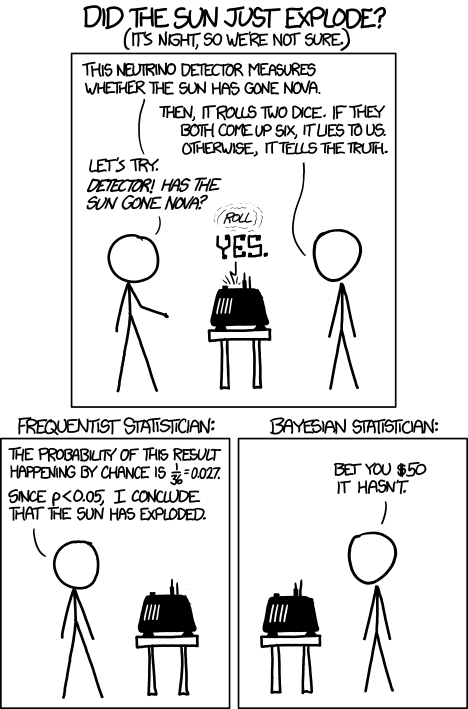
Figure 1. “Frequentists vs Bayesians,” xkcd.com no. 1132
The Bayesian approach makes sense when there exists prior knowledge — the Sun came up this morning, as it did the day before, and the day before that, etc. New data are assessed against what we already know. The Frequentist approach, despite philosophical shortcomings, works for analyzing experiments where prior knowledge is lacking about outcomes. Because much of biomedical research is based on the Frequentist approach, most of our efforts, too, will utilize that approach.
A statistical translation of the Scientific Method.
.
Given our frequentist perspective, we can outline our Scientific Method as follows.
- Formulate a Null and an Alternative hypothesis.
- State predictions from the Null and an Alternative hypotheses.
- Design an experiment or observation.
- Analyze the data from the experiment or observation.
- Interpret the experiment or observation.
- Evaluate the predictions from the Null and an Alternative hypotheses.
- Accept (provisionally) or reject (provisionally) the Null hypothesis.
- Evaluate model fit and robustness
- Repeat.
In practice, there is more to statistics than these 8(9) steps, but this does provide the outline of what statistical analyses are about. There are nuances to how a Frequentist or a Bayesian views statistical analyses as evidence for or against a conclusion (Goodman 1999a, 1999b). We need to distinguish between when data are acquired in the process; data may come before or after the hypotheses are stated. In epistemology, hypotheses are either a priori or a posterori and we need to add these to our discussion of Scientific Method. The terms are Latin, translated apparently as “from the earlier” and “from the later, respectfully.
Note from the lists described as “the” scientific method how hypothesis comes first. Folks who think and write about how and why we know what we know — the discipline is called epistemology — tell us we are generally on more solid footing when we design experiments with specific intent, specific and testable hypotheses. The branch of statistics concerned with experimental design provides rich context for many practical aspects of how to implement experiments — in other words, how to follow the Scientific Method, even if turns out there isn’t just one universal definition of Scientific Methods out there.
When we say “experiment,” the hypothesis came first.
.
More commonly in statistics, the phrases planned, and therefore a priori, and unplanned or a posterori, comparisons are referenced. In practice, biologists design experiments and make observations accordingly to test one or more hypotheses, but they may also address additional hypotheses after the fact. Especially if the experiment generates a lot of data.
You may have also heard of the phrase data mining. Data mining is loosely defined, but mostly refers to sets of protocols and procedures to extract patterns from large data sets stored in databases. Google apparently does lots of data mining as do many other businesses that obtain large amounts of data. Unplanned comparisons includes any data mining protocols, no matter how sophisticated the language sounds (feature selection, classification tree). Data mining is not consistent with classic experiments; it’s different than Step 6 (Step 8 in the second list) listed above because no new data or experiment is carried out.
Can you get away with coming up with and testing new hypotheses from data gathered from an experiment designed to test a different hypothesis? Yes, and of course, the process can be quite profitable for Google. However, you should proceed with caution and restraint. If you are not careful about how you write it up — you will probably be called on it by a reviewer of your work. Is this a posterori approach still science? Of course, yes! I’d even go so far as to say that when one studies real systems, you can’t limit yourself to only planned hypotheses and testing. At least, one designs experiments and carries out those tests but then also uses current data to generate new ideas. Science is also exploratory — you may not design an experiment at all, but through observations, you probably will develop testable hypotheses! We’ll return to these concepts soon. What you must be aware of in any unplanned comparison or data mining sojourn is the possibility of committing a data dredging (aka p-hacking) sin — searching through data to come up with misleading, but statistically “significant” results (Ioannidis 2007; Stefan and Schönbrodt 2023).
Testing of unplanned a posterori hypotheses is a real concern in science. On the one hand, those who think about how we learn about the world and make sense of it have stated emphatically that the best way we know is to follow the scientific method — and that begins with hypotheses followed by designed experiments to test claims derived from those a priori hypotheses. We (teachers, textbook author) continue to teach science as the act of individuals toiling away in the forest or in the lab, pursuing sets of questions that may involve the collection of measurements on dozens to a few hundred subjects. While this type of science is still in practice, there is no doubt that big science involving many people is more common and, perhaps, better at generating new knowledge (Wuchty et al 2007). One result of “big science” is to generate a lot of data, the very essence now of big data, and there must be room for testing of new hypotheses gathered on data sets. This is the essence of the argument for the ENCODE project (ENCODE Project Consortium 2012) — generate lots of genetic data on the human genome using common techniques and make the data publicly available — new research can be conducted on old data.
Bottom-up, top-down.
.
Consider the pronouncements (almost daily it seems!) about the discovery of a new gene for some disease, process, or behavior in humans. Often times, although not always, these “discoveries” are not duplicated by other research groups. Why not? Well, for one, the phrase “gene for” is a dubious shorthand for what is usually a more complex causation. But from our statistical perspective it is problematic because the search for genes is really an a posterori exercise — one begins with phenotypic differences (some have the disease, others do not) and some genetic information (SNPs, DNA sequencing) and then proceeds to see if there are any differences in the genetic material at hand between the two groups. This approach, the Genome Wide Association Study, or GWAS, would be termed “top-down” — begin with the phenotypic differences and search for genetic differences between those that do and those who do not have the condition. Sampling is an issue (are the unaffected subjects a random sample from the entire population?), but the problem also is one of logical design — the hypothesis is made after the fact — a statistical difference between the groups is attributed to a particular genetic difference.
Case-control subjects, where patients with the condition are matched with other individuals who do not have the condition, but match in other ways (eg, age, income, etc.), are enrolled in such studies because there can be no random assignment of subjects to treatment. Case-control subjects are selected such that affected and unaffected individuals are matched by characteristics in as many meaningful ways as possible (eg, age, gender, income, etc.). Because many tests are conducted in GWAS studies, ie, is there a difference between the control and affected group for the first gene, the second gene, and so on up to the number of genes on the microarray chip (10,000 or more genes), the chance that any particular association is a false positive is high, discussed further when we cover Risk Analysis in Chapter 7.
How to interpret a test result.
You are a medical doctor reading the results of a test for three-month average glycated hemoglobin, A1C, levels for your patient. For example, A1C above 6% is considered strong marker of diabetes. A marker, yes, but not the same as a guarantee that a person has diabetes. A false positive (FP) is the case where a test result is positive, but the subject in fact does not have the condition. False positive is equal to the ratio of

where FP is number of false positive readings and TN refers to the true negative, those who in fact do not have the condition.
In Chapter 7 we will spend some time on risk analysis. To introduce this important subject in biostatistics, we’ll begin with an example. A study of 15,934 subjects without diagnosed diabetes found 3.8% or 605 individuals had elevated A1C levels, or about 7.1 million adults not yet diagnosed with diabetes (Selvin et al 2011). About 90% of these individuals also had fasting glucose levels greater than 100 mg/dL, i., diabetic. This is clearly a good test. However, note that 10% of the 605 individuals had elevated A1C, but fasting glucose levels less than 100 mg/dl, ie, did not meet the diagnostic of type 2 diabetes. Thus, the false positive rate is about 0.4%, or nearly 30,000 adults with elevated A1C without diabetes.
Working through frequencies can be challenging, so applying a natural number approach helps. Having just read through the frequencies and percentages, now look at how they translate to probability tree (Fig. 2). Start by utilizing a per capita rate standard: for proportions in the 10 – 20% range, a standard 1000 persons works well (Fig. 2).
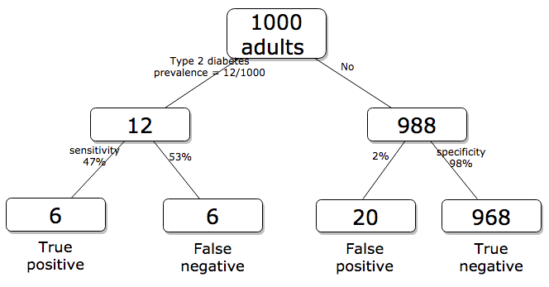
Figure 2. Probability tree diagram with prevalence of type 2 diabetes and sensitivity, specificity of A1C test, data from CDC and Selvin et al 2011. Tree drawn with free diagrams.net app.
How many expected to have A1C above 6%? Twenty-six total positives, only 23% are true positives. An important lesson is that if the prevalence of a condition is low, then any diagnostic test with high sensitivity necessarily will identify many false positives.
False discovery rate: claims must be stringently evaluated.
.
The genome scientists involved in GWAS studies generally are aware of false positives, also termed false discovery rate (FDR), conduct statistical corrections to account for false positives (eg, Brzyski et al 2016), and generally are cautious in their interpretation. But not always. Studies of associations between autism and environment come to mind (eg, Waldman et al 2008), and recent developments in the direct-to-consumer genetic testing market also suggest that the limitations of these kinds of studies are not always represented.
There is a broader concern about the reliability of research, and the debate about how to improve reliability comes from a call to understand how to do statistics better and, more importantly to understand how statistics are to be used in making claims from statistical results (Ioannidis 2007; but see Goodman and Greenland 2007). A key element of scientific work is that findings are repeatable: results from one group should apply to other groups. One dictate to improve reproducibility — increase number of subjects in studies — is obvious, but given the cost of GWAS, currently an unreasonable demand.
In some cases, biologists already have a particular gene in mind, whose function is more or less known, and then the exercise follows the Scientific Method listing much more directly. This bottom-up approach leads to a straightforward, testable genetic hypotheses: a specific difference in genomic sequence predicts a difference in phenotype outcome. A good example is the identification of more than 100 different single nucleotide mutations, called single nucleotide polymorphisms or SNPs, in the CFTR gene of patients known to have cystic fibrosis disease (Castellani 2013). As of August 2018, the number of known pathogenic or likely pathogenic SNPs is now listed at 440 in the SNP database; to put this in some context, there are more than 40,000 reported single nucleotide polymorphisms for the CFTR gene (this number includes SNP duplicates).
Projects and the data lifecycle.
A requirement for our biostatistics course, students are asked to design and implement a research project during the semester (Hydorn 2019). The project can either be part of an ongoing student research project or solely confined to the biostatistics course. The topics are diverse, ranging from observational to experimental to systematic reviews from the disciplines of biology, environmental science, and public health. Examples of project ideas implemented in the biostatistics and related courses at Chaminade University include:
- effects of environmental stress on growth rates.
- 2D and 3D shape analysis of mollusk shells.
- Individual variation and fluctuating asymmetry of plant leaves and flowers along an altitudinal gradient
- several systematic reviews (meta analysis) of published works of interest to public health
- vaccination benefits and risks.
- pain management of over the counter vs prescription medication.
- efficacy of “alternative medicine” approaches to health.
- comparisons of types of medical insurance on patient outcomes of knee replacement therapy.
The justification for the project learning activity is that it provides hands-on opportunity to apply statistical and data sciences concepts to real-world problems. Students work through the challenges of developing a research question, identifying testable hypotheses, designing a study, collecting data, performing analysis, and interpreting results. Importantly, students must decide for themselves which statistical tests and methods are most appropriate for their unique data, rather than simply following a formula presented in a lecture. This connects abstract statistical ideas to practical application, promoting a deeper, more lasting understanding. We manage the projects by encouraging a research lab community: students discuss with their peers their ideas, their data collection and experimental design challenges, with the instructor serving to guide and mentor the multiple projects and intervene as needed to steer student projects towards completion.
Throughout the semester we model the project approach. Students are encouraged to create a working folder on their computer, while dividing homework and other assignments into named projects. Students are also asked to address aspects of their project’s data life cycle (Borgman 2019, Ezer and Whitacker 2019, Griffin et al 2018). A quick Google search on the phrase returns millions of hits (see Note 1), but key elements of the concept are that projects have a beginning and an end, and it is helpful — and in the case of our statistics course, required — to address project management.
Note 1: For example, “8 Steps in the Data Life Cycle,” by Tim Tobierski of Harvard Business School.
BI-311 students, see Homework 1: Project data life cycle in Mike’s Workbook for Biostatistics.
Projects include data generation and collection, data processing, storage and data management, data exploration and visualization, interpretation and reporting. Thus, students need to develop a data management plan, which includes how data are collected, application of best practices to insure data file and storage of images, and how to share the project results. We ask students to develop 10-min research talks, which are presented and recorded, suitable for ePortfolio inclusion.
Conclusions.
.
Epistemology, the theory of how knowledge is acquired, is a complicated business – what I want you to appreciate now is that planned and unplanned comparisons affect interpretation of your statistical results, how the difference is likely also to affect the reproducibility of your work. In the language or clinical trials and experimental design, planned and unplanned accompany prospective and retrospective studies (Chapter 5). A prospective study in the case of GWAS means genetic differences among individuals are known at the start of the study, and phenotypic differences arise naturally during the course of the study. Knowing the strengths and limitations of, for example, a planned retrospective study is at the heart of experimental design (Chapter 5).
In the biostatistics course, students are required to design and carry out an independent research project that integrates statistical methods with real-world problems in biology, environmental science, or public health. The course emphasizes hands-on learning through the full research process—from formulating questions to data collection, analysis, and interpretation—while fostering a collaborative research lab environment. Students also learn project and data management skills and conclude by presenting their findings in recorded research talks suitable for inclusion in an ePortfolio.
Questions.
- Write up three learning outcomes for this page. Hint: Point your favorite generative AI to this page and ask for help.
- Above we described how GWAS studies are generally top-down; What would constitute a bottom-up approach to GWAS?
- In your own words provide pro and con points of view on data mining of large data sets.
- Create a stylized infographic, like a mind map, to illustrate the data life cycle for a one semester research project.
Quiz Chapter 2.5
Scientific method and where statistics fits
Chapter 2 contents
.