12.5 – Effect size for ANOVA
Introduction
As noted in the t-test chapter and our discussion of statistical power, an effect size is a measure of the strength of a phenomenon. An effect size calculated from data is a descriptive statistic that indicates how large (or small) the difference is between two or more samples. Effect size measures help to provide context between statistical significance, ie, p-values. Among other uses, effect size measures play an important role in meta-analysis studies biological significance (ie, importance of the measured difference).
Estimation of effect size
eta-squared (η2)

where SSB and SST are from the one-way ANOVA and refer to the sum of squared among (between) groups and the total sum of squares, respectively.  measures the proportion of the variation in the response variable that can be explained by membership in one of the groups.
For example, of 0.15 or 15% is interpreted to mean that just 15% of the variation in the response variable can be attributed to membership in the groups (ie, whether a subject was in control group or treatment group, only 15% of the differences between individuals can be attributed to having received control).
Note 1: η2 is just the unadjusted coefficient of determination, R2.
omega-squared (ω2)
A similar, but “less biased” effect size estimate is given by omega-squared (ω2) (Okada 2013). (The bias comes in because sample estimates were used.) Interpretation of  is the same as : measures the proportion of variation explained by membership in the groups. is given as
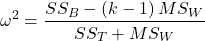
The bias for is more pronounced with small sample size, so omega-squared is preferred. will always be less than or equal to (Okada 2013).
R code
If you have not already done so, please install the package effectsize.
We’ll use the example one-way ANOVA problem from Chapter 12.2. I’ve added the data as example.ch12 and some R script to load the data, scroll to bottom of this page or click on the link).
Get 
First, get the ANOVA model. There are several ways to do this within R (and Rcmdr), the most general is to use the general linear model function, lm(),
#Get the model
AnovaModel.4 <- lm(Difference~Group, data=example.ch12)
#turn it into format that the next command needs
aov_fit <- anova(AnovaModel.4)
#get eta
effectsize(aov_fit)
R output
Parameter | Eta2 (partial) | 9e+01% CI
-----------------------------------------
Group | 0.95 | [0.88, 0.97]
is 0.95 for the Difference group.
Get
R code
omega_squared(aov_fit, partial = FALSE, ci = 0.95)
R output
Parameter | Omega2 | 1e+02% CI
---------------------------------
Group | 0.93 | [0.82, 0.97]
This is a case of a large effect due to group membership. The differences between A, B, and C means account for 93% of the variation. Note that both and  are close; note also that is greater than .
Questions
- In Chapter 7.4 we introduced the concept of number needed to treat, NNT. Discuss the concept of “important differences” between sample means of a control group and a treatment group to NNT.
- This question refers to hypothetical data presented in Chapter 12.2. For the “No difference” group, calculate and . Use the boxplots shown in Figure 1, together with effect size statistics to discuss the relationship between statistical significance (p-value) and important difference.
Quiz Chapter 12.5
Effect size for ANOVA
Data set
example.ch12 <- read.table(header=TRUE, sep=",",text="
Group, No.difference, Difference
A, 12.04822, 11.336161
A, 12.67584, 13.476142
A, 12.99568, 12.961210
A, 12.01745, 11.746712
A, 12.34854, 11.275492
B, 12.17643, 7.167262
B, 12.77201, 5.136788
B, 12.07137, 6.820242
B, 12.94258, 5.318743
B, 12.07670, 7.153992
C, 12.58212, 3.344218
C, 12.69263, 3.792337
C, 12.60226, 2.444438
C, 12.02534, 2.576014
C, 12.60420, 4.575672")
#check the dataframe
head(example.ch12)
Chapter 12 contents
10.1 – Compare two independent sample means
Introduction
We introduced the concept of comparing a sample statistic (mean) against a population parameter (Chapter 6.7, Normal deviate) or one-sample t-test against a specified mean (eg, from published data or from theory, Chapter 8.5).
Consider now a basic experimental design, the randomized control trial, or RCT (Fig 1), introduced in Chapter 2.4.
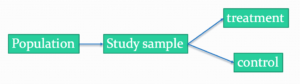
Figure 1. A two group Randomized Control Trial.
Subjects randomly selected from population of interest, then again — random assignment — once recruited into one of two treatment groups. Importantly, subjects belong to one treatment arm only: no subject simultaneously receives the treatment and the control. This is in contrast to the paired design, in which subjects receive both treatments (see Chapter 10.3).
In inferential statistics about an experiment, we are more likely trying to test if sample means are different. For example
- two species grown in common garden, do they differ in growth rate?
- human subjects given a new treatment have better outcomes compare to those receiving a control treatment (eg, placebo).
The equivalent null hypothesis is that two samples are pulled from the same population. We write the null hypothesis as

and the corresponding alternative hypothesis, HA, then must be

Question: Is this a one tailed or two-tailed hypothesis?
Answer: Two-tailed (review Chapter 8.4)
Note 1: In this day and age, there’s really no compelling reason to learn the t-test. First, it is just a special case of the one-way ANOVA, therefore, it’s a special case of the general linear model. Struggling to learn R commands? Well, one solution would be just to learn the general linear model approach — the R function lm() (OK — don’t get too excited — lm() has many options and details). Second, few experiments or observational studies are likely to have only two groups; thus, the temptation to carry out a series of t-tests, taking all groups two at a time, or “pairwise,” while tempting, actually violates a whole bunch of basic statistical rules (discussed in Chapter 12.1). It will also make statisticians go crazy when they see it. That said, if your experiment has but two groups, then by all means, the t-test is a choice. The t-test is also a statistical test that you have likely already used before so we present the discussion here to build on what you may already have learned. We also present the independent t-test as a vehicle.
Worked example
We introduce the two-sample t-test, or better, the independent sample t-test.

where the numerator is the difference between the two sample means and the denominator is the standard error of the differences between the two groups standard errors. The formula for
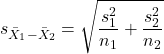
The choice of independent sample over two-sample is best because it emphasizes that the two groups (the two samples), must be comprise of independent sampling units. This is a pretty straight-forward requirement; you have randomly assigned twenty individuals to two groups, a control group (n = 10) and a treatment group (n = 10). Individuals are either in the control group or they are in the treatment group — they cannot simultaneously appear in both groups.
We will work our way through this test by example. For starters, let’s use the same lizard dataset (see Example data set, below), four body mass recordings (grams) each for house geckos (Hemidactylus frenatus, Fig 2) and the Carolina anole (Anolis carolensis, Fig 3), two of many lizard species introduced to Hawaiʻi.

Figure 2. Male Hemidactylus frenatus, central Oahu, M. Dohm.

Figure 3. Male Anolis carolinensis, ʻAkaka Falls, Big Island of Hawaiʻi, M. Dohm.
Example data set
Geckos: 3.186, 2.427, 4.031, 1.995

Anoles: 5.515, 5.659, 6.739, 3.184
Question: How would you go about creating a data frame with the values in long form (stacked worksheet), including a label variable and the body mass?
Note 2: The independent sample t-test in Rcmdr requires a stacked worksheet and not in unstacked worksheet two columns implied by the above pseudo-code. If you need help with worksheet format, then see Part07 in Mike’s Workbook for Biostatistics.
Answer: At the R prompt, type
Geckos <- c(3.186, 2.427, 4.031, 1.995); Anoles = c(5.515, 5.659, 6.739, 3.184) #create two vectors
bmass <- c(Geckos, Anoles)    #combine the two vectors into a single vector holding all of the body mass records
species <- c("gecko", "gecko", "gecko", "gecko", "anole", "anole", "anole", "anole")   #create your label variable
lizards <- data.frame(species, bmass)  #create your data frame
lizards   #print your data frame  species bmass
1   gecko 3.186
2   gecko 2.427
3   gecko 4.031
4   gecko 1.995
5   anole 5.515
6   anole 5.659
7   anole 6.739
8   anole 3.184
Note also that you can enter data into the Data editor by creating the data frame first then adding values. To edit the data frame “lizards” type fix(lizards) at the R prompt, then close the data frame when you have added or changed values as needed.
As always, begin with an exploration of the data, including a graph (Fig 4).
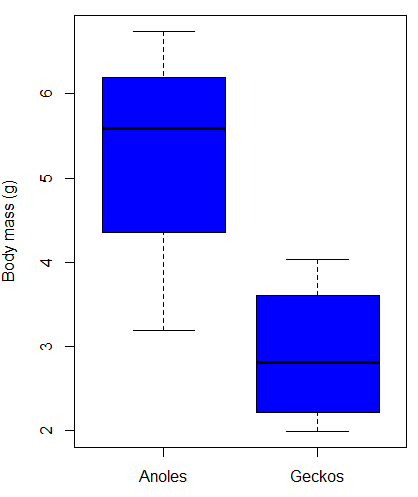
Figure 4. Box plot of lizard body mass.
We can see already that there’s greater spread of data for the Anoles compared to the Geckos, but the median values differ. Small sample sizes can be a problem for analyses as we can only have reduced confidence in our conclusions. However, we press on for the sake of demonstration.
Let’s test the null hypothesis, H0, ie, the two species of lizards have the same mean body mass.
Rcmdr: Statistics → Means → Independent-samples t-test…
In this next image I posted the Rcmdr menu popup for the Independent Samples t-test (Fig 5). Later versions of Rcmdr split the settings for this command into two tabs; the first tab allows for the selection of the variables and setting the hypotheses whereas the second tab, labeled Options, permits additional choices. The default selections need your attention: to actually conduct the t-test you need to answer “No” to the question, “Assume equal variance?” (Fig 6).
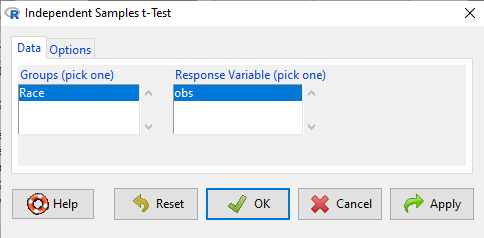
Figure 5. Rcmdr menu for Independent sample t-test.
Select the Options tab (Fig 6) to select null hypothesis and to select the t-test and not the Welch-test (which is the default, ie, No to the prompt “Assume equal variances?”).
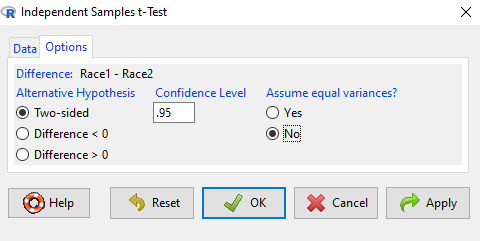
Figure 6. Rcmdr Options menu for Independent sample t-test.
Let’s look at the results and break down the parts of the test.
t.test(Body.mass~Lizard, alternative='two.sided', conf.level=.95,
+ var.equal=TRUE, data=lizards)

Two Sample t-test

data: Body.mass by Lizard
t = 2.7117, df = 6, p-value = 0.03503
alternative hypothesis: true difference in means is not equal to 0
95 percent confidence interval:
0.2308685 4.4981315
sample estimates:
mean in group Anolis mean in group Gecko
5.27425 2.90975
Consider the R session output above and answer the following questions.
Questions for the worked example
- Which lizard group had the greater mean value, Anolis or Gecko?
- What are the assumptions necessary for you to use the independent sample t-test?
- What does “two-sided” mean?
- What was the null hypothesis?
- Was this a one-tailed or two-tailed test of the null hypothesis?
- What is the value of the test statistic?
- How many degrees of freedom?
- What is the critical value for this test?
- What is the value of the lower limit of the 95% confidence interval?
- What is the value of the lower limit of the 99% confidence interval?
- True or False. If the null hypothesis is accepted, then zero is a value included in the 95% confidence interval.
- Do you accept the null hypothesis? Explain your selection.
Try another example
DNA damage, changes in the chemical structure of nucleotide bases or breakage of the DNA chains, occurs in cells under many circumstances. The comet assay, or single-cell gel electrophoresis, is one method for visualizing and measuring DNA strand breaks in cells. Exposed cells are mixed with a low-melting temperature agarose and placed onto a microscope slide. The cells are then lysed with an alkaline detergent and high salts. When current is applied across the slide, undamaged DNA remains in the nucleus, whereas damaged DNA extends towards the anode to form a comet-like tail, with imaging assisted by including a fluorescent dye like Sybr-Green. Examples of comets are shown below (Fig 7).
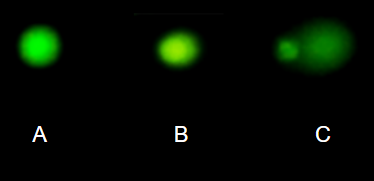
Figure 7. Comet examples. A Intact cell, no DNA damage, B Cell with some DNA damage, a slight tail to the right is evident, C Cell with significant DNA damage, a large tail is evident. M. Dohm.
In an experiment, immortalized lung epithelial cells were exposed to dilute copper solutions for 30 minutes then washed with PBS. The comet assay was applied to these cells and for comparison, to cells without copper exposure but otherwise treated the same way (controls). The data are available at the bottom of this page (scroll down or click here).
Again, you should begin all analyses with an exploration of the data, including a graph (Fig 8).
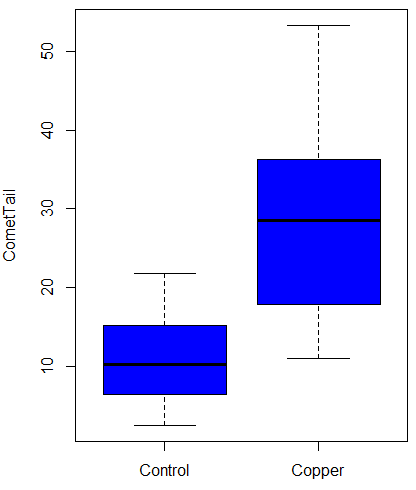
Figure 8. Boxplot of comet tail lengths for cells with and without (control) exposure to copper in the cell medium for 30 minutes.
Let’s look at the R output for the t-test analysis.
    Two Sample t-test

data:  CometTail by Treatment
t = -5.8502, df = 38, p-value = 9.139e-07
alternative hypothesis: true difference in means is not equal to 0
95 percent confidence interval:
 -22.39865 -10.88213
sample estimates:
mean in group Control  mean in group Copper
             11.14533              27.78571
Consider the R session output above and answer the following questions.
Questions for Comet assay data set
- Which cell group had the greater mean value, Copper-exposed or Control-exposed cells?
- What are the assumptions necessary for you to use the independent sample t-test?
- What does “two-sided” mean?
- What was the null hypothesis?
- Was this a one-tailed or two-tailed test of the null hypothesis?
- What is the value of the test statistic?
- How many degrees of freedom?
- What is the critical value for this test?
- What is the value of the lower limit of the 95% confidence interval?
- What is the value of the lower limit of the 99% confidence interval?
- True or False. If the null hypothesis is accepted, then zero is a value included in the 95% confidence interval.
- Do you accept the null hypothesis? Explain your selection.
T test from summary statistics
In some cases you may only have to summary statistics for data, eg, the means and the standard deviations. We can use the equations of the t test to write a simple formula, where the user provides the known means, standard deviations, and sample size. For example, create a simple function with readline for user input.
myTtest <- function() {
   mnx <- as.numeric(readline(prompt="Enter mean of x: "))
   stdevx <- as.numeric(readline(prompt="Enter sd of x: "))
   nx <- as.numeric(readline(prompt="Enter n of x: "))
   mny <- as.numeric(readline(prompt="Enter mean of y: "))
   stdevy <- as.numeric(readline("Enter sd of y: "))
   ny <- as.numeric(readline(prompt="Enter n of y: "))
   myTvalue <- abs(((mnx-mny)-0)/sqrt(((stdevx^2)/nx)+(stdevy^2)/ny))
   myDF <- as.integer(nx+ny-2)
   myPvalue <- pt(myTvalue,myDF,lower.tail=FALSE)*2
   myResults <- c(myTvalue, myDF, myPvalue)
   report <- c("T-test: ", "df: ", "two-tailed p-value: ")
   cat(sprintf("%s %3.3f, ", report, myResults))
}
then run the function by typing myTest() at the R prompt and entering the means, standard deviations, and sample size when prompted.
myTtest()
Enter mean of x: 2.91
Enter sd of x: .895
Enter n of x: 4
Enter mean of y: 5.27
Enter sd of y: 1.497
Enter n of y: 4
T-test: 2.706, df: 6.000, two-tailed p-value: 0.035
P-values from confidence intervals
While we expect certain reporting criteria for published, it is not uncommon that one or more elements are missing. For example, while means plus or minus standard deviations for two groups may be reported, the confidence interval of the difference may not be reported, or, an inexact p-value is reported like “< 0.05,” but we “need” an exact p-value for our meta-analysis. A little math, and these missing statistics can be calculated.
We can use the lizard study as an example; while all of the expected elements were reported, including the p-value (0.03503), let’s say the p value was reported as “statistically significant at p < 0.05.”
We need
lower and upper confidence intervals: 0.2309 and 4.498, respectively.
critical value from t distribution, df = 6 (2 tailed, therefore 0.05/2). A little R code we have:

the standard error, which can be calculated as 
and then the p-value, 
which is pretty close to the result from R (p = 0.03503). The difference is likely due to the small sample size.
Questions
- Don’t forget to work through the Questions for the Comet tail data set (scroll up or click here).
- Microsoft Excel, LibreOffice Calc, and Google sheets spreadsheet software all include t-test functions and return the p-value. Consider two variables big (100, 110, 120, 100, 110, 210, 200) and small (0,1,1,2,0,1,0). (Note — these two groups are obviously very different, calculating a t-test on their difference is silly, just for this question.) If formatting is set to the default two decimal places for Number cell category, the p-value will return as “0.00.” How should you report the p-value in this case?
Quiz Chapter 10.1
Compare two independent sample means
Comet assay data set
| Treatment | CometTail |
| Control | 17.856139 |
| Control | 16.52125 |
| Control | 14.925449 |
| Control | 14.029174 |
| Control | 13.332945 |
| Control | 8.811185 |
| Control | 14.701654 |
| Control | 9.261025 |
| Control | 21.779311 |
| Control | 6.180284 |
| Control | 9.201752 |
| Control | 5.54472 |
| Control | 6.717885 |
| Control | 2.625092 |
| Control | 7.191583 |
| Control | 5.392866 |
| Control | 11.284813 |
| Control | 15.441254 |
| Control | 17.857176 |
| Control | 4.250956 |
| Copper | 53.214287 |
| Copper | 38.92857 |
| Copper | 18.928572 |
| Copper | 30 |
| Copper | 28.928572 |
| Copper | 15.357142 |
| Copper | 17.857143 |
| Copper | 17.5 |
| Copper | 21.071428 |
| Copper | 29.285715 |
| Copper | 28.214285 |
| Copper | 16.785715 |
| Copper | 21.071428 |
| Copper | 37.5 |
| Copper | 38.214287 |
| Copper | 17.857143 |
| Copper | 29.642857 |
| Copper | 11.071428 |
| Copper | 35 |
| Copper | 49.285713 |
Chapter 10 contents
- Introduction
- Compare two independent sample means
- Digging deeper into t-test Plus the Welch test
- Paired t-test
- References and suggested reading
4.5 – Scatter plots
Introduction
Scatter plots, also called scatter diagrams, scatterplots, or XY plots, display associations between two quantitative, ratio-scaled variables. Each point in the graph is identified by two values: its X value and its Y value. The horizontal axis is used to display the dispersion of the X variable, while the vertical axis displays the dispersion of the Y variable.
The graphs we just looked at with Tufte’s examples Anscombe’s quartet data were scatter plots (Chapter 4 – How to report statistics).
Here’s another example of a scatter plot, data from Francis Galton, data contained in the R package HistData.
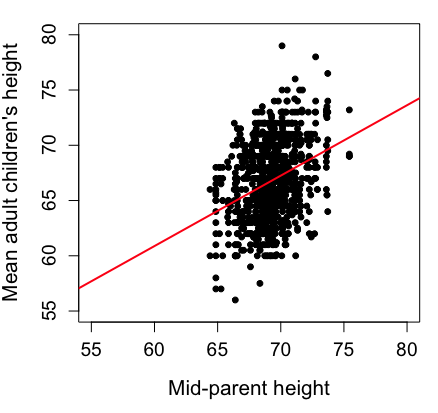
Figure 1. Scatterplot of mid-parent (vertical axis) and their adult children’s (horizontal axis) height, in inches. data from Galton’s 1885 paper, “Regression towards mediocrity in hereditary stature.” The red line is the linear regression fitted line, or “trend” line, which is interpreted in this case as the heritability of height.
Note 1. Sorry about that title — being rather short of stature myself, not sure I’m keen to learn further what Galton was implying with that “mediocrity” quip.
The commands I used to make the plot in Figure 1 were
library(HistData)
data(GaltonFamilies, package="HistData")
attach(GaltonFamilies)

plot(childHeight~midparentHeight, xlab="Mid-parent height", ylab="Mean adult children's height", xlim=c(55, 80), ylim=c(55,80), cex=0.8, cex.axis=1.2, cex.lab=1.3, pch=c(19), data=GaltonFamilies)
abline(lm(childHeight~midparentHeight), col="red", lwd=2)
I forced the plot function to use the same range of values, set by providing values for xlim and ylim; the default values of the plot command picks a range of data that fits each variable independently. Thus, the default X axis values ranged from 64 to 76 and the Y variable values ranged from 55 to 80. This has the effect of shifting the data, reducing the amount of white space, which a naïve reading of Tufte would suggest is a good idea, but at the expense of allowing the reader to see what would be the main point of the graph: that the children are, on average, shorter than the parents, mean height = 67 vs. 69 inches, respectively. Therefore, Galton’s title begins with the word “regression,” as in the definition of regression as a “return to a former … state” (Oxford Dictionary).
For completeness, cex sets the size of the points (default = 1), and therefore cex.axis and cex.lab apply size changes to the axes and labels, respectively; pch refers to the graph elements or plotting characters, further discussed below (see Fig 8); lm() is a call to the linear model function; col refers to color.
Figure 2 shows the same plot, but without attention to the axis scales, and, more in keeping with Tufte’s principle of maximize data, minimize white space.
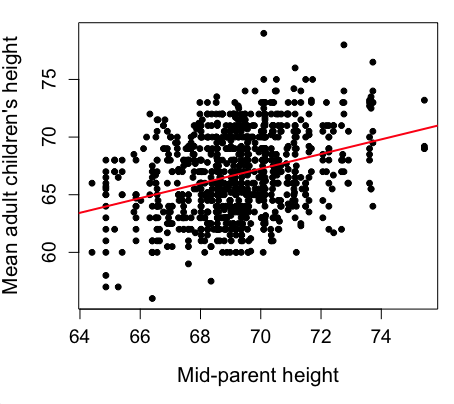
Figure 2. Same plot as Figure 1, but with default settings for axis scales.
Take a moment to compare the graphs in Figure 1 and 2. Setting the scales equal allows you to see that the mid-parent heights were less variable, between 65 and 75 inches, than the mean children height, which ranged from 55 to 80 inches.
And another example, Figure 3. This plot is from the ggplot2() function and was generated from within R Commander’s KMggplot2 plug-in.
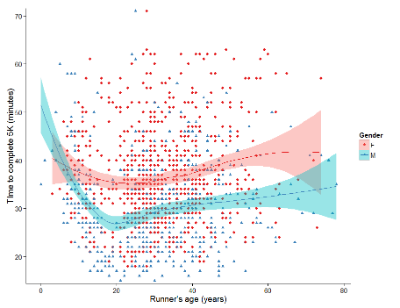
Figure 3. Finishing times in minutes of 1278 runners by age and gender at the 2013 Jamba Juice Banana 5K in Honolulu, Hawaiʻi. Loess smoothing functions by groups of female (red) and male (blue) runners are plotted along with 95% confidence intervals.
Figure 3 is a busy plot. Because there were so many data points, it is challenging to view any discernible pattern, unlike Figure 1 and 2 plots, which featured less data. Use of the loess smoothing function, a transformation of the data to reduce data “noise” to reveal a continuous function, helps reveal patterns in the data:
- across most ages, men completed 5K faster than did females and
- there was an inverse, nonlinear association between runner’s age and time to complete the 5K race.
Take a look at the X-axis. Some runners ages were reported as less than 5 years old (trace the points down to the axis to confirm), and yet many of these youngsters were completing the 5K race in less than 30 minutes. That’s 6-minute mile pace! What might be some explanations for how pre-schoolers could be running so fast?
Design criteria
As in all plotting, maximize information to background. Keep white space minimal and avoid distorting relationships. Some things to consider:
- keep axes same length
- do not connect the dots UNLESS you have a continuous function
- do not draw a trend line UNLESS you are implying causation
Scatter plots in R
We have many options in R to generate scatter plots. We have already demonstrated use of plot() to make scatter plots. Here we introduce how to generate the plot in R Commander.
Rcmdr: Graphs → Scatterplot…
Rcmdr uses the scatterplot function from the car package. In recent versions of R Commander the available options for the scatterplot command are divided into two menu tabs, Data and Options, shown in Figure 4 and Figure 5.
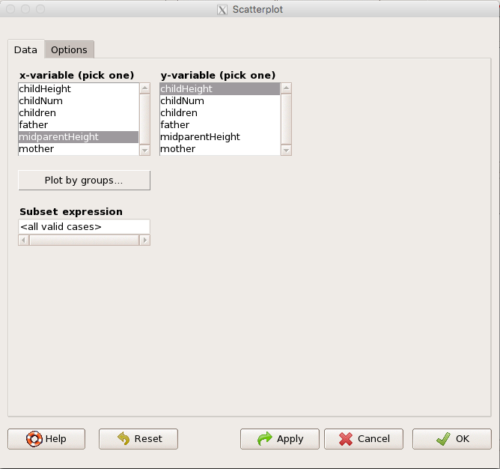
Figure 4. First menu popup in R Commander Scatterplot command, Rcmdr ver. 2.2-3.
Select X and Y variables, choose Plot by groups if multiple grounds are included, eg, male, female, then click Options tab to complete.
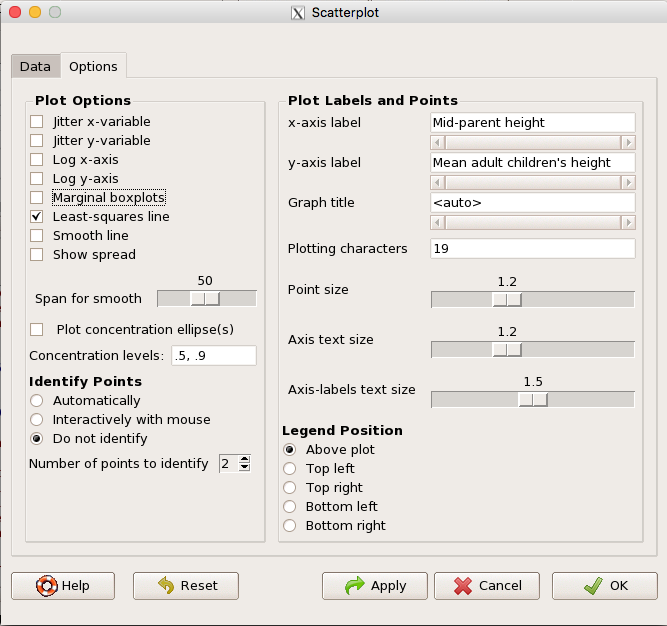
Figure 5. Second menu popup in R Commander scatterplot command., Rcmdr ver. 2.2-3
Set graph options including axes labels and size of the points.
Note 2. Lots of boxes to check and uncheck. Start by unchecking all of the Options and do update the axes labels (see red arrow in image). You can also manipulate the plot “points,” which R refers to as plotting characters (abbreviated pch in plotting commands). The “Plotting characters” box is shown as <auto>, which is an open circle. You can change this to one of 26 different characters by typing in a number between 0 and 25. The default used in Rcmdr scatterplot is “1” for open circle. I typically use “19” for a solid circle.
Here is another example using the default settings in scatterplot() function in the car package, now the default scatter plot command via R Commander (Fig. 4), along with the same graph, but modified to improve the look and usefulness of the graph (Fig. 6). The data set was Puromycin in the package datasets.
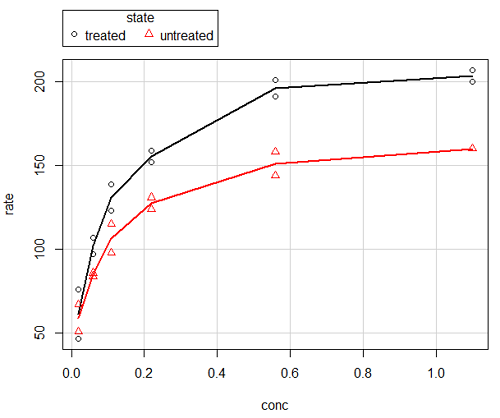
Figure 6. Default scatterplot, package car, from R Commander, version 2.2-4.
Grid lines in graphs should be avoided unless you intend to draw attention to values of particular data points. I prefer to position the figure legend within the frame of the graph, eg, the open are at the bottom right of the graph. Modified graph shown in Figure 7.
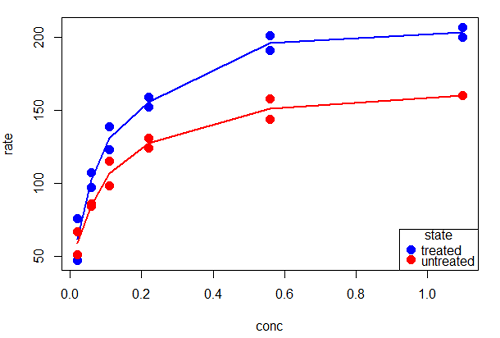
Figure 7. Modified scatterplot, same data from Figure 6
R commands used to make the scatter plot in Figure 7 were
scatterplot(rate~conc|state, col=c("blue", "red"), cex=1.5, pch=c(19,19),
bty="n", reg=FALSE, grid=FALSE, legend.coords="bottomright")
A comment about graph elements in R
In some ways R is too rich in options for making graphs. There are the plot functions in the base package, there’s lattice and ggplot2 which provide many options for graphics, and more. The advice is to start slowly, for example taking advantage of the Figure 8 displays R’s plotting characters and the number you would invoke to retrieve that plotting character.
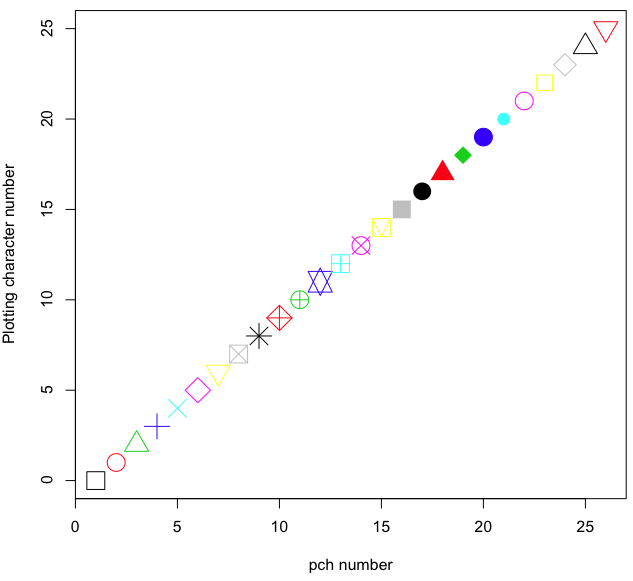
Figure 8. R plotting characters pch = 1 – 25 along with examples of color.
Note 3. To see available colors at the R prompt type
colors()
which returns 667 different colors by name, from
[1] "white" "aliceblue" "antiquewhite"
to
[655] "yellow3" "yellow4" "yellowgreen" There’s a lot more to R plotting. For example, you are not limited to just 25 possible characters. R can print any of the ASCII characters 32:127 or from the extended ASCII code 128:255. See Wikipedia to see the listing of ASCII characters.
In addition to pch, you can change the size of the plotting character with cex, color of the character with col for lines or outlines, and bg to change background color. lwd is used to set the character’s border thickness.
Here’s the R code used to generate the graph in Figure 8. Remember, any line beginning with # is a comment line, not an R command.
#create a vector with 26 numbers, from 0 to 25
stuff <-c(0:25)
plot(stuff, pch=c(32:58), cex = 2.5, col = c(1:26), 'xlab' = "pch number", 'ylab' = "Plotting character number")
Is it “scatter plot” or “scatterplot”?
Spelling matters, of course, and yet there are many words for which the correct spelling seems to be like “beauty,” it is “in the eye of the beholder” (Molly Bawn, 1878, by Margaret Hungerford). Scatter plot is one of these — is it one word or two, or is it something else entirely?
Scatter plot is one of these terms: you’ll find it spelled as “scatterplot” or as “scatter plot,” in the dictionary (eg, Oxford English dictionary), with no guidance to choose between them. And I’m not just talking about the differences between British and American English spelling traditions.
Note 4. The spell checkers in Microsoft Office and Google Docs do not flag “scatterplot” as incorrect, but the spell checker in LibreOffice Writer does (per obs).
Thus, in these situations as an author, you can turn to which of the spellings is in common use. I first looked at some of the statistics books on my shelves. I selected 14 (bio)statistics textbooks and checked the index and if present, chapters on graphics for term usage.
Table 1. Frequency of use of different terms for scatter plot in 14 (bio)statistics books currently on Mike’s shelves.
| spelling | number of statistical texts | frequency |
|---|---|---|
| scatter diagram | 2 | 0.144 |
| scatter plot | 5 | 0.357 |
| scattergram | 1 | 0.071 |
| scatterplot | 5 | 0.357 |
| XY plot | 0 | 0.071 |
Not much help, basically, it is a tie between “scatter plot” and “scatterplot.”
Next, I searched six journals for the interval 1990 – 2016 for use of these terms. Results presented in Table 6 along with journal impact factor for 2014 and number of issues (Table 2).
Table 2. Impact factor and number of issues 1990 – 2016 for six science journals.
| Journal | Impact factor | Issues |
|---|---|---|
| BMJ | 17.445 | 1374 |
| Ecology | 5.175 | 271 |
| J. Exp. Biol | 2.897 | 540 |
| Nature | 41.456 | 1454 |
| NEJM | 55.873 | 1377 |
| Science | 33.611 | 1347 |
My methods? I used the journal’s online search functions for the various usage for scatter plot and the results are shown in Figure 9.
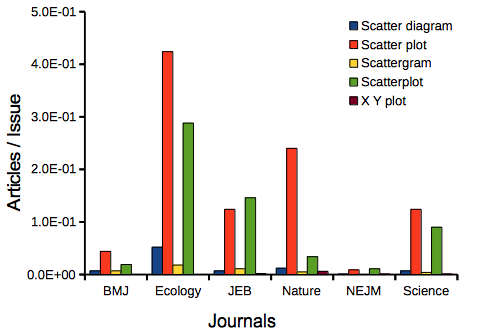
Figure 9. Usage of terms for X Y plots in research articles normalized to number of issues in six journals between 1990 and 2016.
The journals have different numbers of articles; I partially corrected for this by calculating the ratio number of articles with one of the terms divided by the number of issues for the interval 1990 – 2016. It would have been better to count all of the articles, but even I found that to be an excessive effort given the point I’m trying to make here.
Not much help there, although we can see a trend favoring “scatter plot” over any of the other options.
And finally, to completely work over the issue I present results from use of Google’s Ngram Viewer. Ngram Viewer allows you to search words in all of the texts that Google’s folks have scanned into digital form. I searched on the terms in texts between 1950 and 2015, and results are displayed in Figure 10 and Figure 11.
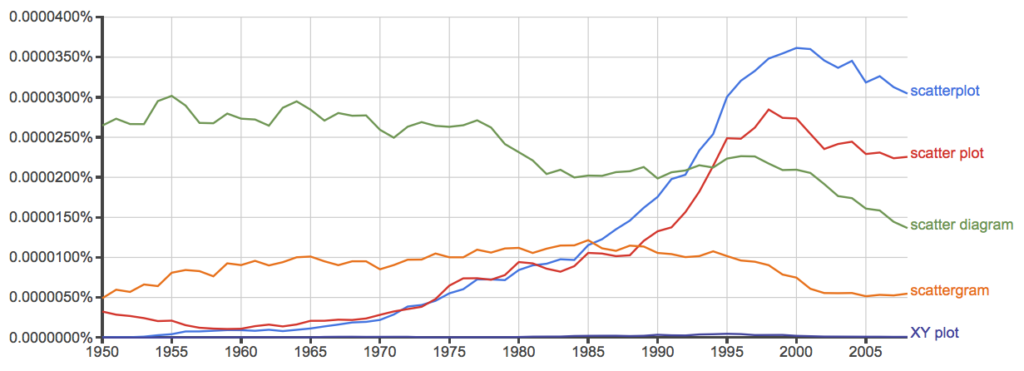
Figure 10. Results from Ngram Viewer for American English, “scatterplot” (blue), “scatter plot” (red), “scatter diagram” (green), “scattergram” (orange), and “XY plot” (purple).
And the same plot, but this time for British sources
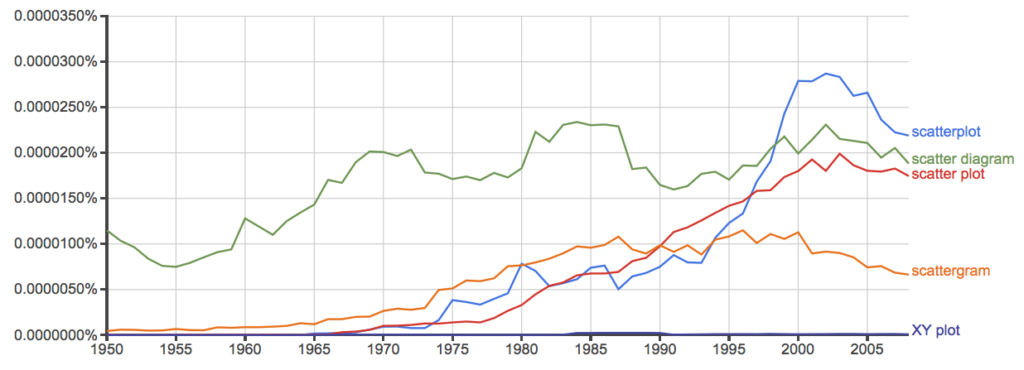
Figure 11. Results from Ngram Viewer for British English. See Figure 10 for key.
Conclusion? It looks like “scatterplot” (blue line) is the preferred usage, but it is close. Except for “scattergram” and “XY plot,” which, apparently, are rarely used. After all of this, it looks like you’re free to make your choice between “scatterplot” or “scatter plot.” I will continue to use “scatter plot.”
Bland-Altman plot
Also known as Tukey mean-difference plot, the Bland-Altman plot is used to describe agreement between two ratio scale variables (Bland and Altman 1986, Giavarina 2015), for example agreement between two different methods used to measure the same samples.
Note 6. Agreement — aka concordance or reproducibility — in the statistical sense is consistent with our everyday conception — consistency among sets of observations on the same object, sample, or unit. We introduce and develop additional agreement statistics in Chapter 9.2 and Chapter 12.3. Additional note for my students — note that I didn’t define agreement by including the term “agree”, thereby avoiding a circular definition (for an amusing clarification on the phrase, see Logically Fallacious). It’s a common short-fall I’ve seen thus far in AI-tools.
Consider use of imageJ by two different observers to record number of pixels of a unit measure (1 cm) on a series of digital images — there’s subjectivity in drawing the lines (where to start, where to end) — do they agree? Data set below. blandr package, blandr.draw function.
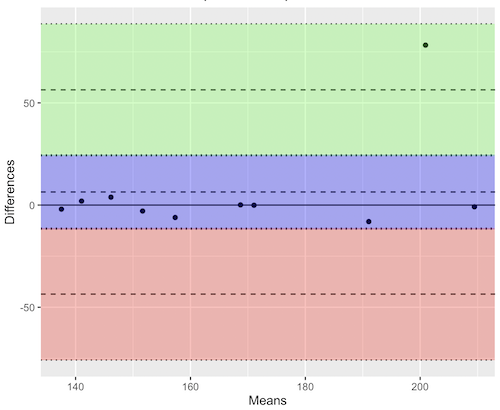
Figure 12. Bland-Altman plot of 1 cm unit measure in pixel number by imageJ from digital images by two independent observers. Purple central region is 95% CI. Lower and upper dashed horizontal lines represent bounds of “acceptable” agreement.
blandr.draw(Obs1, Obs2)
The plot makes it easy to identify questionable points, for example, the one point in upper right quadrant looks suspect.
Visualizing large data sets
Since the early 2000s, size of data sets in biology have increased dramatically, leaving many statistical graphics solutions ill-equipped to tell stories. The data scientists involved with the genomics and health care communities have introduced a number of useful visualizations. We introduce just two, the volcano plot (Fig 13) and the Manhattan-style plot (Fig 14).
Volcano plot
The volcano plot (Fig 13) is a common way to show events that differ between two groups of subjects (eg, p-values), and is common often provides to help visualize gene expression studies of an exposed group vs a control group (eg, fold changes). For the volcano plot, fold changes are reflected on horizontal axis, indicating how much the gene expression level has increased or decreased. The vertical axis typically represents the negative logarithm of the p-value (-logP), which indicates the statistical significance of the change.
Below is R code — with assistance from Gemini AI (Fall 2026) — for a set of five replicate simulated gene expression fold change data sets on stress test (NaCl, H2O2) on yeast grown on YPDA plates. Gene expression profiles were simulated for a set of 100 genes (oxidative pathway, DNA repair pathway); as noted, such studies typically include many more genes.
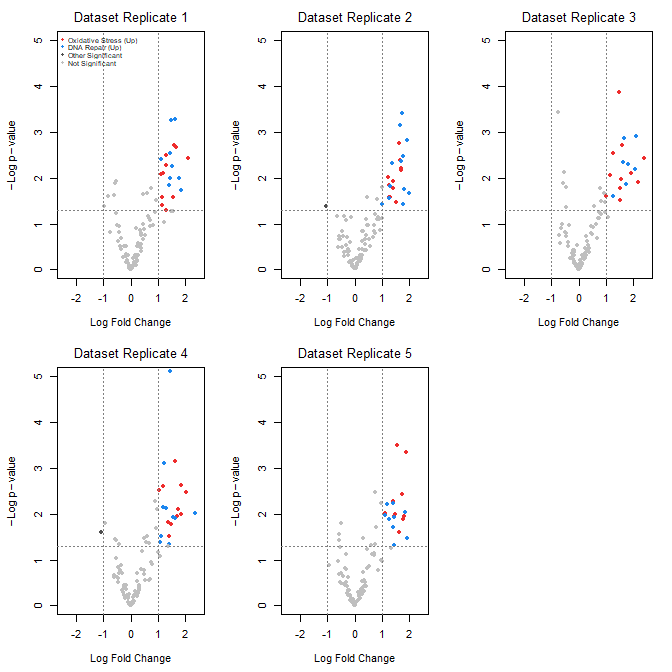
Figure 13. Volcano plot, gene expression fold change on simulated stress test (NaCl, H2O2) yeast data sets, 100 genes (oxidative pathway, DNA repair pathway).
Inspecting the plots (Fig 13), we see a symmetric distribution: The overall distribution of genes is cleanly centered around a Log2 Fold Change (LFC) of zero. This mirrors a realistic transcriptomic profile where the vast majority of the background genome (shown in grey) remains stable, displaying only technical and biological noise. There is a distinct, asymmetrical shift toward positive fold changes among specific gene pathways (targeted activation). Genes belonging to the Oxidative Stress pathway (red) and DNA Repair pathway (blue) consistently surpass both the statistical threshold ( ) and the biological threshold (
 ). Additionally, we see evidence of synergistic effects: The simultaneous application of both stressors (“Both”) drives these pathways to their highest expression levels, pushing them into the top-right quadrant of the plots as highly significant, upregulated features.
R code — with assistance from Gemini AI (Fall 2026) — for yeast gene expression and volcano plots; graphs by base package only.
# ==============================================================================
# 1. SIMULATE 5 REASONABLE DATASETS WITH BIOLOGICAL & TECHNICAL NOISE
# ==============================================================================
set.seed(123) # New seed for realistic distribution

n_genes <- 100
n_datasets <- 5
groups <- c("Control", "Salt", "H2O2", "Both")
n_groups <- length(groups)

# Real-world experiment: each dataset has 3 biological replicates per group
n_reps_per_group <- 3

# Define gene pathways (15 oxidative stress, 15 DNA repair, 70 background/unchanged)
gene_ids <- paste0("Gene_", 1:n_genes)
pathways <- c(rep("Oxidative_Stress", 15), rep("DNA_Repair", 15), rep("Background", 70))

# Initialize a list to hold the 5 realistic datasets
datasets <- list()

for (d in 1:n_datasets) {

# 1. Establish a realistic base expression distribution across 100 genes
# Real data has high-expressing and low-expressing genes
base_expression <- rnorm(n_genes, mean = 7, sd = 2)

# Create a blank sample matrix: 100 genes x 12 samples (4 groups x 3 replicates)
sample_names <- paste0(rep(groups, each = n_reps_per_group), "_R", 1:n_reps_per_group)
expr_matrix <- matrix(0, nrow = n_genes, ncol = length(sample_names))
rownames(expr_matrix) <- gene_ids
colnames(expr_matrix) <- sample_names

# 2. Add realistic baseline biological variation to every sample
for (col_idx in 1:ncol(expr_matrix)) {
expr_matrix[, col_idx] <- base_expression + rnorm(n_genes, mean = 0, sd = 0.4)
}

# 3. Inject subtle, realistic treatment effects (not over-exaggerated)
for (i in 1:n_genes) {
# Every gene gets a tiny bit of random directional drift across groups (real-world noise)
drift <- rnorm(n_groups, mean = 0, sd = 0.15)

if (pathways[i] == "Oxidative_Stress") {
# Subtle upregulation in H2O2 and Both (mean fold change ~ 1.0 to 1.3)
drift[3] <- drift[3] + rnorm(1, mean = 1.1, sd = 0.2) # H2O2
drift[4] <- drift[4] + rnorm(1, mean = 1.3, sd = 0.2) # Both
} else if (pathways[i] == "DNA_Repair") {
# Subtle upregulation in Salt and Both (mean fold change ~ 0.8 to 1.2)
drift[2] <- drift[2] + rnorm(1, mean = 0.9, sd = 0.2) # Salt
drift[4] <- drift[4] + rnorm(1, mean = 1.2, sd = 0.2) # Both
}

# Apply the group drifts to the respective sample columns
for (g_idx in 1:n_groups) {
start_col <- (g_idx - 1) * n_reps_per_group + 1
end_col <- g_idx * n_reps_per_group
expr_matrix[i, start_col:end_col] <- expr_matrix[i, start_col:end_col] + drift[g_idx]
}
}

datasets[[d]] <- expr_matrix
}

# ==============================================================================
# 2. STATISTICAL ANALYSIS (Calculated directly from replicates)
# ==============================================================================
# We will compare the double stressor 'Both' vs 'Control' using real t-tests.
all_lfc <- matrix(0, nrow = n_genes, ncol = n_datasets)
all_pvals <- matrix(0, nrow = n_genes, ncol = n_datasets)
rownames(all_lfc) <- rownames(all_pvals) <- gene_ids

for (d in 1:n_datasets) {
mat <- datasets[[d]]

# Identify the columns for each group
control_cols <- grep("^Control_", colnames(mat))
both_cols <- grep("^Both_", colnames(mat))

for (i in 1:n_genes) {
control_vals <- mat[i, control_cols]
both_vals <- mat[i, both_cols]

# Real Log2 Fold Change (Difference of means since data is on log scale)
all_lfc[i, d] <- mean(both_vals) - mean(control_vals)

# Real Student's t-test
ttest_res <- t.test(both_vals, control_vals, var.equal = TRUE)
all_pvals[i, d] <- ttest_res$p.value
}
}

# ==============================================================================
# 3. GENERATE REALISTIC VOLCANO PLOTS
# ==============================================================================
par(mfrow = c(2, 3), mar = c(4.5, 4.5, 2.5, 1.5))

lfc_threshold <- 1.0
p_threshold <- 0.05

for (d in 1:n_datasets) {
lfc <- all_lfc[, d]
neg_log10_p <- -log10(all_pvals[, d])

col_vector <- rep("grey75", n_genes)

is_sig_up <- (lfc >= lfc_threshold) & (all_pvals[, d] <= p_threshold)
is_sig_down <- (lfc <= -lfc_threshold) & (all_pvals[, d] <= p_threshold)

col_vector[is_sig_up & pathways == "Oxidative_Stress"] <- "firebrick2"
col_vector[is_sig_up & pathways == "DNA_Repair"] <- "dodgerblue2"
col_vector[(is_sig_up | is_sig_down) & col_vector == "grey75"] <- "grey30"

plot(lfc, neg_log10_p,
col = col_vector,
pch = 19,
cex = 0.9,
xlab = expression(Log ~ Fold ~ Change),
ylab = expression(-Log ~ p - value),
main = paste("Dataset Replicate", d),
xlim = c(-2.5, 2.5),
ylim = c(0, 5),
font.main = 1)

abline(v = c(-lfc_threshold, lfc_threshold), col = "grey50", lty = 3)
abline(h = -log10(p_threshold), col = "grey50", lty = 3)

# Set the legend.
if (d == 1) {
legend("topleft",
legend = c("Oxidative Stress (Up)", "DNA Repair (Up)", "Other Significant", "Not Significant"),
col = c("firebrick2", "dodgerblue2", "grey30", "grey75"),
pch = 19,
cex = 0.6,
box.lty = 0,
bg = "transparent")
}
}

# Reset layout parameters
par(mfrow = c(1, 1))
End R code.
About the simulation
- Symmetric, Balanced Center: Most of the 100 genes (the 70 background genes) are strictly driven by standard biological and technical noise. This distributes them evenly around 0 on the X-axis, meaning you will naturally see negative fold changes alongside positive ones.
- Realistic Effect Scales: True upregulations are dialed down to max out around
 to
to 
 Fold Changes, mirroring standard biological responses on YPDA plates.
 - True T-Tests: Instead of faking p-values, each simulated dataset now contains 3 biological samples per group. The p-values are calculated dynamically using t.test(), generating a mathematically sound distribution pattern on the Y-axis.
Manhattan plot
A Manhattan plot (Fig 14) is a type of scatter plot used to display the statistical significance of large sets of data points simultaneously. Some feature of the experiment, for example location in the genome or sequential test identifiers, is displayed on the horizontal axis. Like the volcano plot (Fig 13), the vertical axis displays the statistical significance (eg, -log10(p-value)).
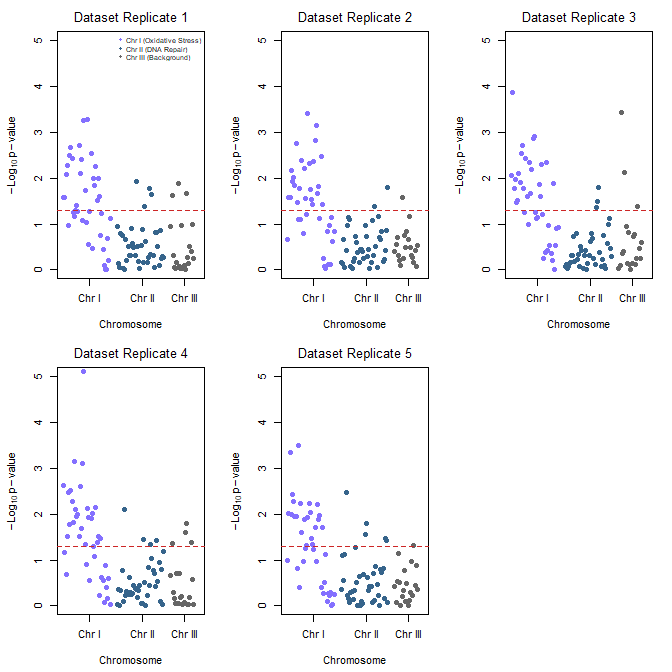
Figure 14. Manhattan plot, gene expression fold change on simulated stress test (NaCl, H2O2) yeast data sets, 100 genes (oxidative pathway, DNA repair pathway).
Looking over the plots (Fig 14) we see evidence of pathway clustering: By arranging the 100 genes sequentially across three chromosomes, we see distinct localized peaks rather than a random distribution of significant points. We also see chromosome hotspots: Chromosome I (Oxidative Stress genes) and Chromosome II (DNA Repair genes) display pronounced vertical clusters that reliably break through the red significance line across all five experimental replicates. This simulates a real-world genomic architecture where functionally related gene clusters or operon-like structures respond in unison to environmental shifts.
Conversely, Chromosome III (Background genes, ie, baseline Control) remained entirely flat and well below the significance threshold, validating that the observed stress responses are highly specific and not an artifact of global transcriptional runaway.
R code — with assistance from Gemini AI (Fall 2026) — for Manhattan plot.
# ==============================================================================
# 1. ASSIGN GEOMETRIC CHROMOSOME POSITIONS TO SIMULATED GENES
# ==============================================================================
# We will use the exact same 5 datasets generated in the previous step.
# To plot a Manhattan plot, every gene needs a Chromosome and a Base Pair (BP) position.

# Assign chromosomes:
# Chromosome 1: Genes 1-40 (Oxidative Stress pathway)
# Chromosome 2: Genes 41-80 (DNA Repair pathway)
# Chromosome 3: Genes 81-100 (Background/Control pathway)
chroms <- c(rep(1, 40), rep(2, 40), rep(3, 20))

# Assign incremental Base Pair positions along each chromosome
bp_positions <- c(seq(1000, 40000, length.out = 40),
seq(1000, 40000, length.out = 40),
seq(1000, 20000, length.out = 20))

# To make a continuous X-axis across multiple chromosomes, we calculate cumulative positions
chr_lengths <- c(45000, 45000, 25000)
chr_offsets <- c(0, cumsum(chr_lengths)[1:2])
coord_x <- bp_positions + chr_offsets[chroms]

# Calculate where the chromosome tick marks should sit on the X-axis (the midpoints)
chr_midpoints <- chr_offsets + (chr_lengths / 2)

# ==============================================================================
# 2. GENERATE MANHATTAN PLOTS FOR ALL 5 REPLICATES
# ==============================================================================
# Set up a clean 2x3 plotting grid to display all 5 replicates together
par(mfrow = c(2, 3), mar = c(4.5, 4.5, 2.5, 1.5))

# Standard scientific significance line (-log10(0.05) is ~1.3)
p_threshold <- 0.05
suggestive_line <- -log10(p_threshold)

for (d in 1:n_datasets) {
neg_log10_p <- -log10(all_pvals[, d])

# Alternating color scheme per chromosome to differentiate boundaries
# Chromosome 1 = Slate Blue, Chromosome 2 = Deep Blue, Chromosome 3 = Dark Grey
chr_colors <- c("lightslateblue", "steelblue4", "grey40")
col_vector <- chr_colors[chroms]

# Create the Manhattan plot grid
plot(coord_x, neg_log10_p,
col = col_vector,
pch = 19,
cex = 1.0,
xaxt = "n", # Suppress the standard numeric X-axis to draw custom Chromosome ticks
xlab = "Chromosome",
ylab = expression(-Log[10] ~ p - value),
main = paste("Dataset Replicate", d),
xlim = c(0, sum(chr_lengths)),
ylim = c(0, 5),
font.main = 1)

# Add the standard genome-wide significance horizontal threshold line
abline(h = suggestive_line, col = "firebrick3", lty = 2, lwd = 1.2)

# Draw the custom structural X-axis labeling the specific chromosomes
axis(1, at = chr_midpoints, labels = c("Chr I", "Chr II", "Chr III"))

# Add an explanatory legend to the first plot panel to map pathways to locations
if (d == 1) {
legend("topright",
legend = c("Chr I (Oxidative Stress)", "Chr II (DNA Repair)", "Chr III (Background)"),
col = c("lightslateblue", "steelblue4", "grey40"),
pch = 19,
cex = 0.65,
box.lty = 0,
bg = "transparent")
}
}

# Reset layout parameters back to default single screen layout
par(mfrow = c(1, 1))
About the R code.
The Genomic Peaks: Because these simulated Oxidative Stress genes sit together on Chromosome I and DNA Repair genes sit on Chromosome II, we see pronounced, beautiful vertical clusters extending upwards over the red significance line.
The Noise Flatline: Chromosome III hosts the background genes, creating a realistically flat landscape where points rarely cross the significance threshold.
Alternating Chromosome Tracks: Using the standard coordinate offset method, the data points stay organized left-to-right without overlapping.
Questions
- Using our Comet assay data set (Table 1, Chapter 4.2), create scatter plots to show associations between tail length, tail percent, and olive moment.
- Explore different settings including size of points, amount of white area, and scale of the axes. Evaluate how these changes change the “story” told by the graph.
Quiz Chapter 4.5
Scatter plots
Data sets
Number of pixels of 1 cm length from unit measure on ten digital images. Recorded by two independent observers, Obs1 and Obs2.
 Obs1, Obs2
171.026, 171.105
136.528, 138.521
148.084, 144.222
142.014, 140.057
150.213, 153.118
187.011, 195.092
168.760, 168.668
154.302 ,160.381
209.022, 209.876
240.067, 161.805
Gene expression
ccc
Chapter 4 contents