Jupyter notebook
Draft
Introduction
Jupyter notebook, python. A “web-based computational environment”
Project homepage: https://jupyter.org/
Besides the python kernel, Jupyter kernels include
Cytoscape
SageMATH
and, of course R, which along with python and Julia, is one of the core programming languages available in Jupyter. We present how to install the IRkernel on this page.
In the cloud
Access to Jupyter notebook was discussed for running R in the cloud.
Local installation
# install latest python 3.12.4
# https://www.python.org/
# https://www.python.org/downloads/windows/
# macOS universal installer
# https://www.python.org/downloads/macos/
# default python on macOS
# see how to bash alias at https://stackoverflow.com/questions/18425379/how-to-set-pythons-default-version-to-3-x-on-os-x
# Open terminal
python3 –version
python3 -m pip –version
# pip3 install jupyterlab
pip install jupyterlab
jupyter lab
browser opens http://localhost:8888/lab
Install IRkernel from CRAN
# Run R in terminal as administrator
sudo R
# At R prompt enter
install.packages(“IRkernel”)
# Making the kernel available to Jupyter
IRkernel::installspec(user = FALSE)
Run R as Jupyter Notebook
In the terminal (Fig 1), type at the bash shell line
jupyter lab
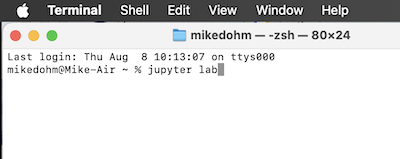
Figure 1. Screenshot of macOS terminal with command to start Jupyter lab.
Set working drive, then load kernel. Select the R kernel and create a new Notebook, Figure 43 (ie. don’t select a Console, Fig 2).
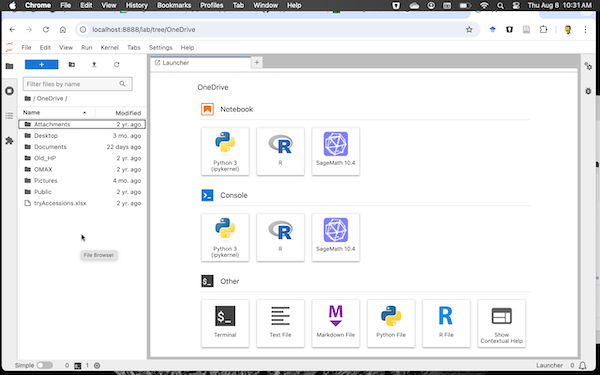
Figure 2. Screenshot of Jupyter Lab. Select R icon under Notebook to set IRkernel.
Ready to go, Figure 3.
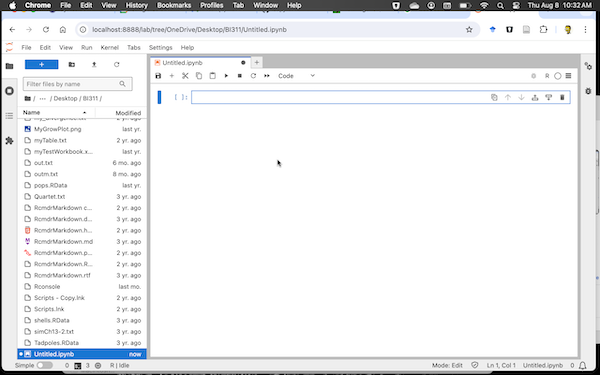
Figure 3. Screenshot of Jupyter Notebook running the IRkernel.
Set the runtime to R (Fig 4).
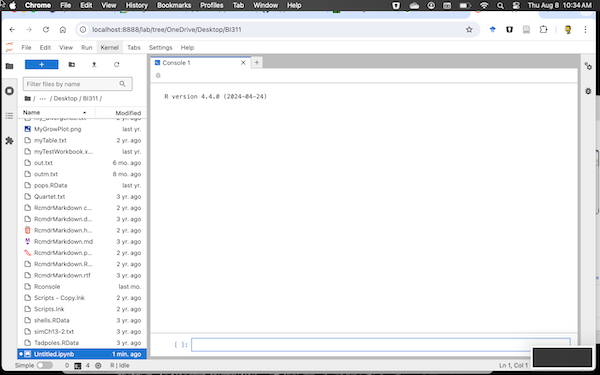
Figure 4. Screenshot of Jupyter Console running R.
It’s easy to switch kernels. Let’s say you started Jupyter Lab and notice that Python is running (Fig 5). Click on the kernel name — see green arrow in Figure 5 — to bring up a popup menu, Fig 6.
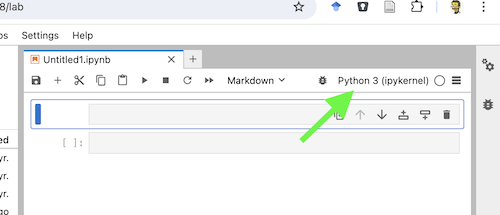
Figure 5. Screenshot of Notebook with Python set as kernel.
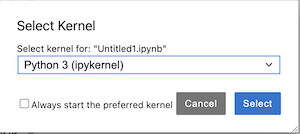
Figure 6. Screenshot of select kernel popup menu.
Click on the drop arrow and select R kernel (Fig 2), then click on blue Select button (see Figure 7).
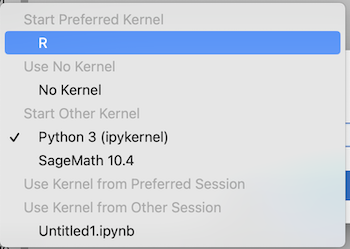
Figure 7. Screenshot of installed kernels.
Confirm R is running (Fig 8, green circle).
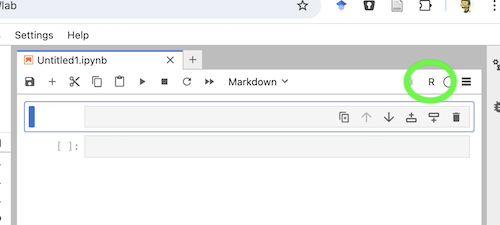
Figure 8. Screenshot Jupyter Notebook, confirm R runtime is set (green circle).
References and additional resources
Kluyver, T., Ragan-Kelley, B., Pé, Rez, F., Granger, B., Bussonnier, M., Frederic, J., Kelley, K., Hamrick, J., Grout, J., Corlay, S., Ivanov, P., Avila, D., n, Abdalla, S., Willing, C., & Team, J. D. (2016). Jupyter Notebooks – a publishing format for reproducible computational workflows. In Positioning and Power in Academic Publishing: Players, Agents and Agendas (pp. 87–90). IOS Press. https://doi.org/10.3233/978-1-61499-649-1-87
JupyterLab Developers. (Ongoing). JupyterLab Documentation. jupyterlab.readthedocs.io
Project Jupyter. (Ongoing). Project Jupyter Documentation. docs.jupyter.org
/MD